Draft — being checked against the app
The request screen and referrals
Everything about one visit on one screen, recording the referral date, and scanning referral documents.
A request is one referral for a patient: the services asked for, the appointments booked for them, the report and the bill. Open a request from the appointment book, the patient's record, 'Requests' in the sidebar, or the search box at the top of the page.
The tabs
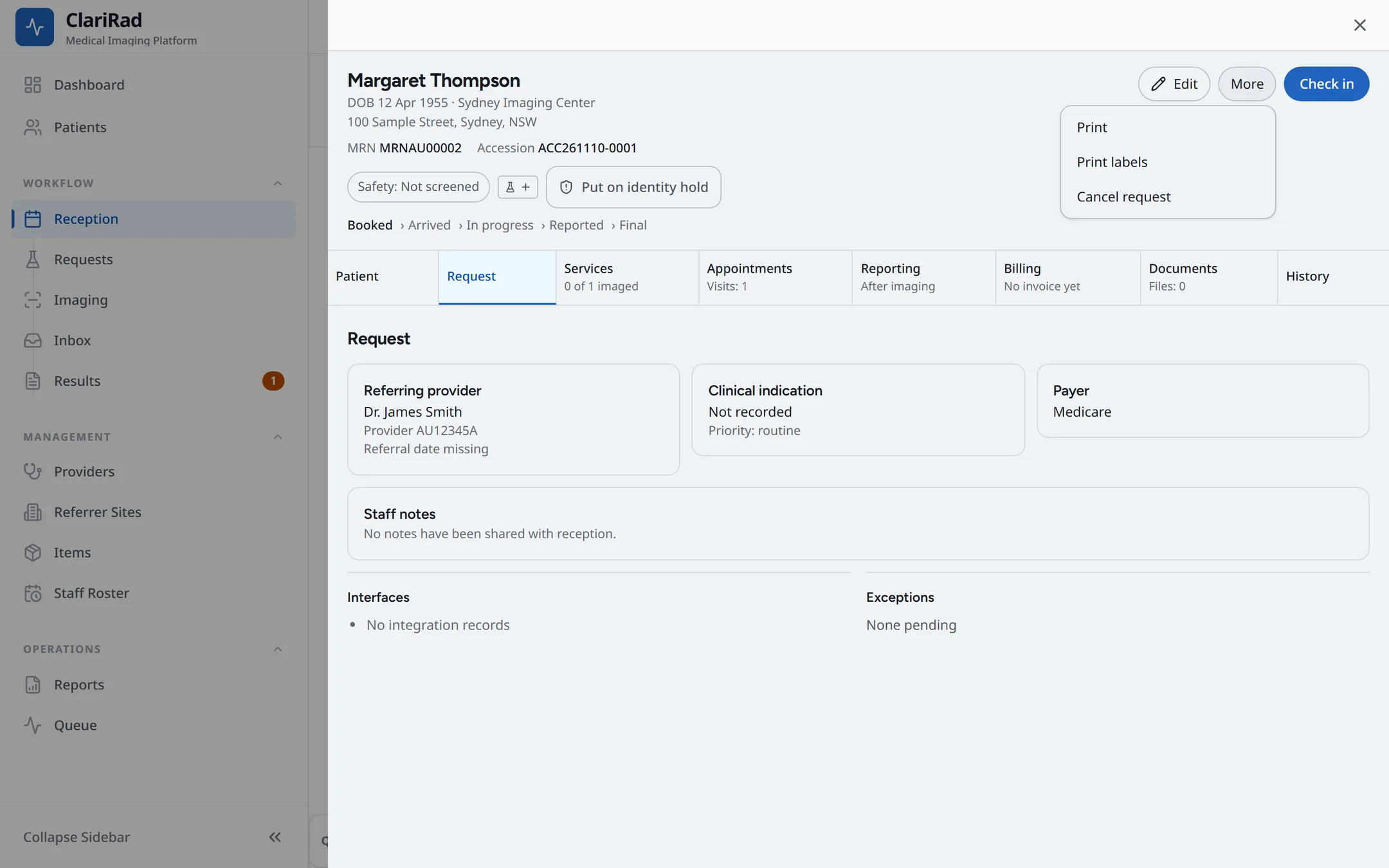
If your practice has the request screen turned on, a request opens with these tabs: 'Patient', 'Request', 'Services', 'Appointments', 'Reporting', 'Billing', 'Documents' and 'History'. Practices without it see the older request form, which holds the same information on one page.
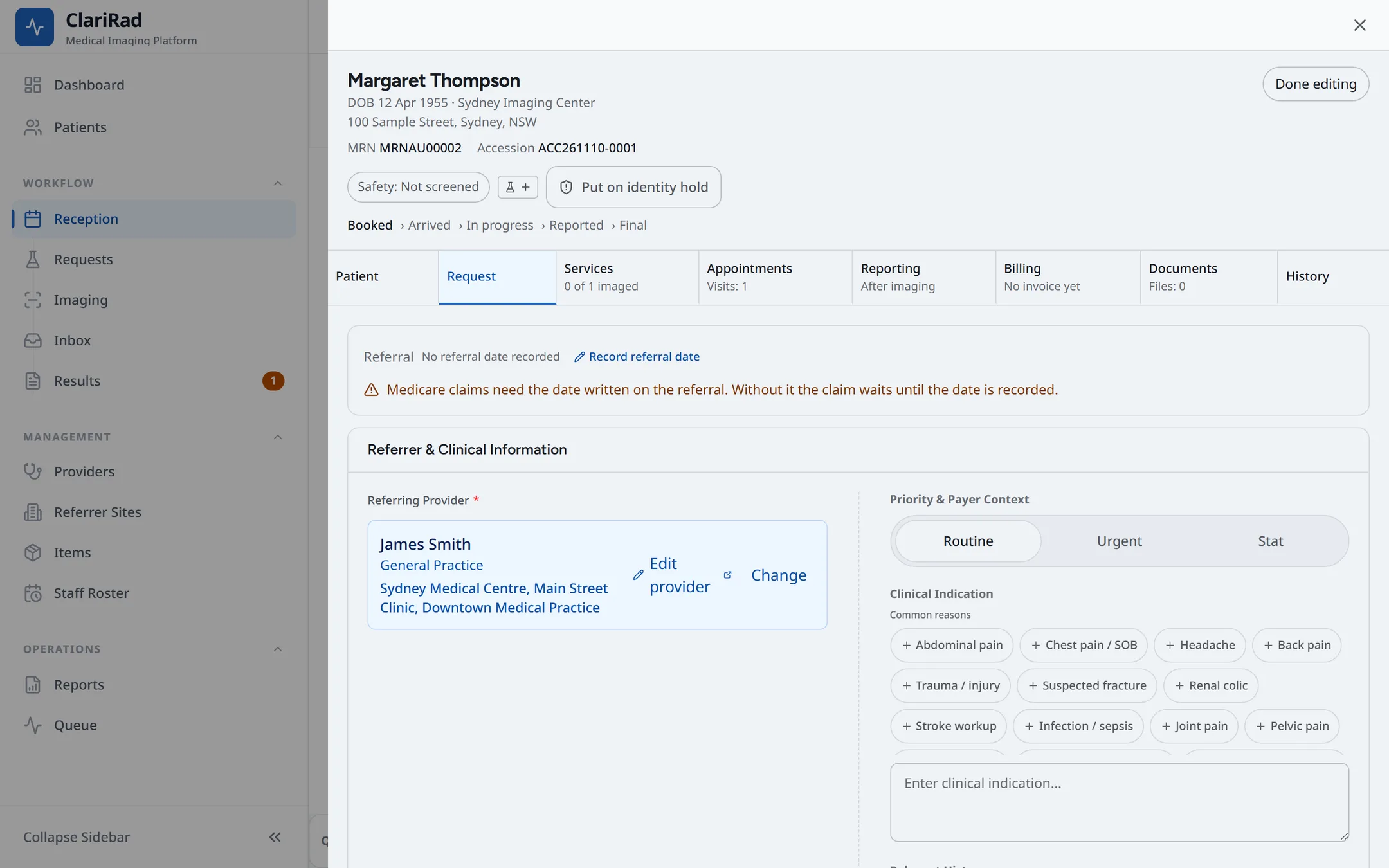
- 'Request' holds the 'Referring provider', the referral date, the 'Payer', the 'Clinical indication' and the 'Priority'.
- 'Billing' is where you take a payment. See Taking payments and the cash drawer.
- 'Documents' holds the scanned referral and other paperwork.
- 'History' shows who changed what, and when.
Recording the referral date
The referral date decides when a referral runs out. The 'Request' tab shows a badge with its state:
- 'Valid until' a date: the referral is current.
- 'Expires' a date: it runs out within 30 days.
- 'Expired' a date: it has run out.
- 'No referral date recorded': nobody has entered the date yet.
- On the 'Request' tab, choose 'Record referral date' (or 'Change referral date'). A date field opens in place, with 'Save' and 'Cancel'.

- Enter the date written on the referral. It cannot be in the future or more than two years ago.
How long a referral lasts is set by your practice, separately for GP and specialist referrals. Until an administrator sets those periods, referrals are not treated as expiring. If a booking is later than the referral allows, you are warned 'Referral expires before the appointment'.
Adding the referral document
- Open the 'Documents' tab.
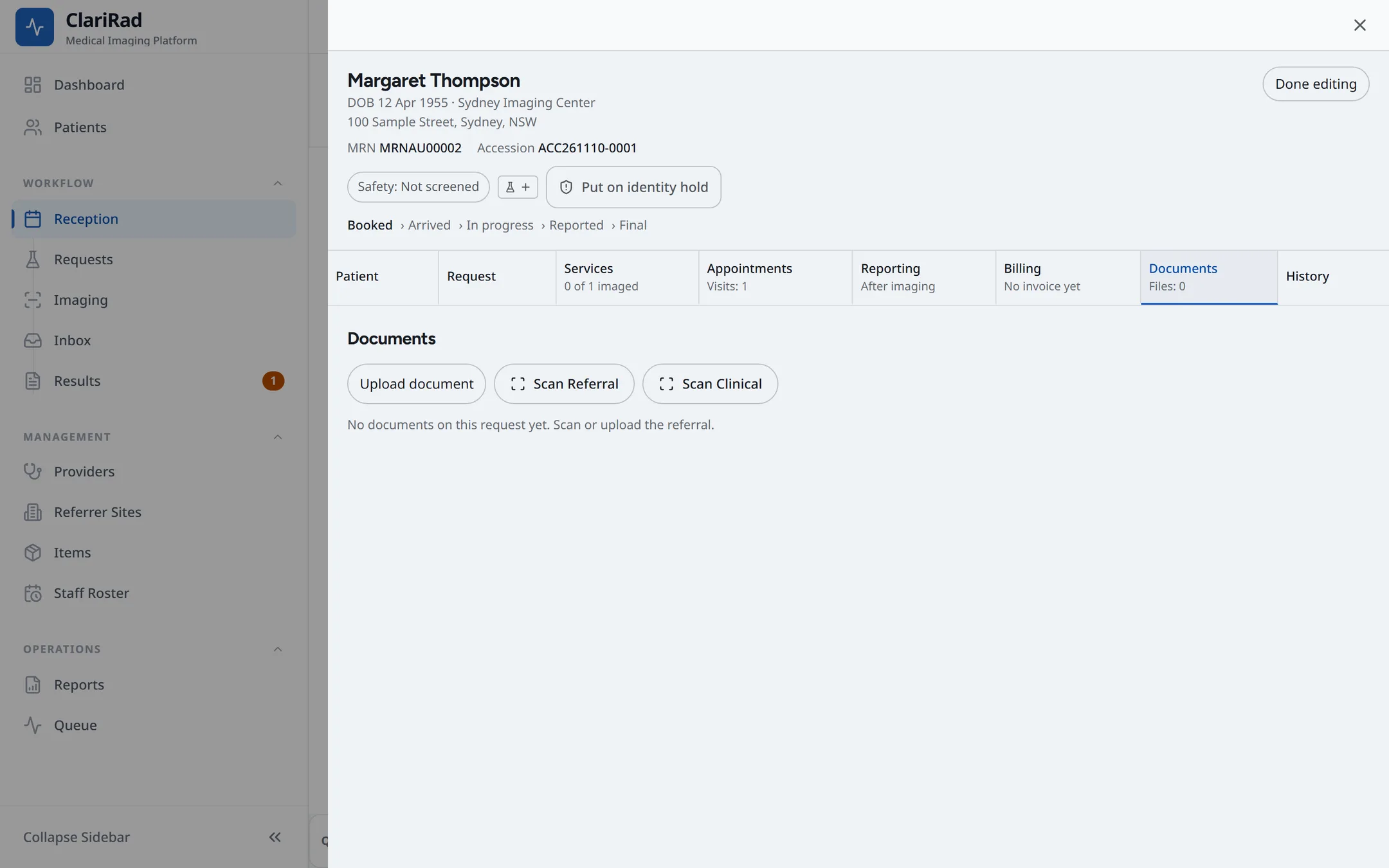
- Choose 'Scan Referral' to capture it with a camera, or 'Upload document' to add a file you already have.
- Use 'Scan Clinical' for other clinical paperwork.
Other things you can do
- 'Open in PACS' opens the study in your practice's image viewer, once it has been imaged.
- 'Print labels' from the 'More' menu prints patient and service labels. A request opens for editing: choose 'Done editing' to see the 'More' menu.
- 'Put on identity hold' stops a study that may be under the wrong patient. See Patient alerts and identity holds.