Draft — being checked against the app
Roles and permissions
What each staff role is for, and how an administrator changes what a role can see and do.
Every staff account has one role. The role decides which screens appear in the sidebar and what the person can change. Practice administrators set roles when they add a user in Settings, under 'User Management'.
The roles
- 'Owner' and 'Admin': run the practice account. They can change settings, users and permissions.
- 'Practice Manager': day-to-day management. Can open Settings and read finance and analytics.
- 'Reception' and 'Clerical': front desk. Bookings, arrivals, callbacks, payments at the desk. They see final reports only.
- 'Radiographer', 'Sonographer', 'Technician', 'Nurse' and 'Chief Tech': perform exams. Radiographers and sonographers can draft reports for a radiologist to sign.
- 'Radiologist', 'Senior Radiologist', 'Cardiologist' and 'Registrar': report and sign.
- 'Transcriptionist': types dictated reports.
- 'Finance': invoices, payments and claims.
- 'Rostering': staff rosters.
Changing what a role can do
An administrator can adjust each role's access, module by module, in Settings, under 'Organization', then 'Role Permissions'. Each module (for example 'Reception', 'Patients', 'Requests', 'Results', 'Finance', 'Analytics', 'Settings') has four permissions: 'View', 'Create', 'Edit' and 'Delete'.
- Open your user menu, choose 'Settings', then the 'Role Permissions' card.
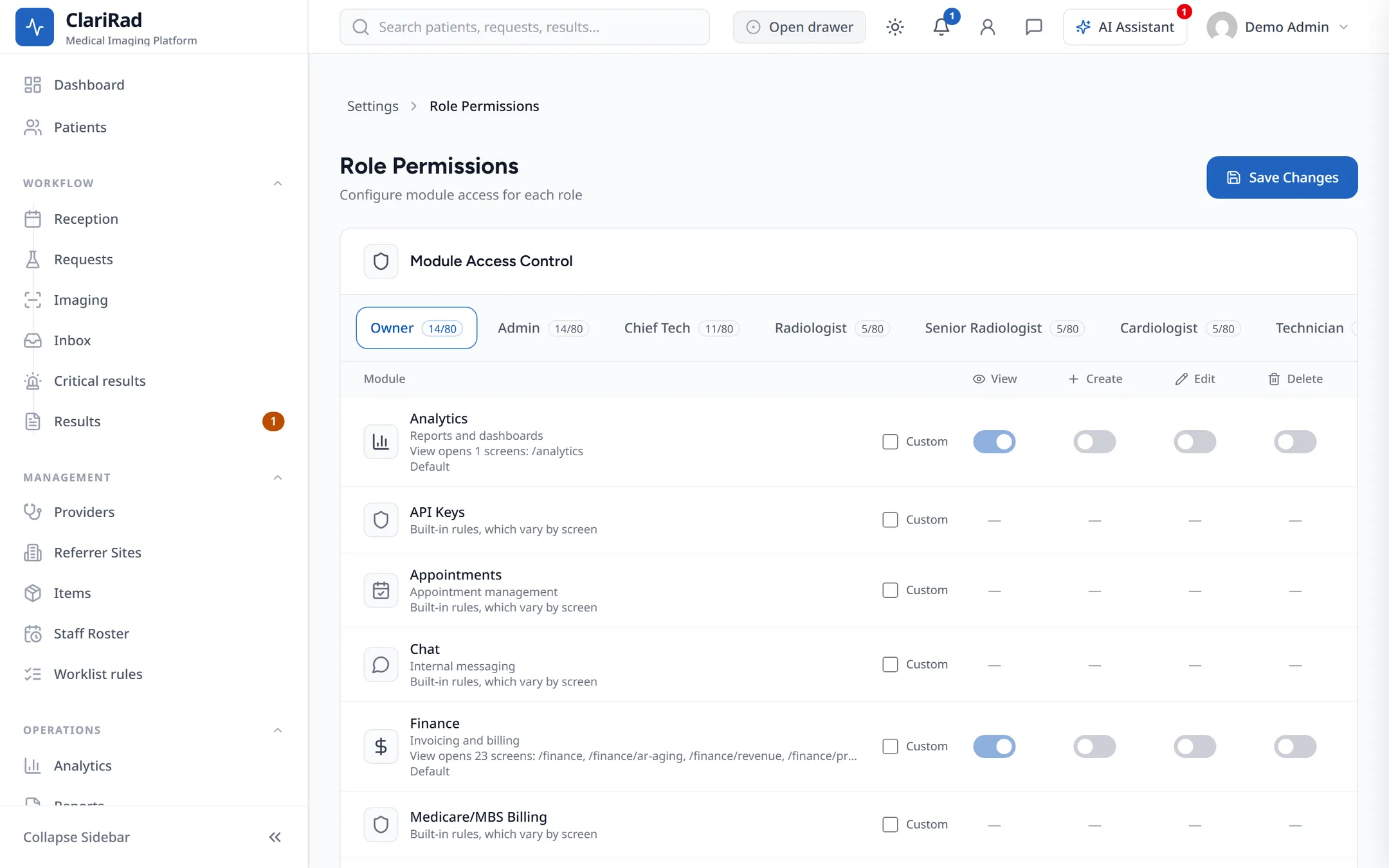
- Find the role and the module. Click a tick to turn a permission on or off. 'Grant all' and 'Revoke all' change a whole row.
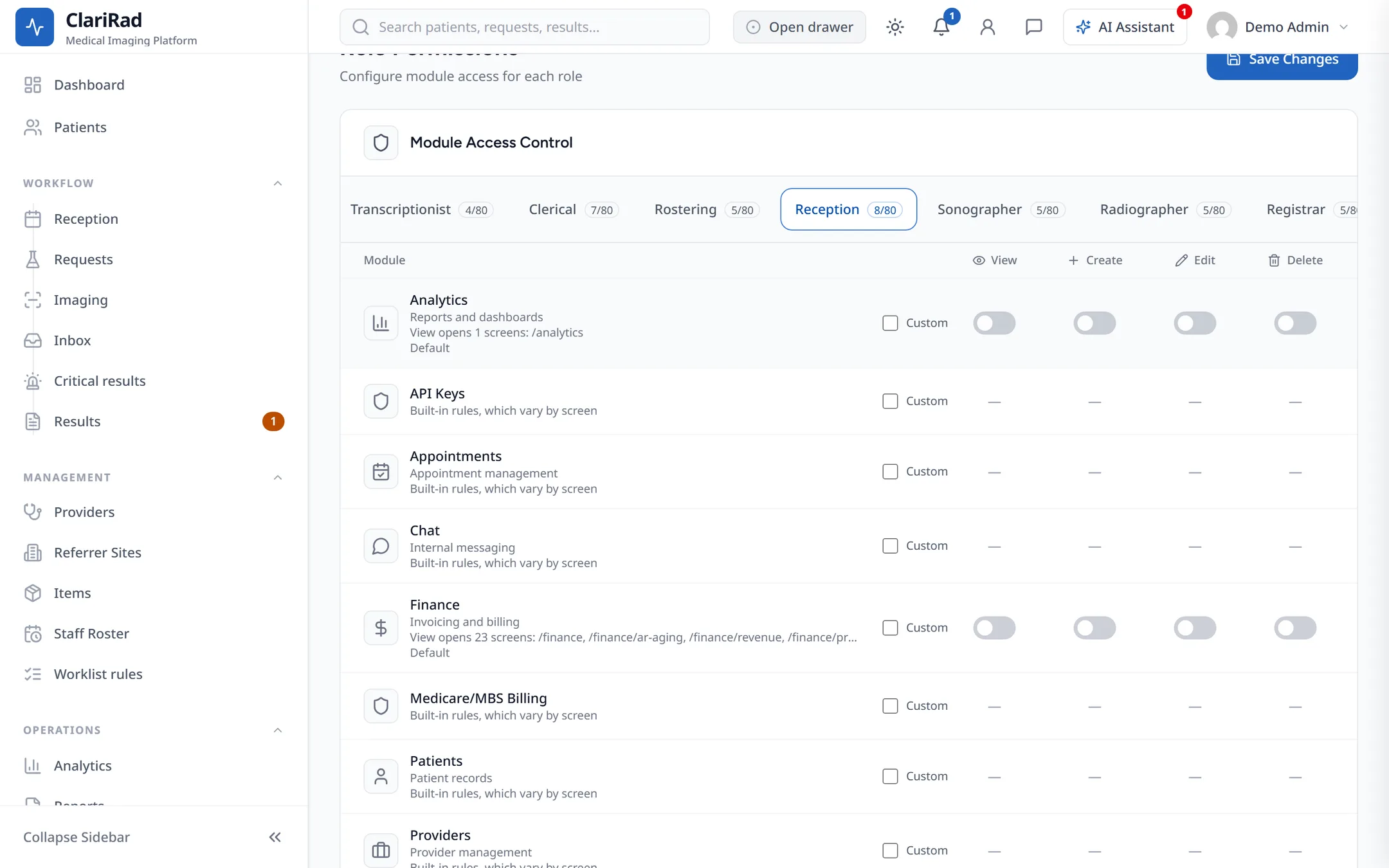
- Choose 'Save Changes'. You will see 'Permissions saved successfully'.
Each cell shows whether it is the 'Default' or 'Custom for this role'. Hover over a 'View' permission to see which screens it opens.
Checks that need a second person
A few changes are too important for one person. Merging two patient records, for example, needs one administrator to request it and a different administrator to confirm it. See Merging duplicate patients.