Draft — being checked against the app
Notifications and the inbox
The bell in the header for arrivals and alerts, and the Inbox for orders and pathology results.
The bell
The bell at the top of every page collects your notifications. The number on it is how many you have not read. Notifications arrive as they happen, for example a patient arriving (including arrivals at a kiosk), an appointment running overdue, a result ready or a new callback.
- Choose the bell to open the list. Notifications are grouped by Today, Yesterday, This week and older.
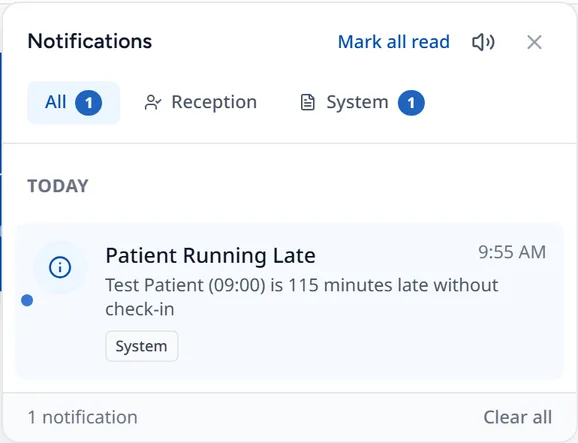
- Use 'All', 'Reception' or 'System' to filter.
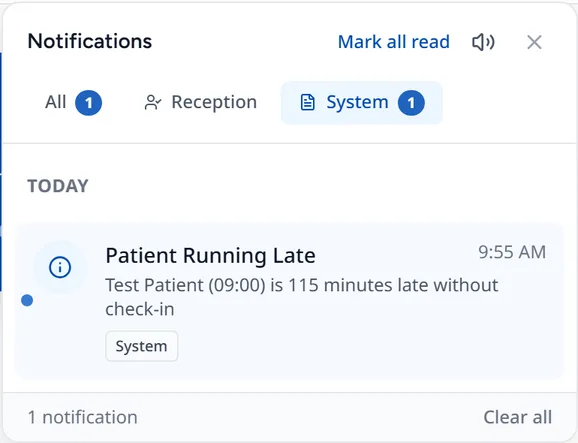
- Click a notification to go to the patient, appointment or request it is about.
- Use 'Mark all read' or 'Clear all' to tidy the list.
The speaker button turns notification sounds on or off on this computer. If you see 'Live updates paused — reconnecting...', your connection dropped. It reconnects on its own; refresh the page if it does not.
The Inbox
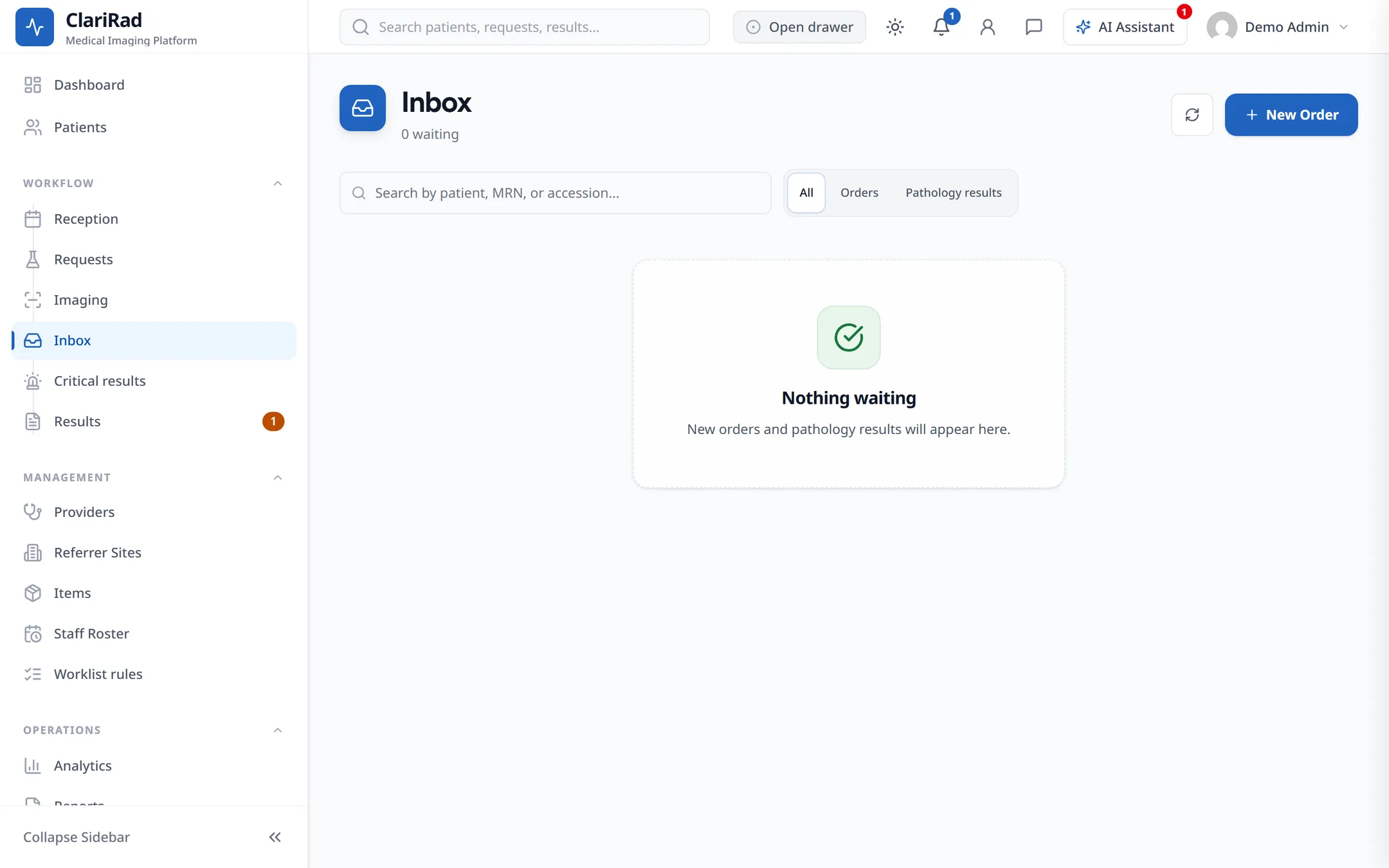
'Inbox' in the sidebar lists work that has arrived from outside the practice and needs someone to act on it. The number beside it is how many items are waiting.
- Orders: requests sent in electronically, for example by a referrer's system. Choose 'Accept' to accept and process the order, or open it to look first.
- 'Pathology results': results sent in by a pathology lab that need filing against the right patient. Each shows how many patients Clarirad suggests, or 'No suggested patient'. Abnormal results are marked 'Abnormal'.
Use 'All' and 'Orders' to switch between kinds, and 'Search by patient, MRN, or accession...' to find one item. When nothing is waiting the Inbox says 'Nothing waiting'.
Filing pathology results automatically
An administrator can turn on 'File results automatically' at the top of the pathology list. A result is then filed with nobody checking it only when its Medicare number or IHI, date of birth and first name lead to exactly one patient. Everything else stays in the Inbox for a person.
