Draft — being checked against the app
Printing patient labels
Print patient and service labels to any printer or a Zebra label printer, and set up labels for a site.
Labels go on forms, specimen containers and films. There are two kinds: a patient label, and a service item label for each service on the request.
Printing labels
- Choose 'Print labels' from the 'More' menu on the request (choose 'Done editing' first if the request is open for editing). If your site offers labels at arrival, the window opens by itself after you arrive the patient.
- Tick 'Patient label' and the 'Service item labels' you need.
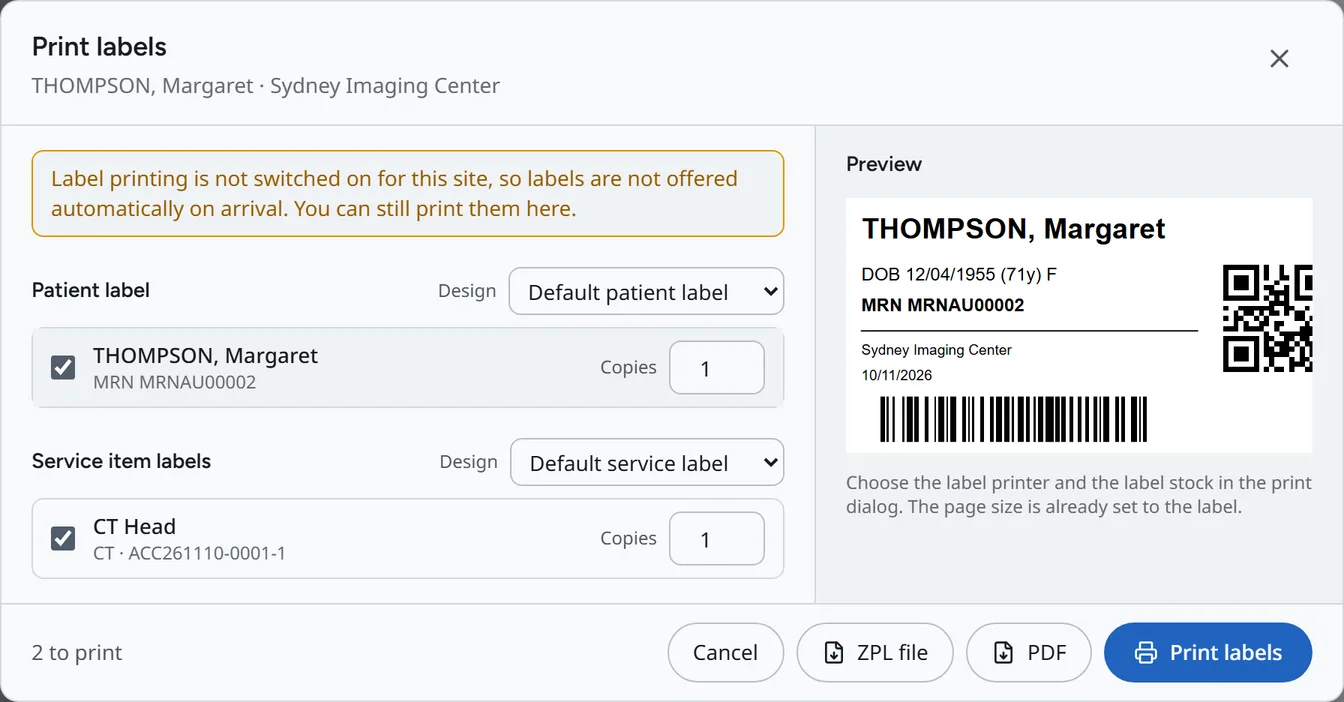
- Set the number of 'Copies'.
- Choose 'Print labels' to print through your browser, 'PDF' to save a file, or 'ZPL file' for a Zebra label printer.
'Print labels' opens your browser's print window: pick the label printer there. A ZPL file is sent to a Zebra thermal printer using your printer's own tools.
Wristbands
The quick actions bar on the Reception screen has 'Print Wristband', which also prints through your browser.

Setting up labels for a site
A practice manager or administrator sets up labels in Settings, under 'Labels', for each site:
- 'Print labels at this site' turns label printing on.
- 'Offer the labels when a patient arrives' opens the label window after each arrival.
- 'Label printer' is 'Any printer (browser print)' or 'Zebra thermal (ZPL)'. For Zebra, set the 'Printer resolution' too.
- The default number of copies.
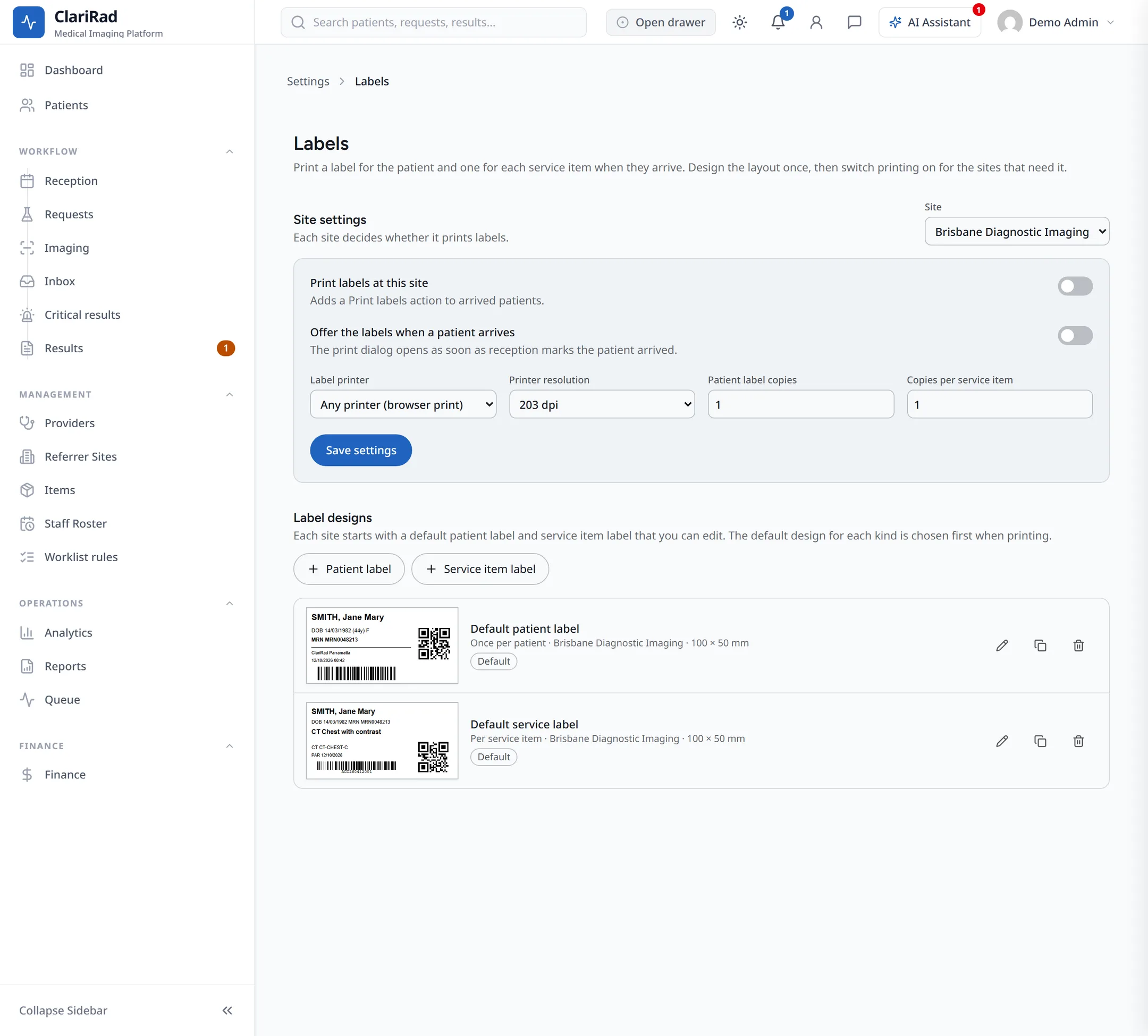
Each site starts with a default patient label design and a default service item label design, marked 'Default'. The default design is picked first when you print.