Draft — being checked against the app
Taking payments and the cash drawer
Record a payment at the desk, open the cash drawer with a float, and count and close it at the end of the day.
Taking a payment
- Open the patient's request and go to the 'Billing' tab.
- If there is no invoice yet, choose 'Create invoice'. It is there for finance staff and practice managers; reception roles do not see it.
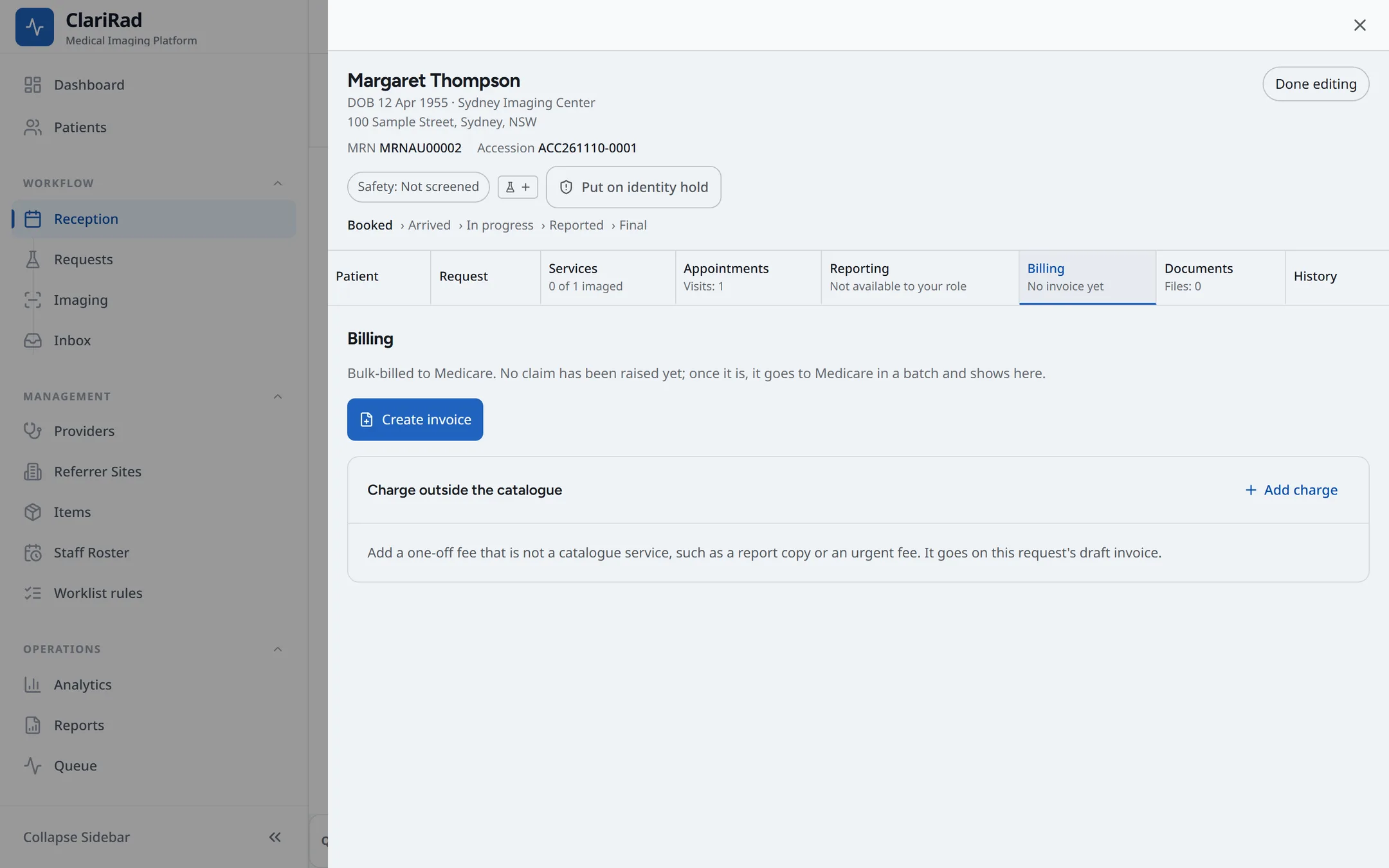
- Choose 'Take payment'.
- Pick the 'Method': Cash, EFTPOS, Credit card or Bank transfer, and enter the 'Amount'.
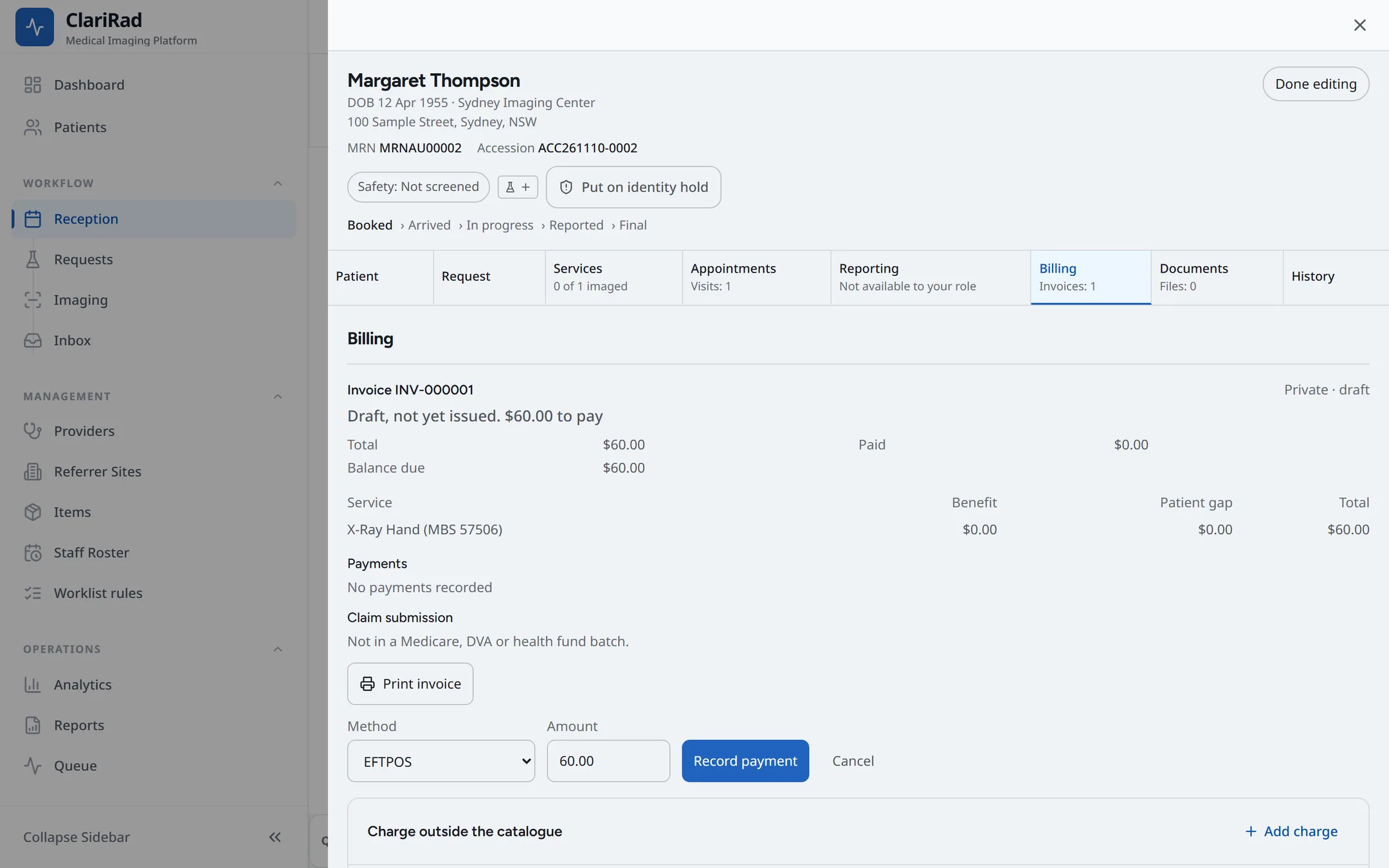
- Choose 'Record payment'.
Use 'Print invoice' if the patient wants a copy.
Opening the cash drawer
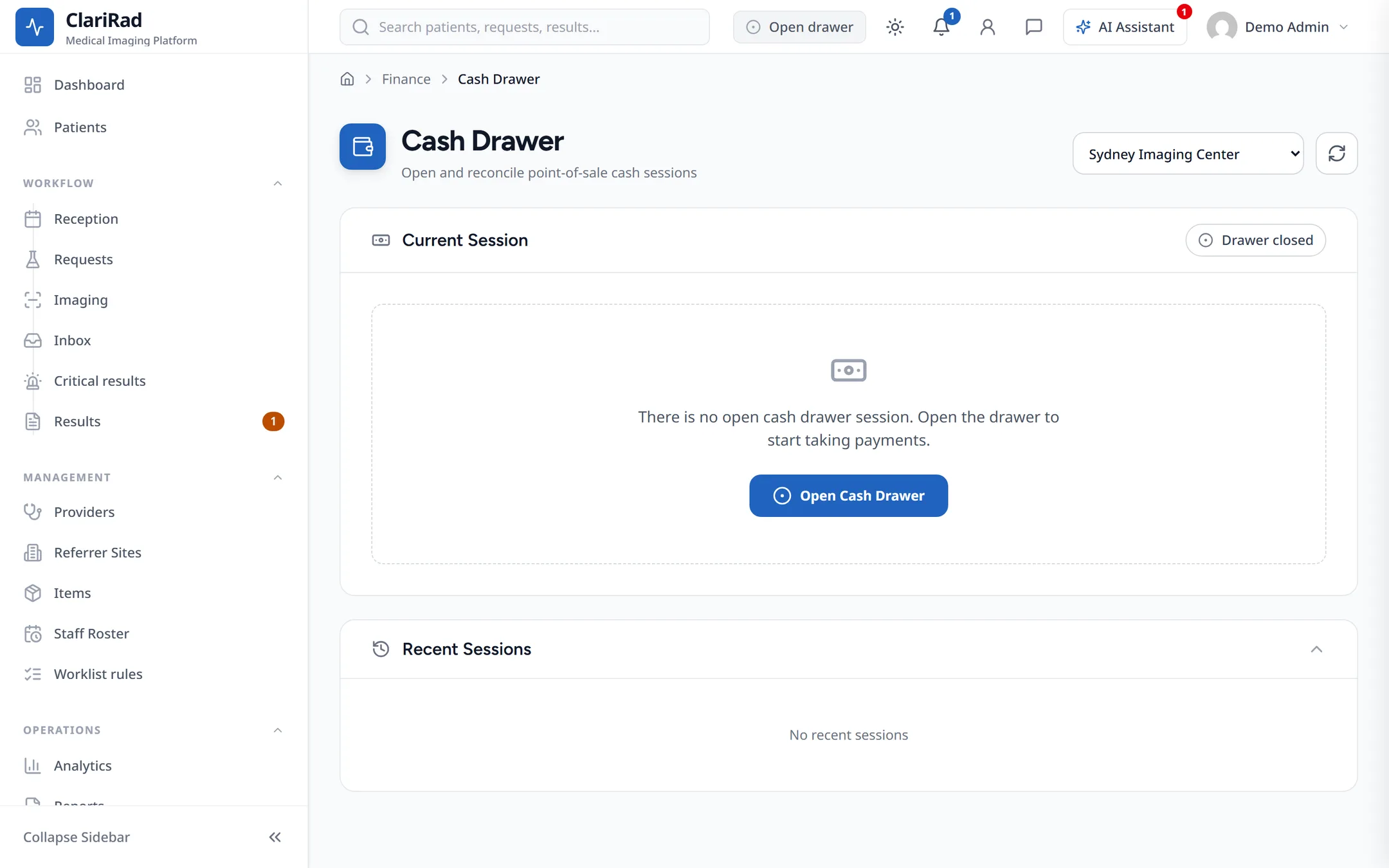
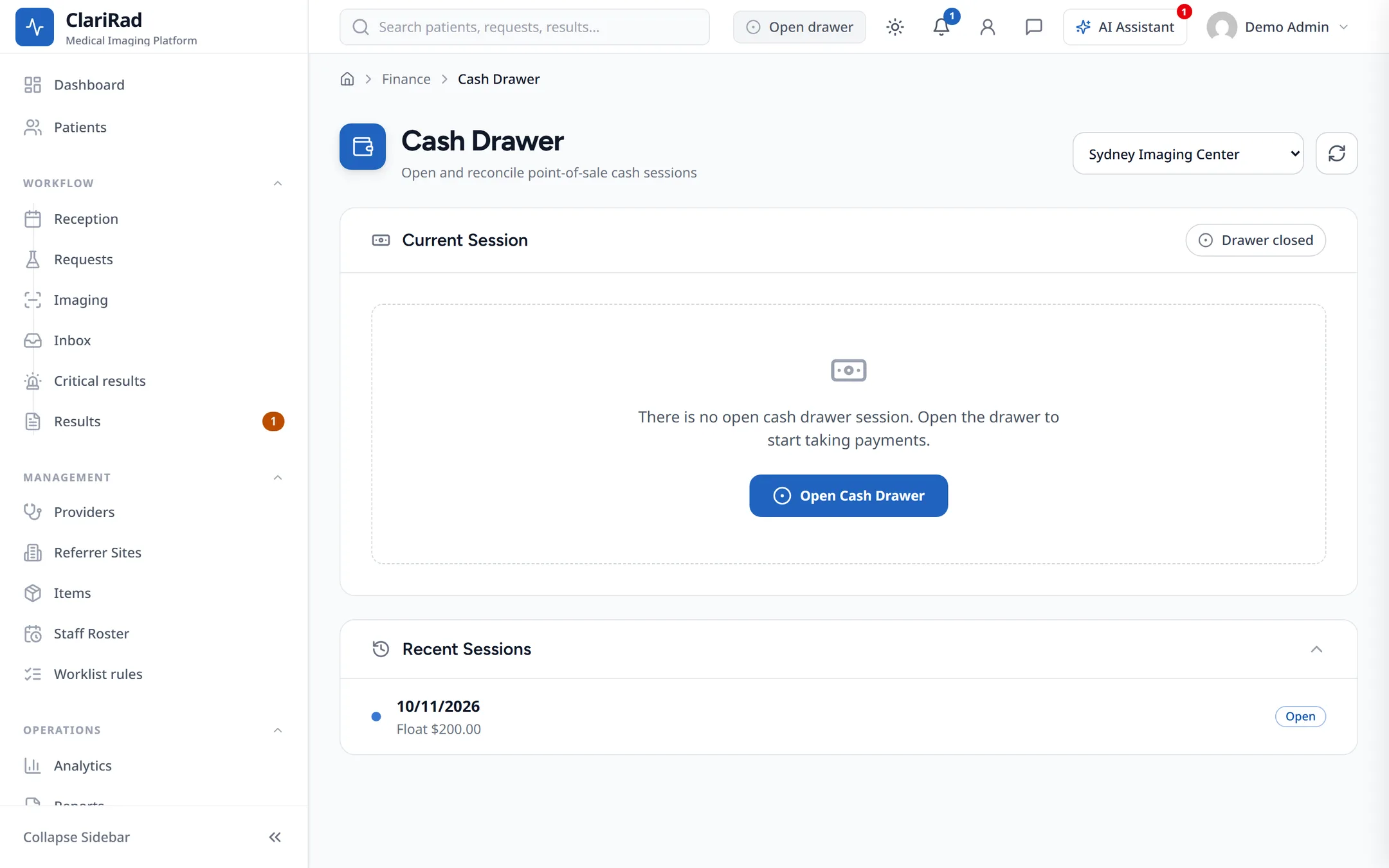
If your site uses a cash drawer, the bar at the top of the page shows 'Open drawer' until one is opened, then 'Drawer open'. Clicking it takes you to the 'Cash Drawer' page.

- On the 'Cash Drawer' page, choose 'Open Cash Drawer'.
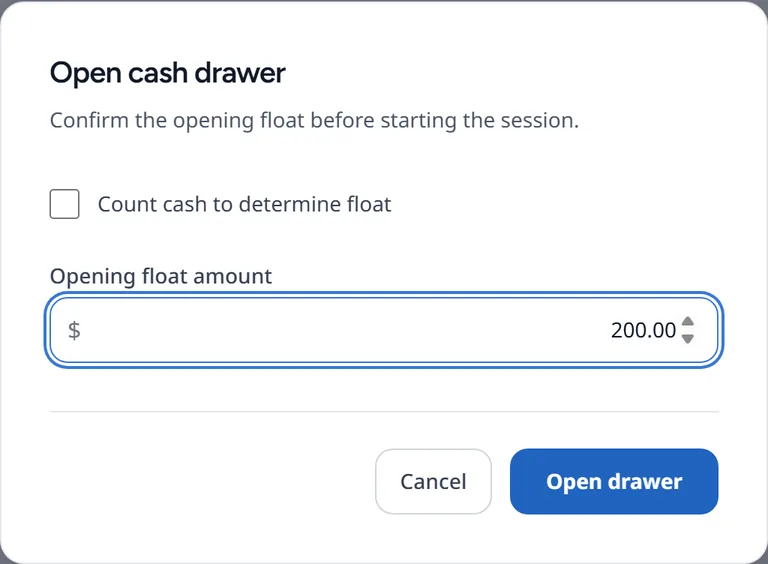
- Count the float and enter it as the 'Opening float amount'.
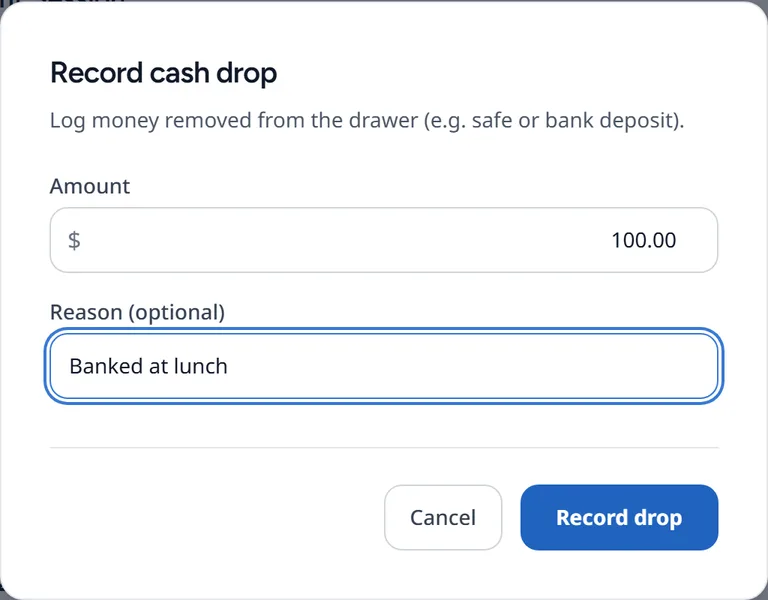
During the day, use 'Record Cash Drop' when you take cash out of the drawer to the safe, so the expected total stays right.
Closing and reconciling
- At the end of the day, choose 'Close Drawer'.
- Under 'Cash count by denomination', count the notes and coins.
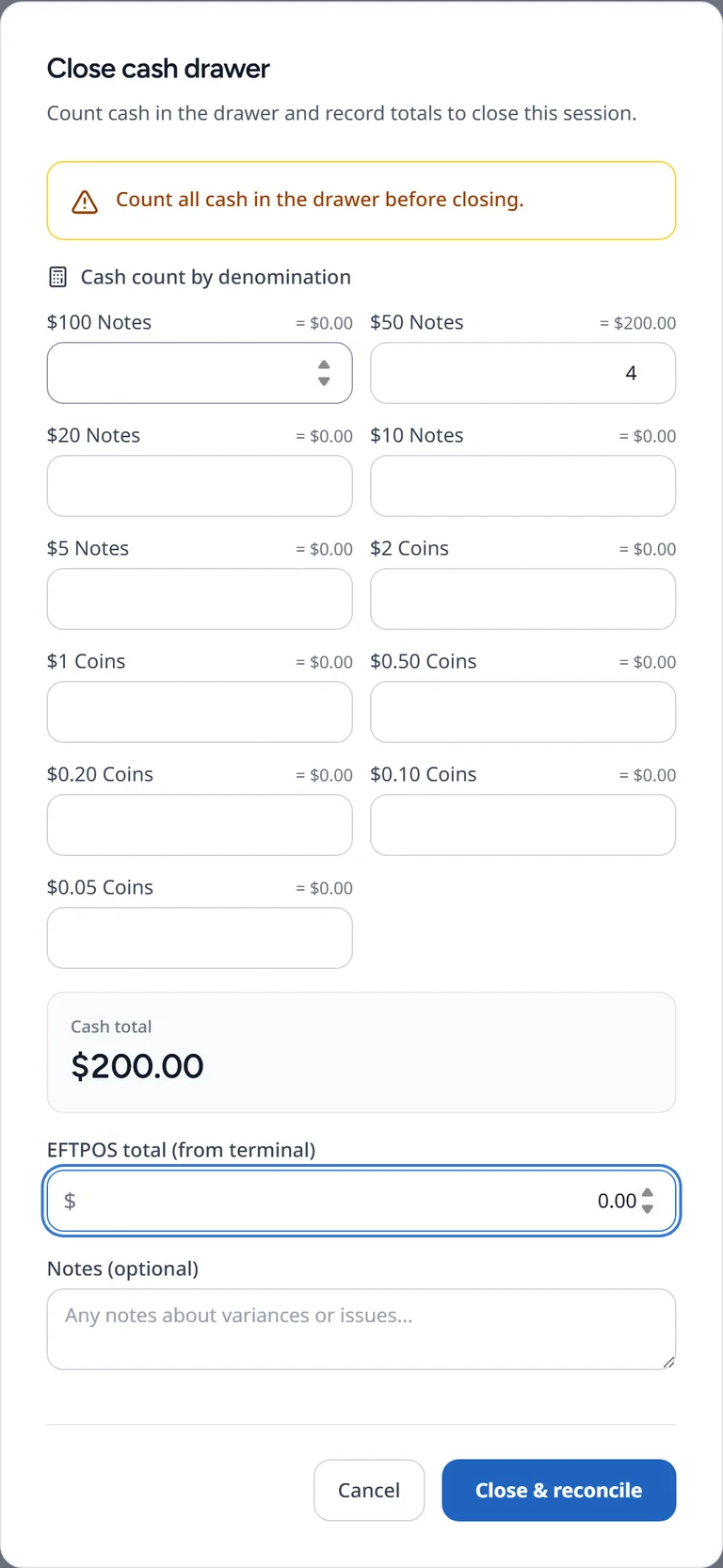
- Enter the 'EFTPOS total (from terminal)' from your terminal's settlement slip, and any notes.
- Choose 'Close & reconcile'. You will see 'Cash drawer closed and reconciled'.
'Recent Sessions' lists each day's drawer with its status ('Open', 'Closed' or 'Reconciled'), the 'Expected cash', what was 'Counted', and the 'Variance': balanced, 'Over' or 'Short'. The EFTPOS variance is shown separately.
Who can use the drawer
Reception, finance staff, practice managers and administrators can open and close a drawer. The 'Cash Drawer' page itself is part of 'Finance'; if it will not open for you, ask an administrator to check your role's permissions.