Draft — being checked against the app
Labels and printing
Design patient and service labels, print them on arrival, and choose what prints where.
Labels
Labels are set up in Settings, Scheduling, Labels. Admins design them; front desk staff print them.
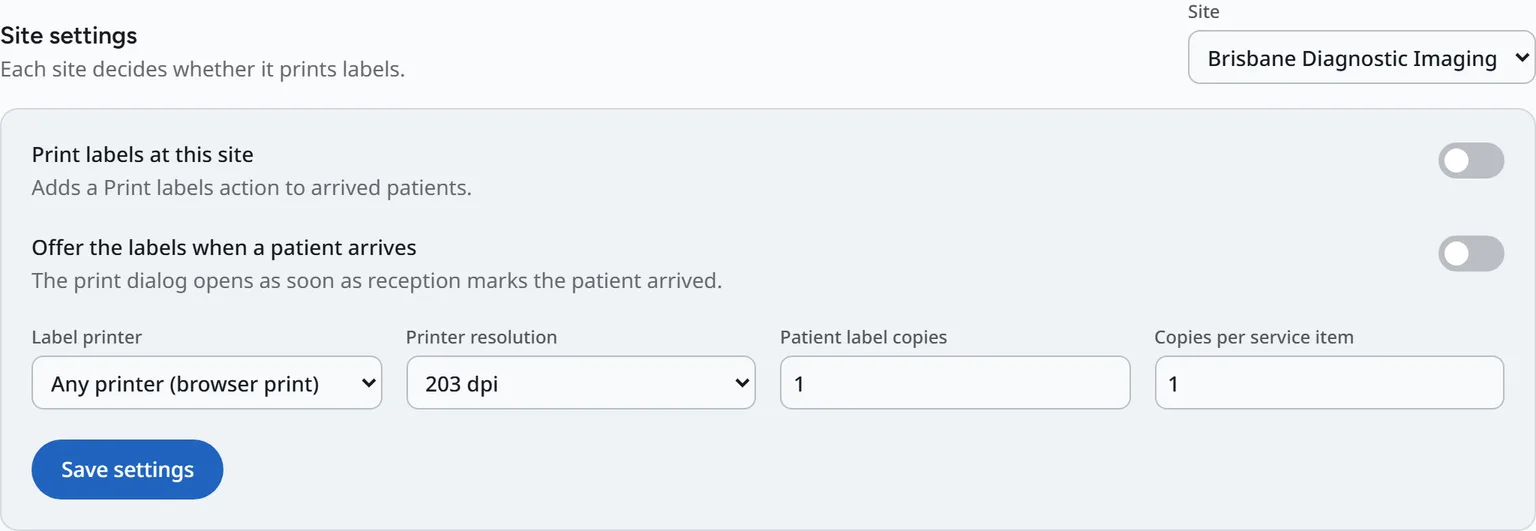
Site settings
For each site, choose:
- Print labels at this site.
- Offer the labels when a patient arrives.
- Label printer: Any printer (browser print) or Zebra thermal (ZPL), and the printer resolution.
- Patient label copies and Copies per service item.
Press Save settings.
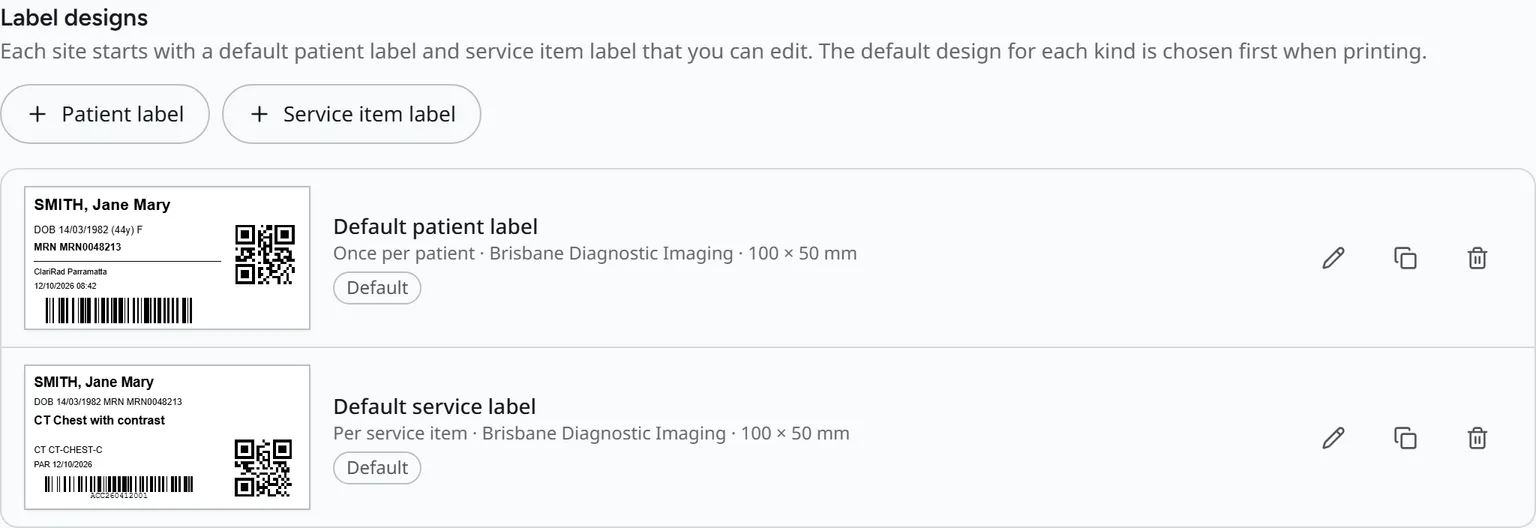
Label designs
There are two kinds of label: a Patient label, printed once per patient, and a Service item label, printed for each service. Press Edit, Duplicate or Delete on a design, or create a new one.
- Give the design a name and choose what it prints: Once per patient or Per service item.
- Choose which sites it is available at, and whether it is used by default.
- Add elements: Text, Barcode, QR code, Line or Box.
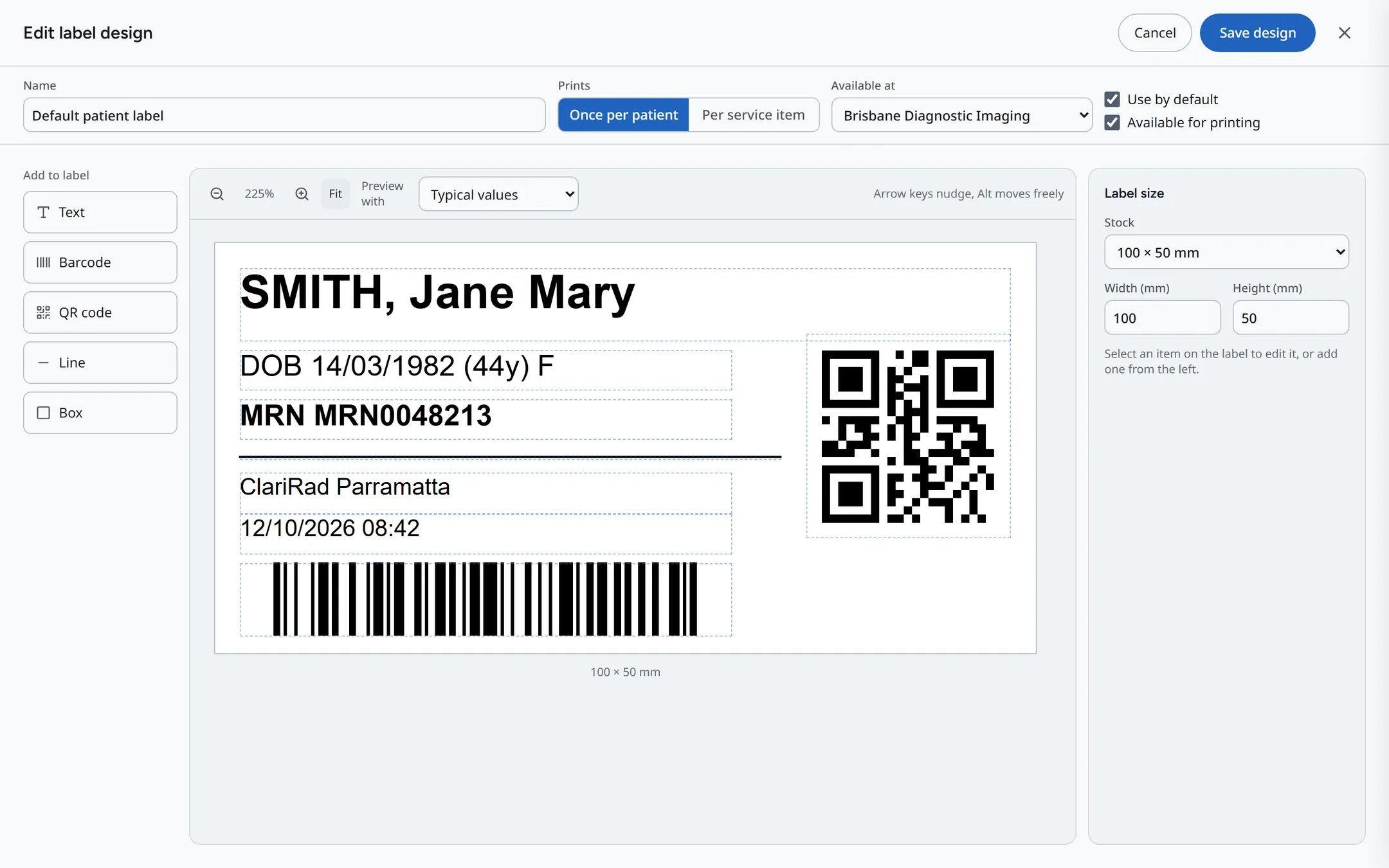
- Press Save design.
Printing on arrival
If the site offers labels on arrival, checking a patient in opens Patient arrived: print labels. Choose Print, download a ZPL file or a PDF, or Skip.
Printers for documents
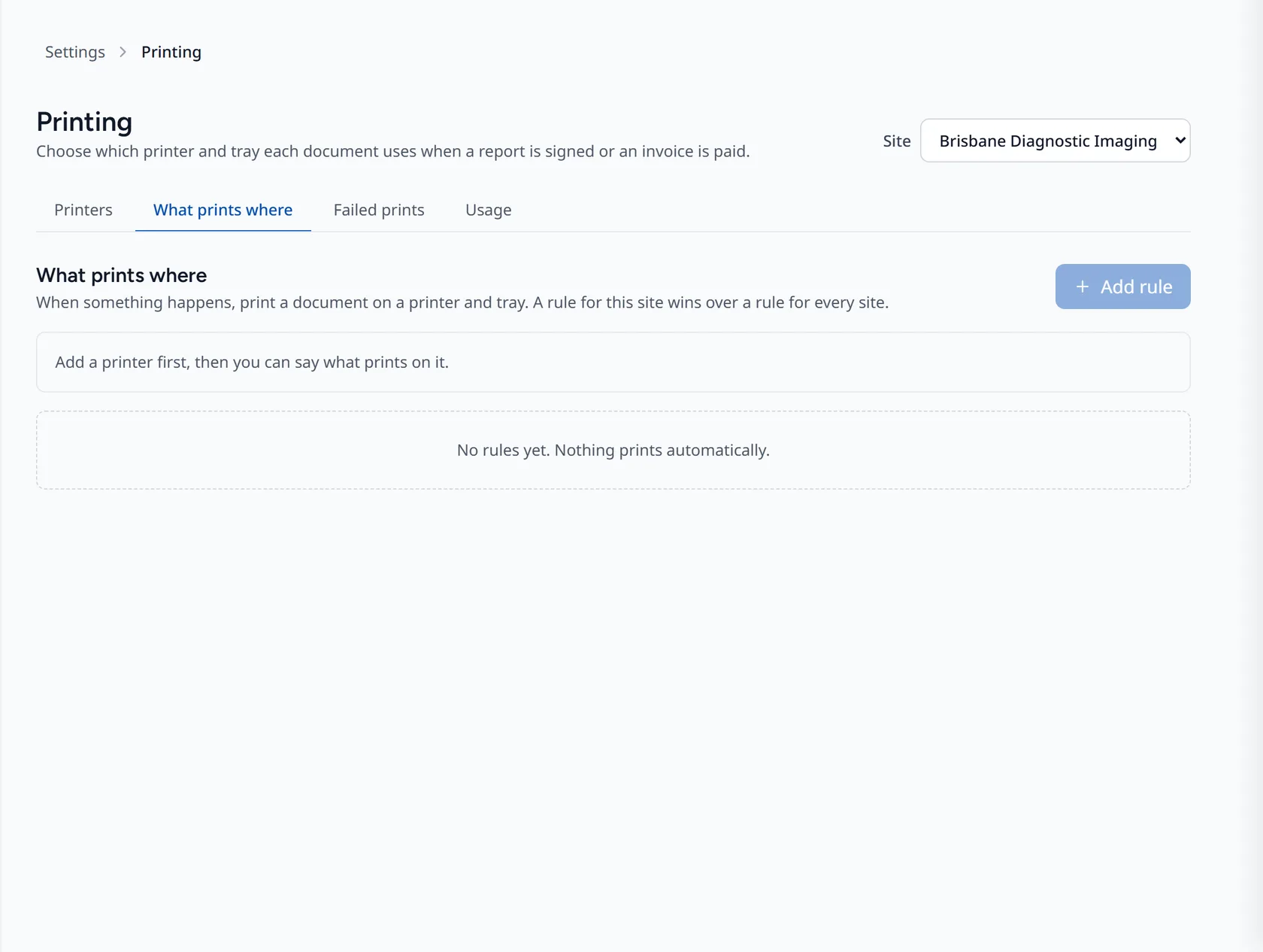
Settings, Integrations, Printing sets up printers connected through the Clarirad site agent, which runs on a computer at the site. Its tabs are:
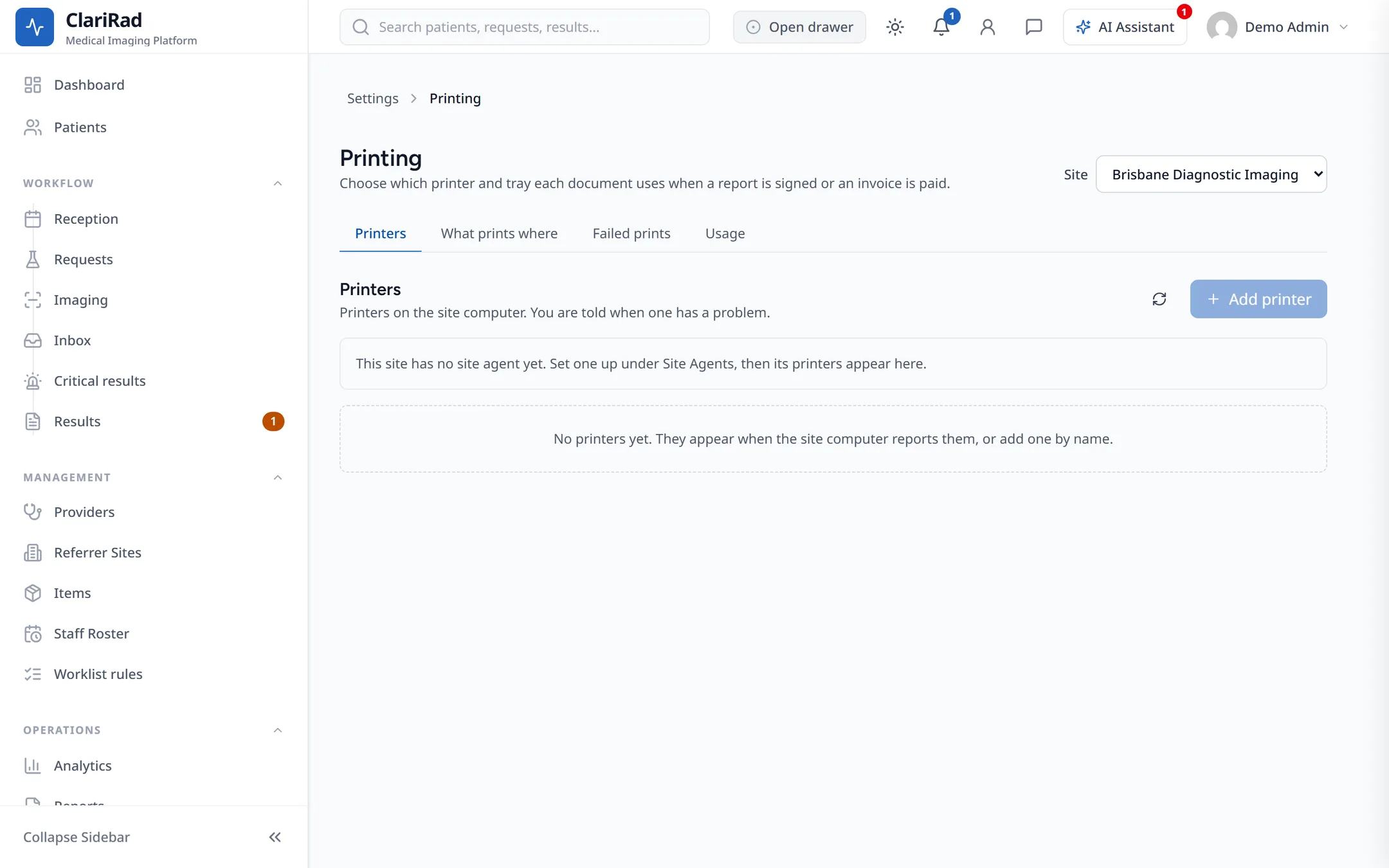
- Printers: add and remove printers. Each shows Ready, Problem, Offline or Not reported yet.
- What prints where: which printer gets signed reports, receipts, invoices and referral letters, for example printing a report when it is signed or a receipt when an invoice is paid.
- Failed prints: jobs that didn't print.
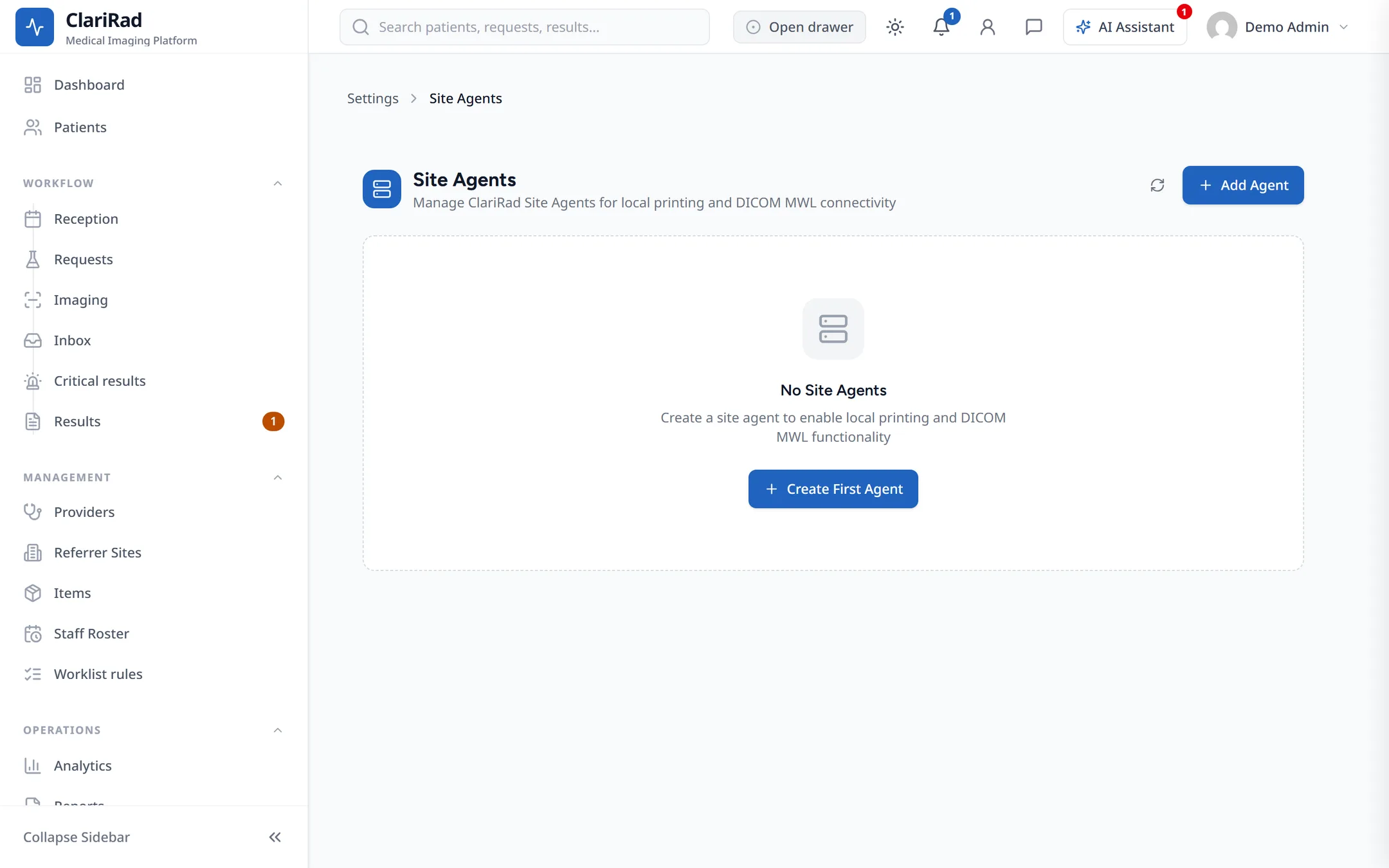
Site agents themselves are listed under Settings, Site Agents.