Draft — being checked against the app
Dictating and transcribing reports
Report with voice recognition or Dragon, or record audio for a typist and approve the typed report.
Clarirad supports three ways to get a report written. Choose one from the reporting method menu on the worklist (see The reporting worklist).
Whisper VR (voice recognition)
With Whisper VR, Clarirad turns your speech into text in the report editor. Press Dictate to start and Stop to finish, then edit the text as needed. The first time it loads you may see Getting voice reporting ready.
Speech recognition runs on the Clarirad Voice app on your computer if it is installed, otherwise on Clarirad's voice server, and otherwise in your browser. The Local GPU switch runs recognition on your computer's graphics hardware through the Clarirad Voice app, and falls back to the remote service if that isn't possible.
Dragon
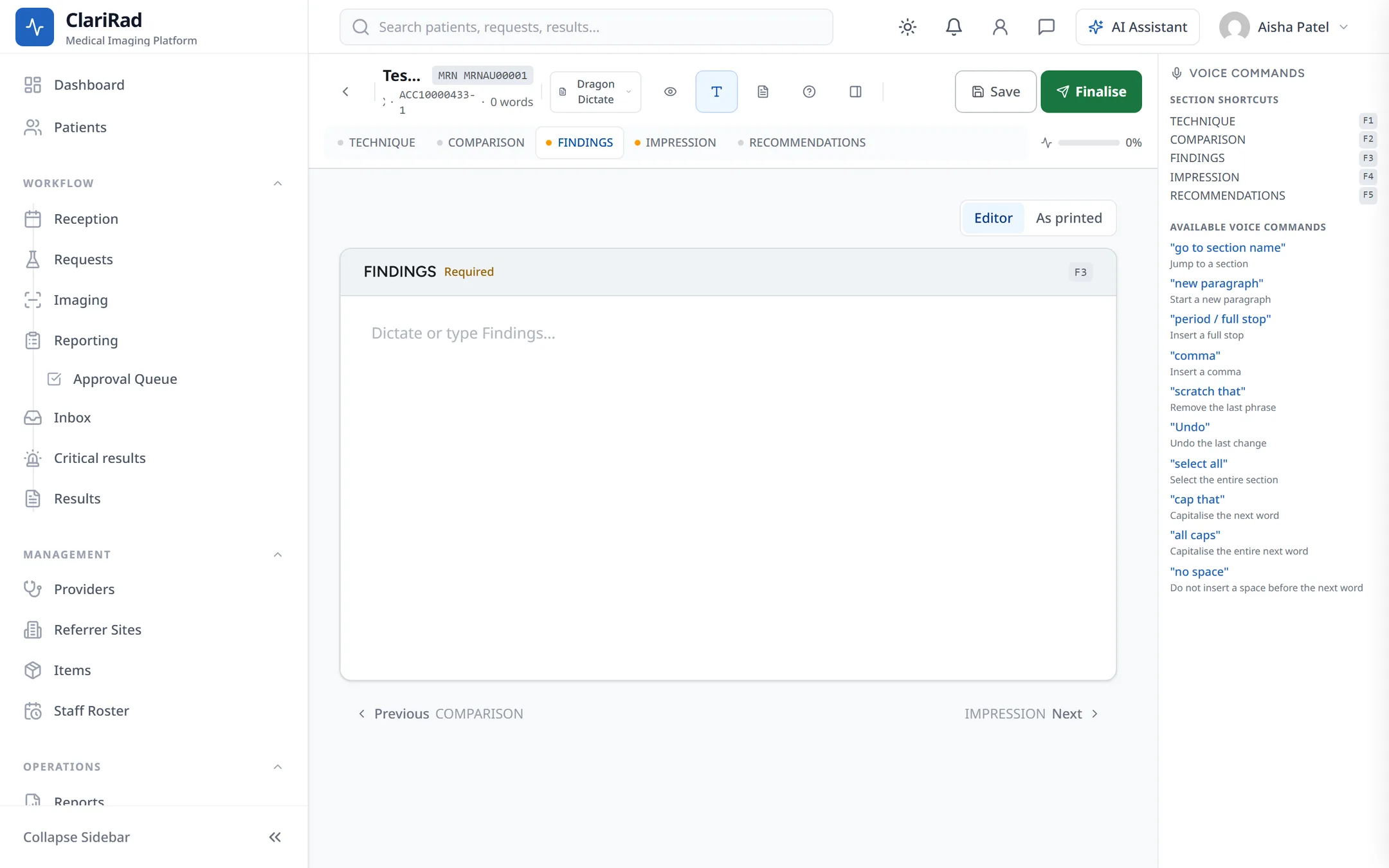
With Dragon, Dragon NaturallySpeaking types straight into the sections of the report. Clarirad does not do the speech recognition itself. The sidebar lists the voice commands you can use. Press Save to keep a draft and Finalise when the report is ready to sign (see Signing off a report).
Transcription: dictate for a typist
- Choose Transcription as your reporting method and open the study.
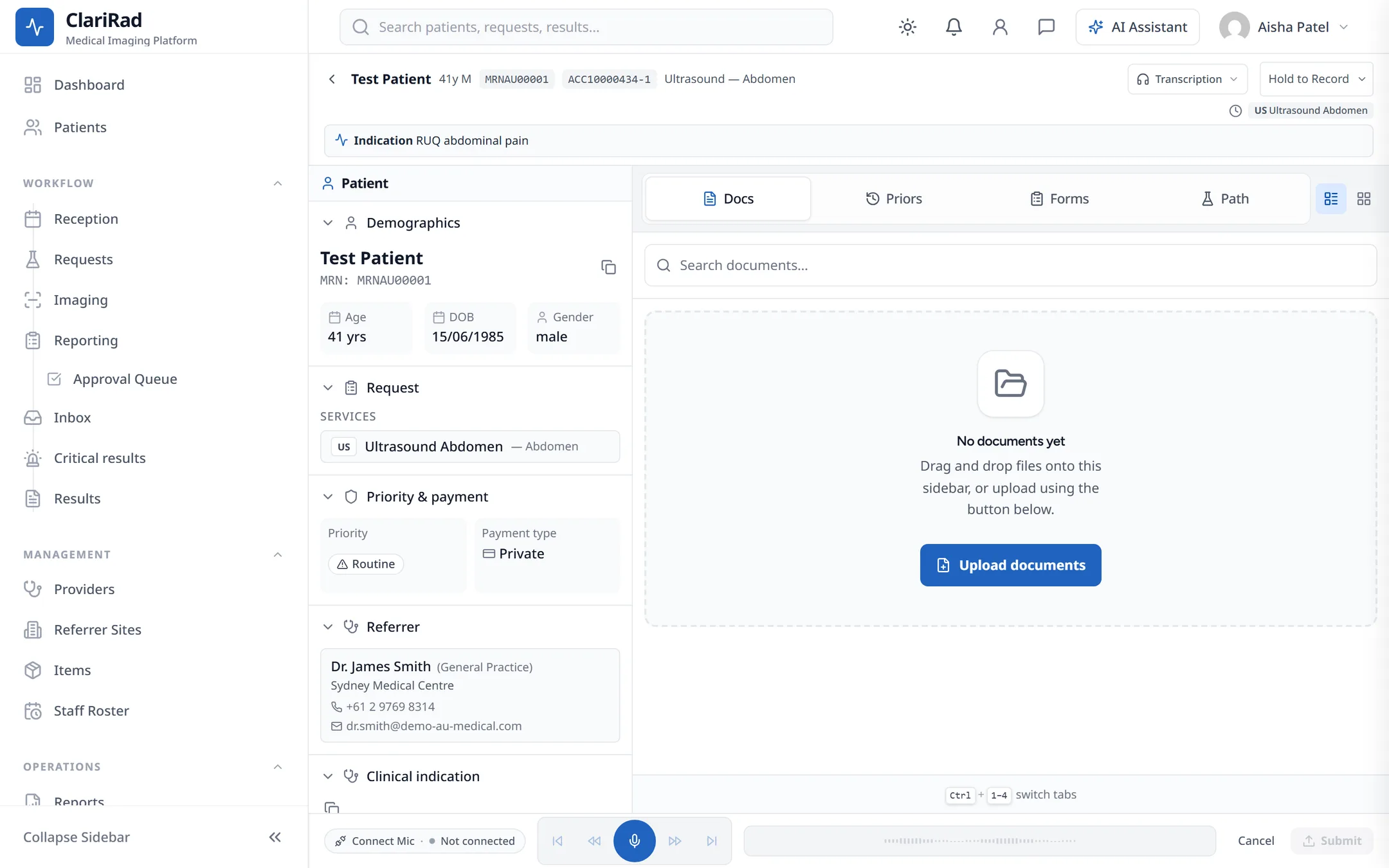
- Press Start recording (or hold to talk) and dictate. Use Record more audio, Re-record, Trim or Discard to fix the recording.
- Press Submit. The audio is uploaded and joins the typists' queue.
The due time comes from the request's priority: 30 minutes for stat, 60 minutes for urgent, and 4 hours for everything else. Stat and urgent recordings are queued as Urgent and typists are alerted in the app.
For typists: the Transcription queue
Typists open Transcription from the side menu. The Transcription Queue lists recordings waiting to be typed. Filter by status (pending, Assigned, In Progress, Completed) and by My Queue or Unassigned.
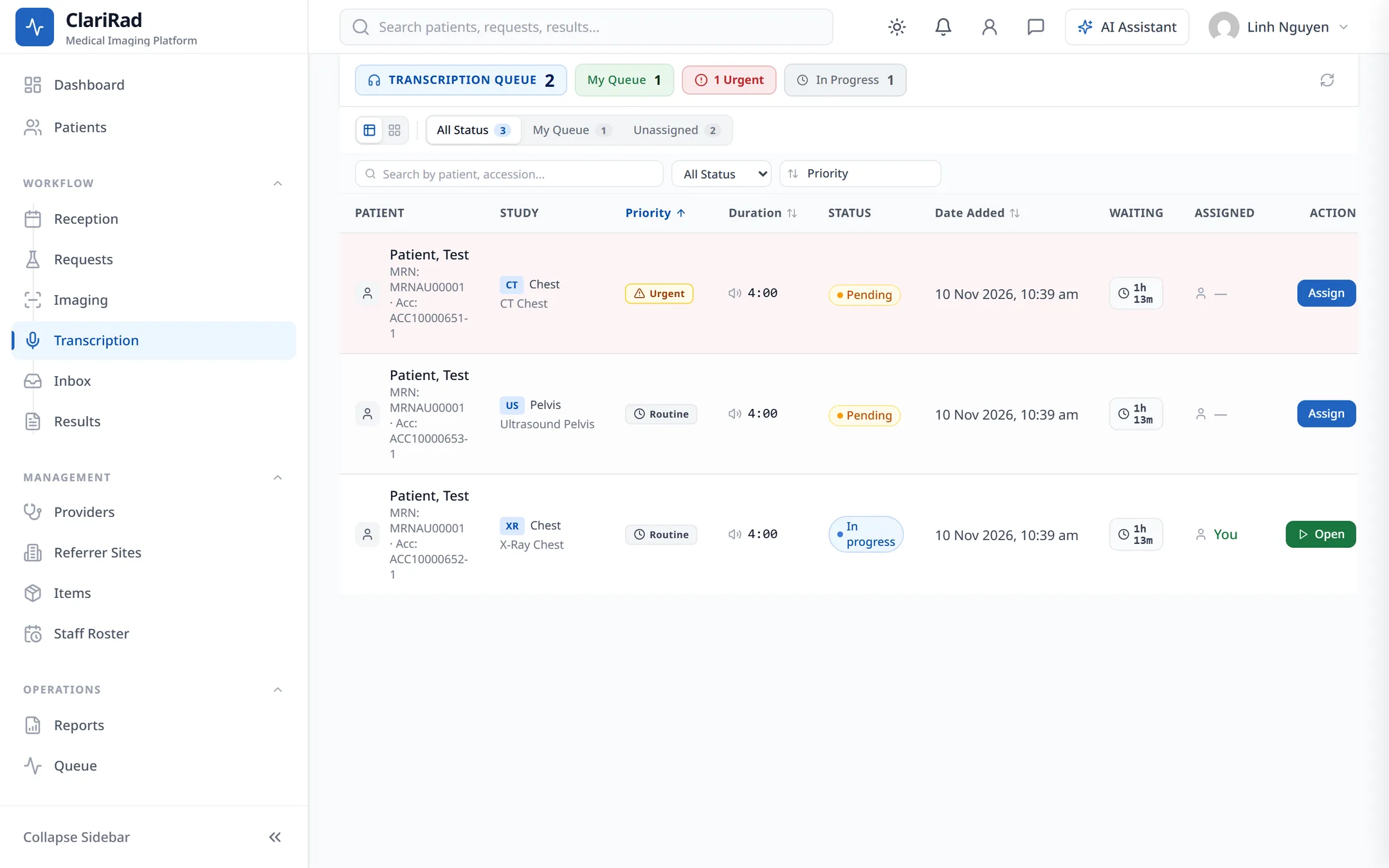
- Press Assign on a recording, then Open.
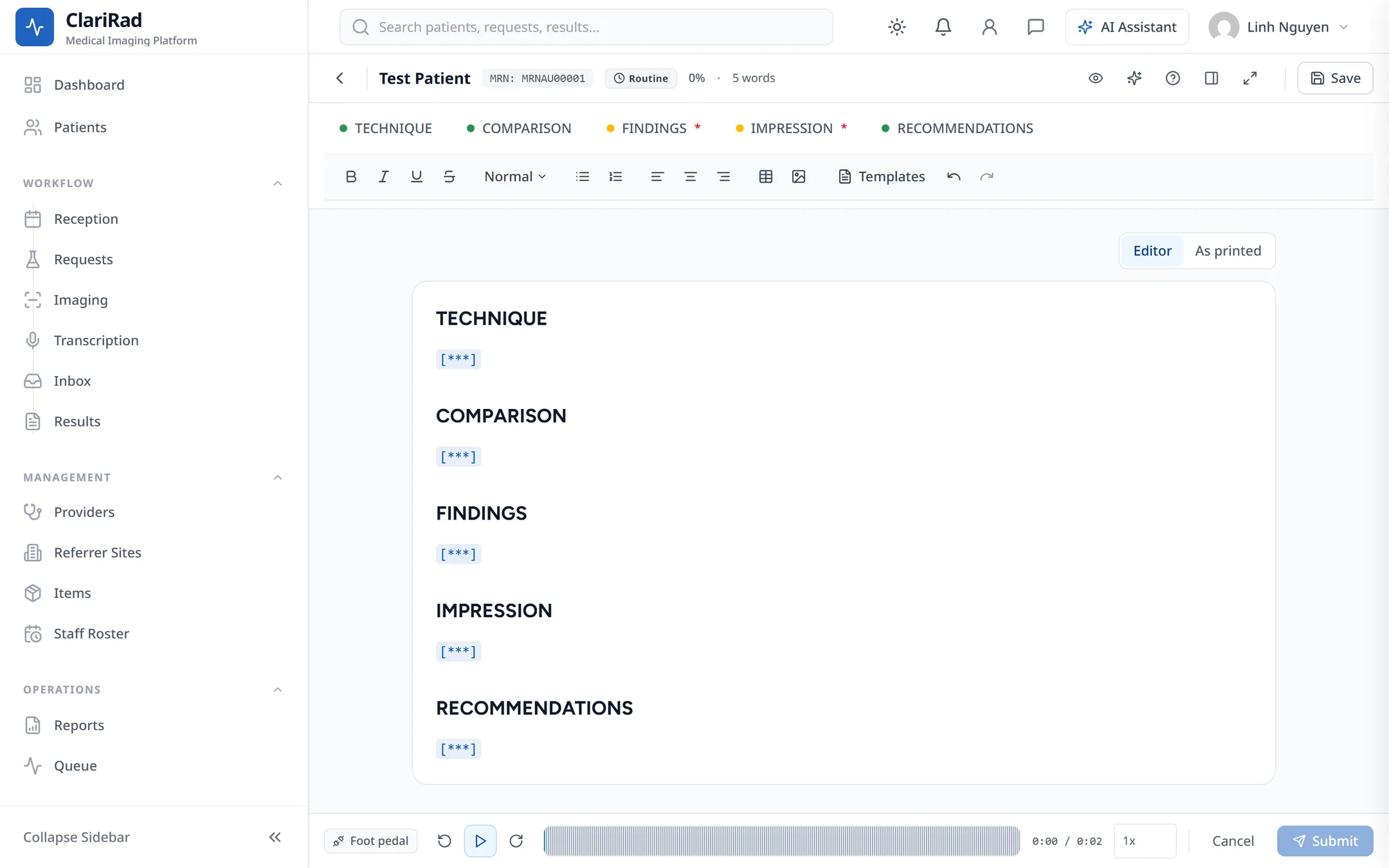
- Play the audio with the player controls or a foot pedal. Rewind 3 seconds and Forward 3 seconds move through the dictation.
- Type the report into its sections. Save as you go.
- Press Submit. The report goes to the radiologist's Approval Queue.
If another typist already holds the recording, you see This item is already held by someone else.
Approving a typed report
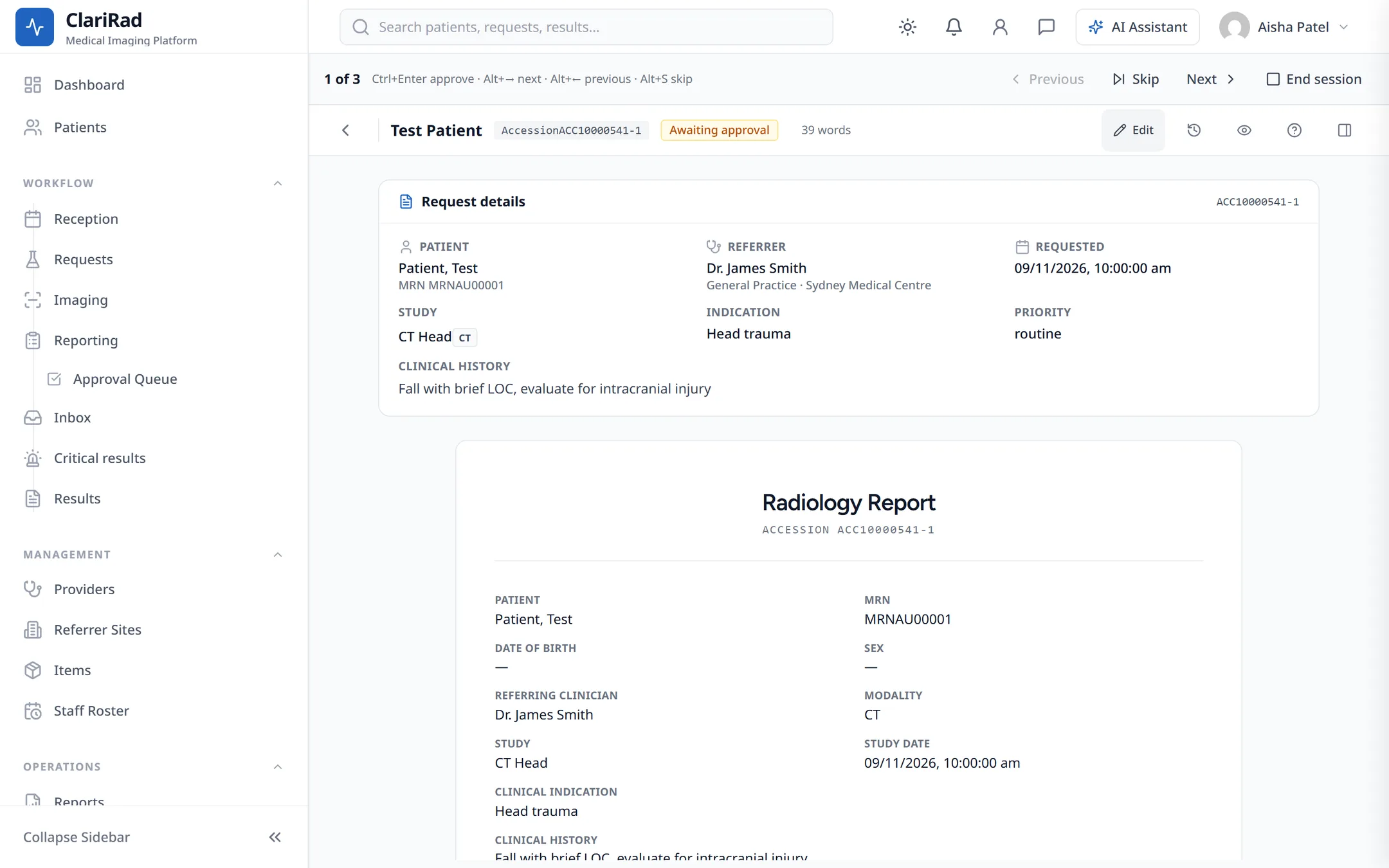
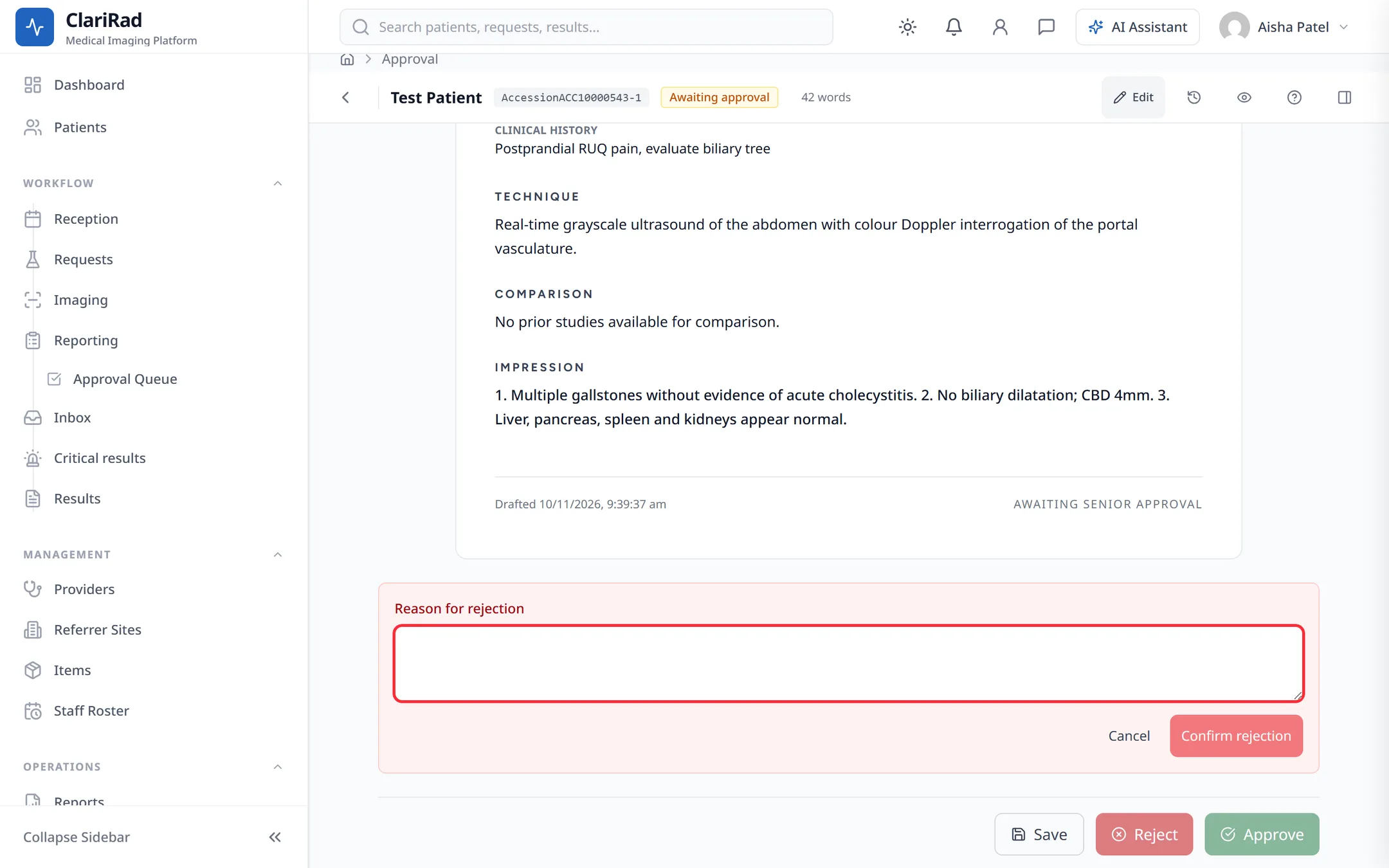
Typed reports wait in the Approval Queue in the side menu. It shows who transcribed each report, when, and the turnaround time. Use the My authorisations tab for reports waiting for you.
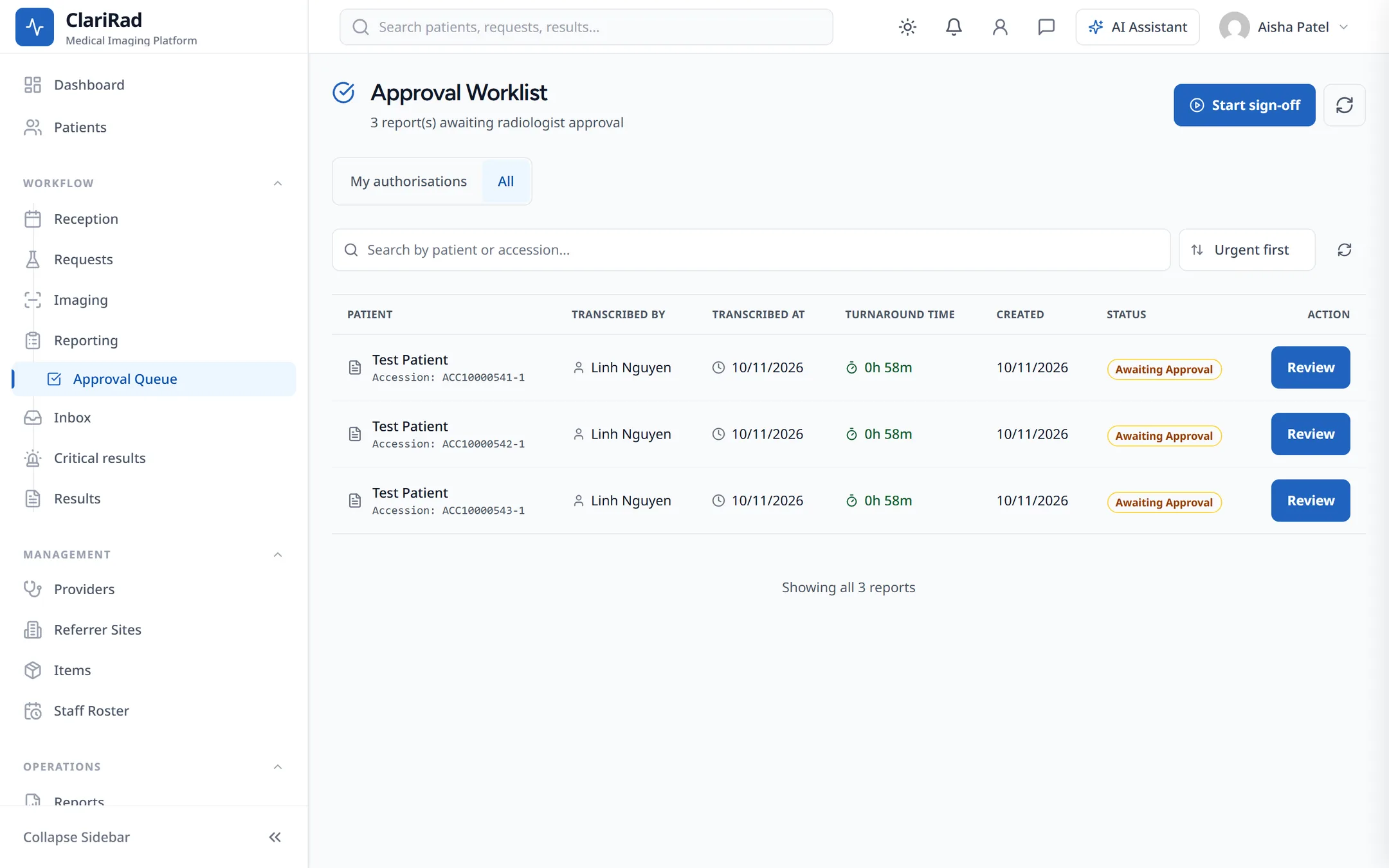
- Press Review to open a report, or Start sign-off to work through the queue one report after another.
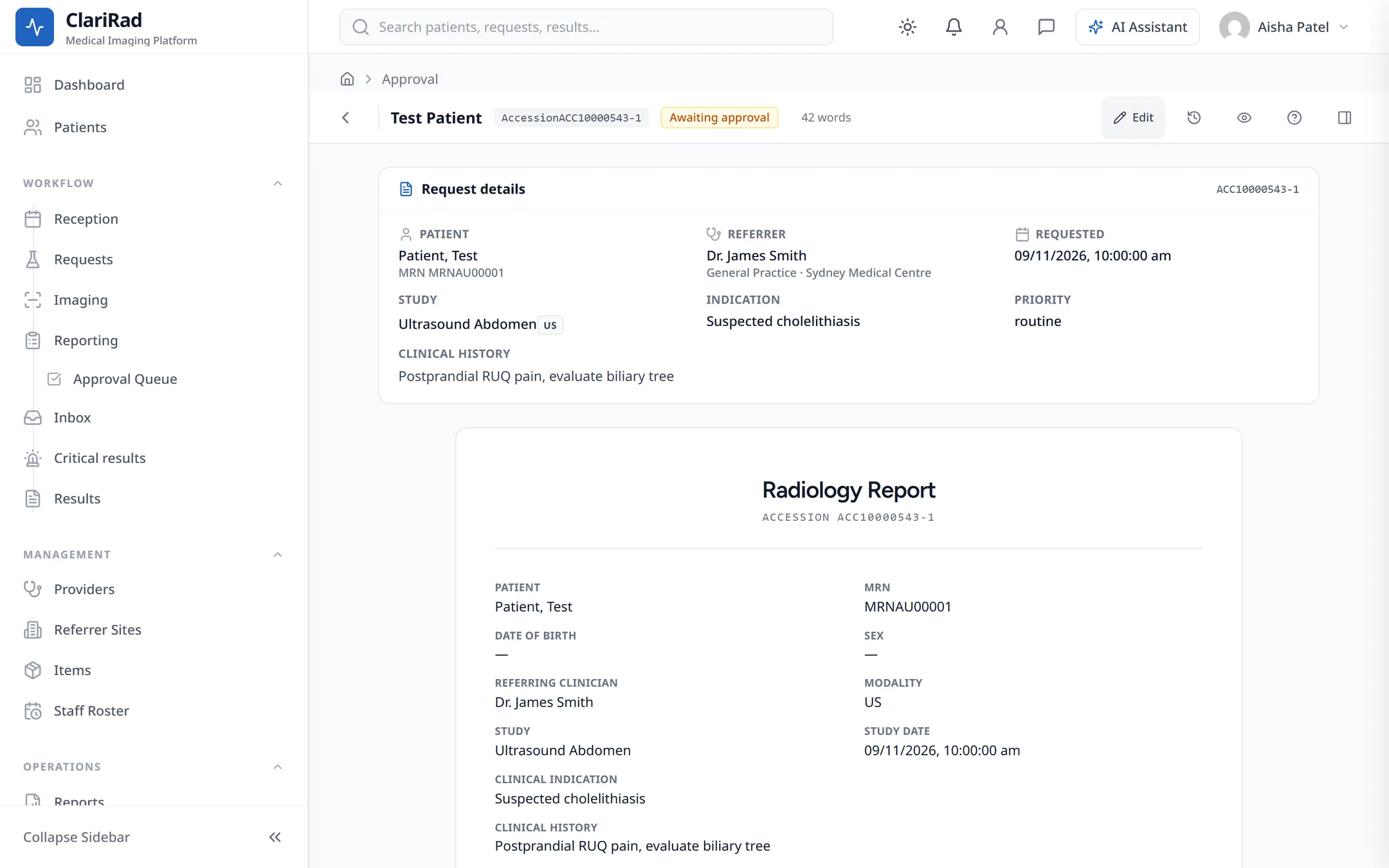
- Check and correct the text.
- Press Approve to sign the report, or Reject to send it back.
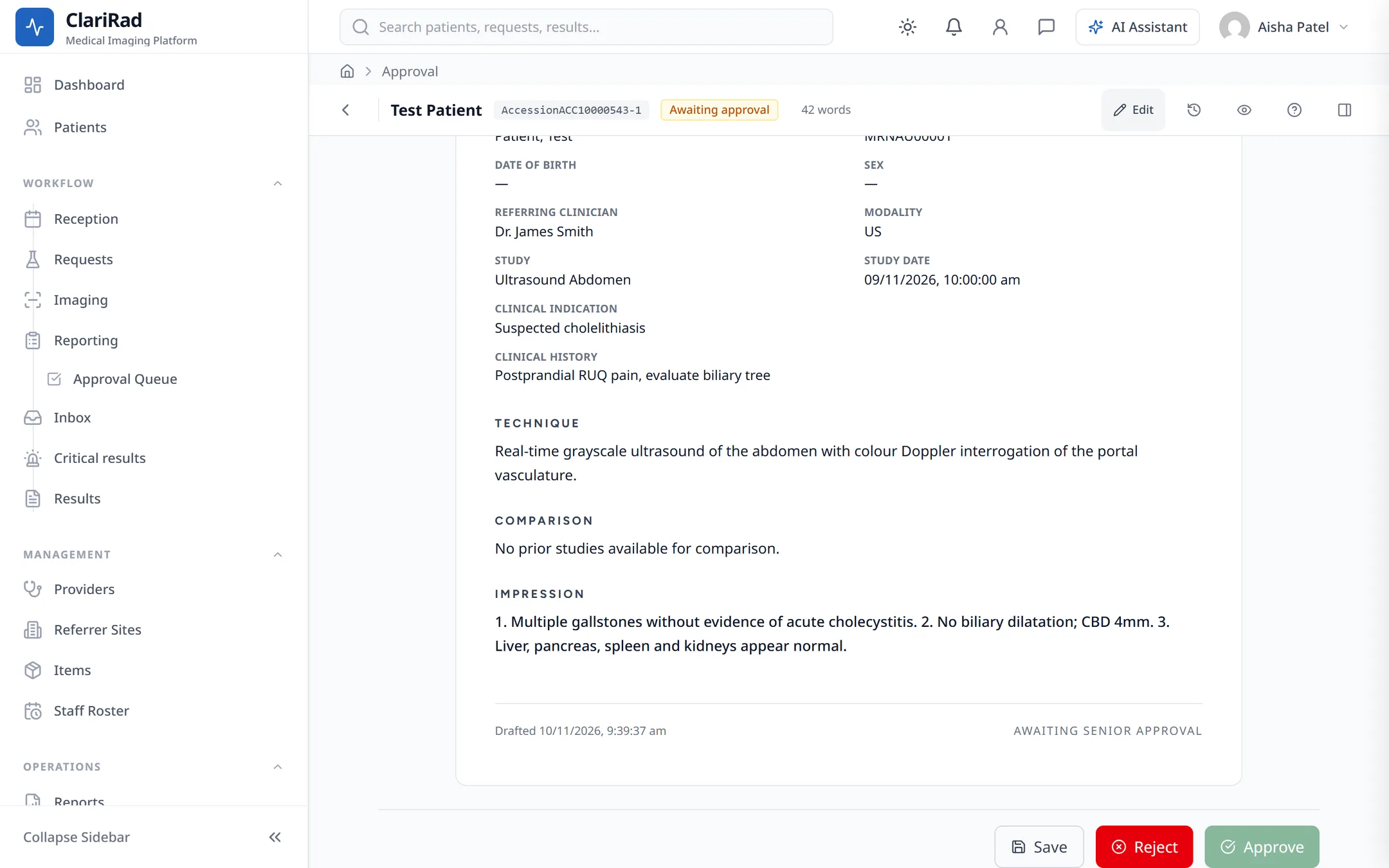
Rejecting asks for a reason for rejection. The report goes back to draft and the recording returns to the typists' queue, unassigned.
Sign-off sessions
Start sign-off steps through the waiting reports with Next, Previous and Skip. Keyboard shortcuts: Ctrl+Enter approves, Alt+right arrow goes to the next report, Alt+left arrow to the previous one, and Alt+S skips.