Draft — being checked against the app
Signing in and two-factor authentication
Sign in with your work email, set up an authenticator app, and what to do when you are locked out.
Every staff member signs in with their own account. Your practice administrator creates the account and sends you an email to set your password. Do not share an account: everything you open and change in Clarirad is recorded against your name.
Signing in
- Open your practice's Clarirad address. The page says 'Welcome back' and asks you to 'Use your work email and password.'
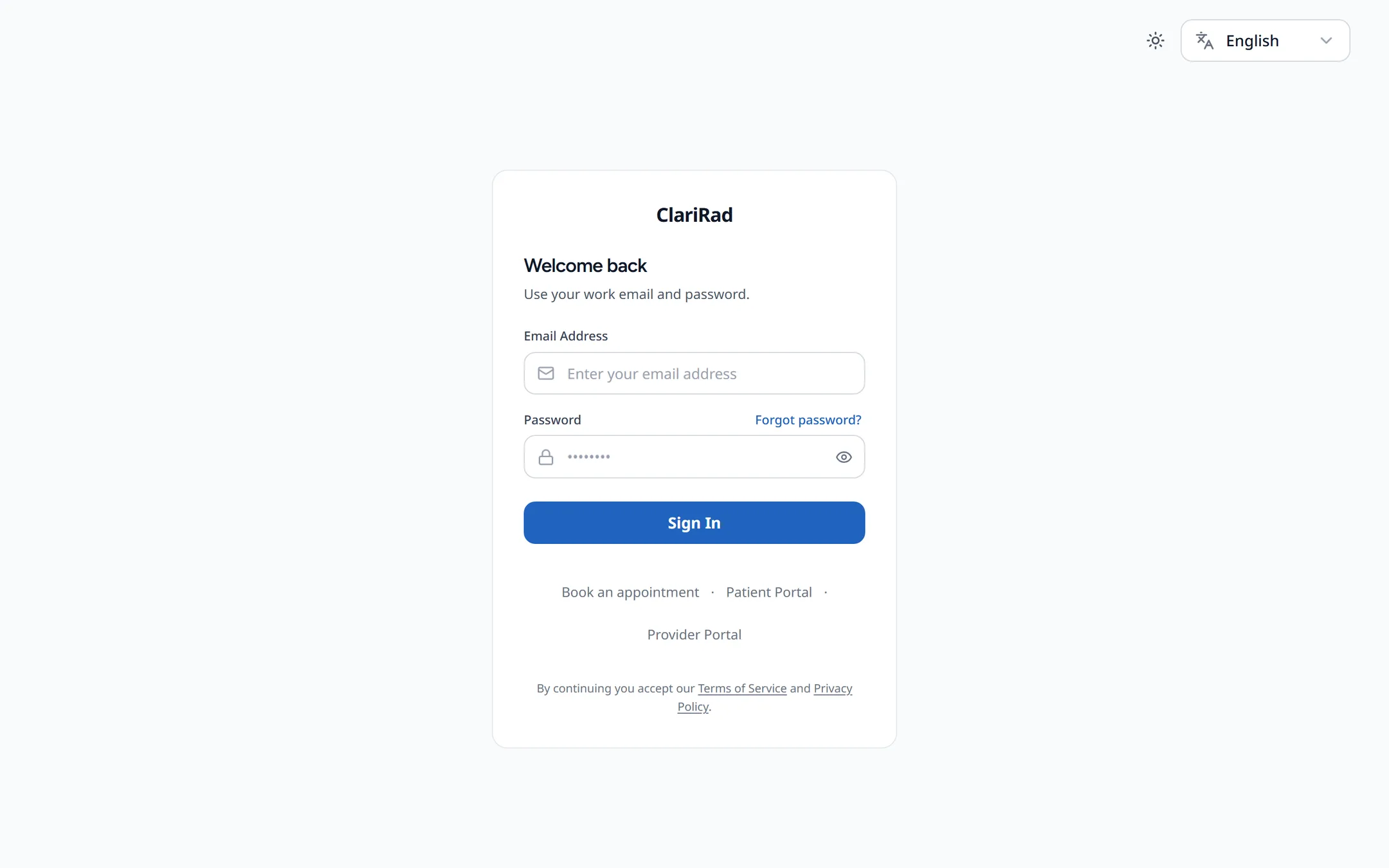
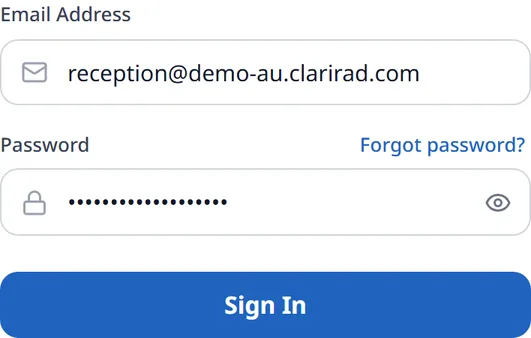
- Enter your 'Email Address' and 'Password', then choose 'Sign In'.
- When asked to 'Check your authenticator app', type the 6-digit code from the app and choose 'Verify Code'.
If your practice uses Microsoft 365, you may also see 'Sign in with Microsoft'. That uses your Microsoft account instead of a Clarirad password. If it says there is no Clarirad account for your Microsoft account, ask your administrator to add you with the address you use to sign in to Microsoft.
Setting up two-factor authentication
Two-factor authentication is required for every staff account. There is no skip button. The first time you sign in, Clarirad asks you to set it up before you can go any further.
- Install an authenticator app on your phone, such as Google Authenticator or Authy.
- In Clarirad, choose 'Authenticator App' as your verification method.
- Open the app and scan the QR code on the screen. If you cannot scan it, type the manual entry key into the app instead.
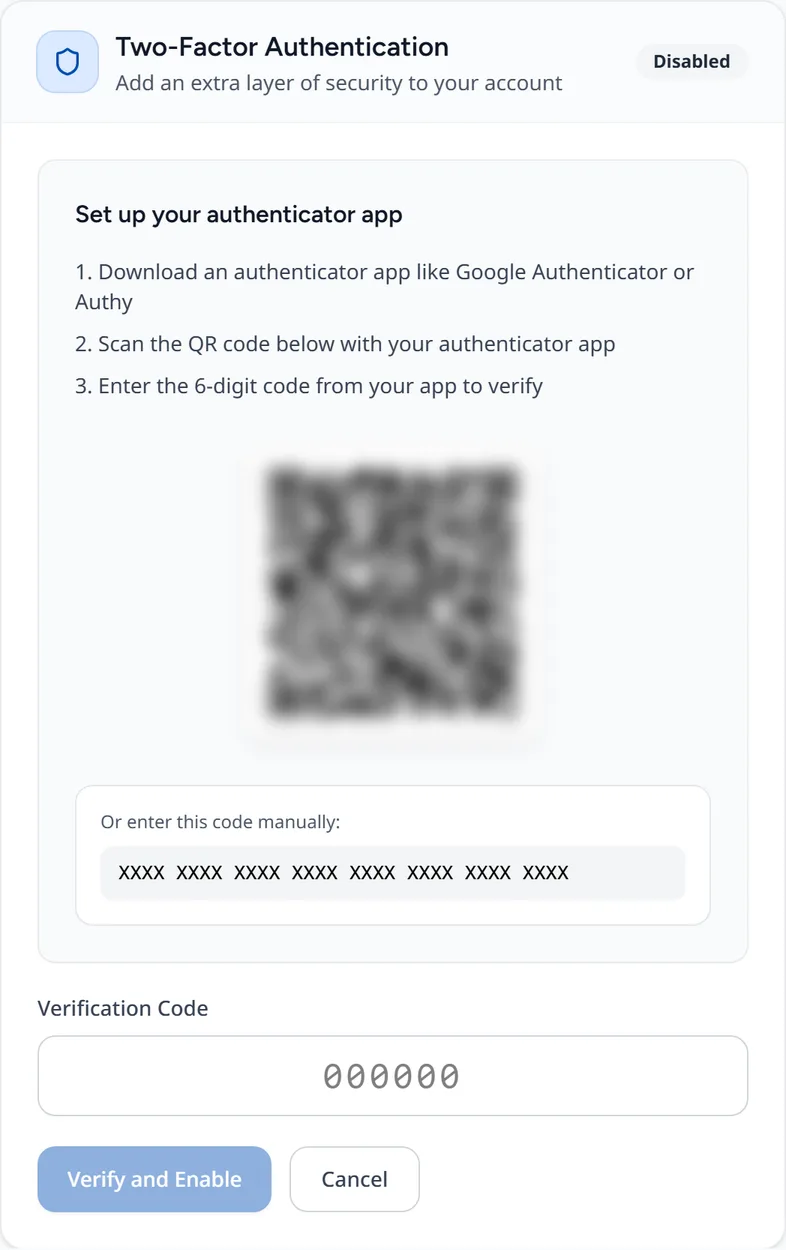
- Enter the 6-digit code the app shows and choose 'Verify & Activate'.
From then on, each sign-in asks for a new code from the app.
Forgotten password
- On the sign-in page choose 'Forgot password?'.
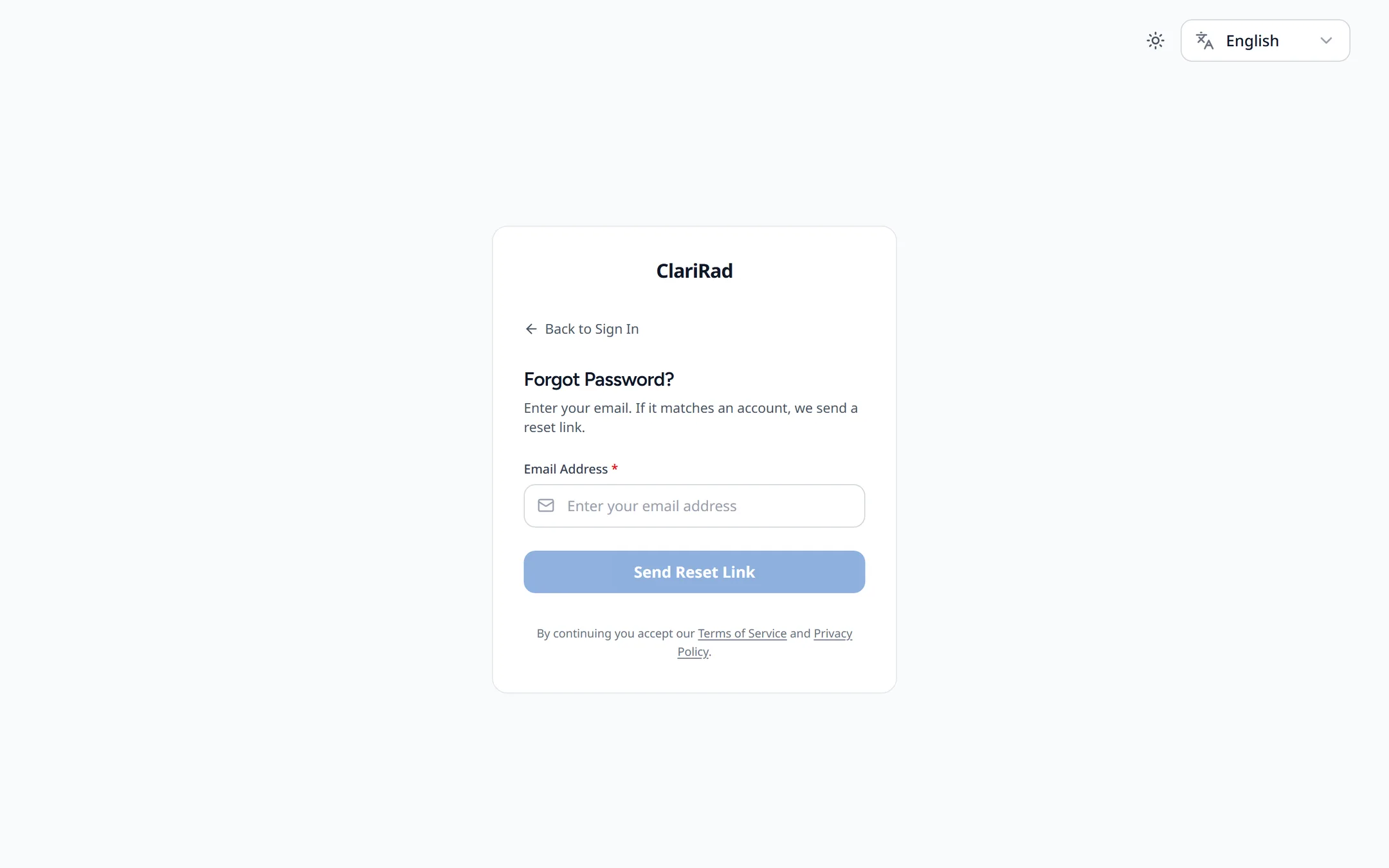
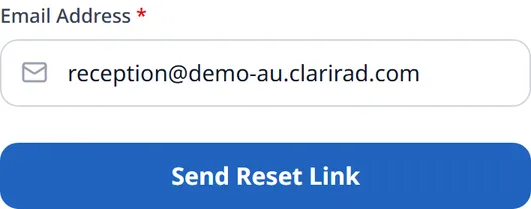
- Enter your email address and choose 'Send Reset Link'.
- Open the link in the email within one hour and choose a new password.
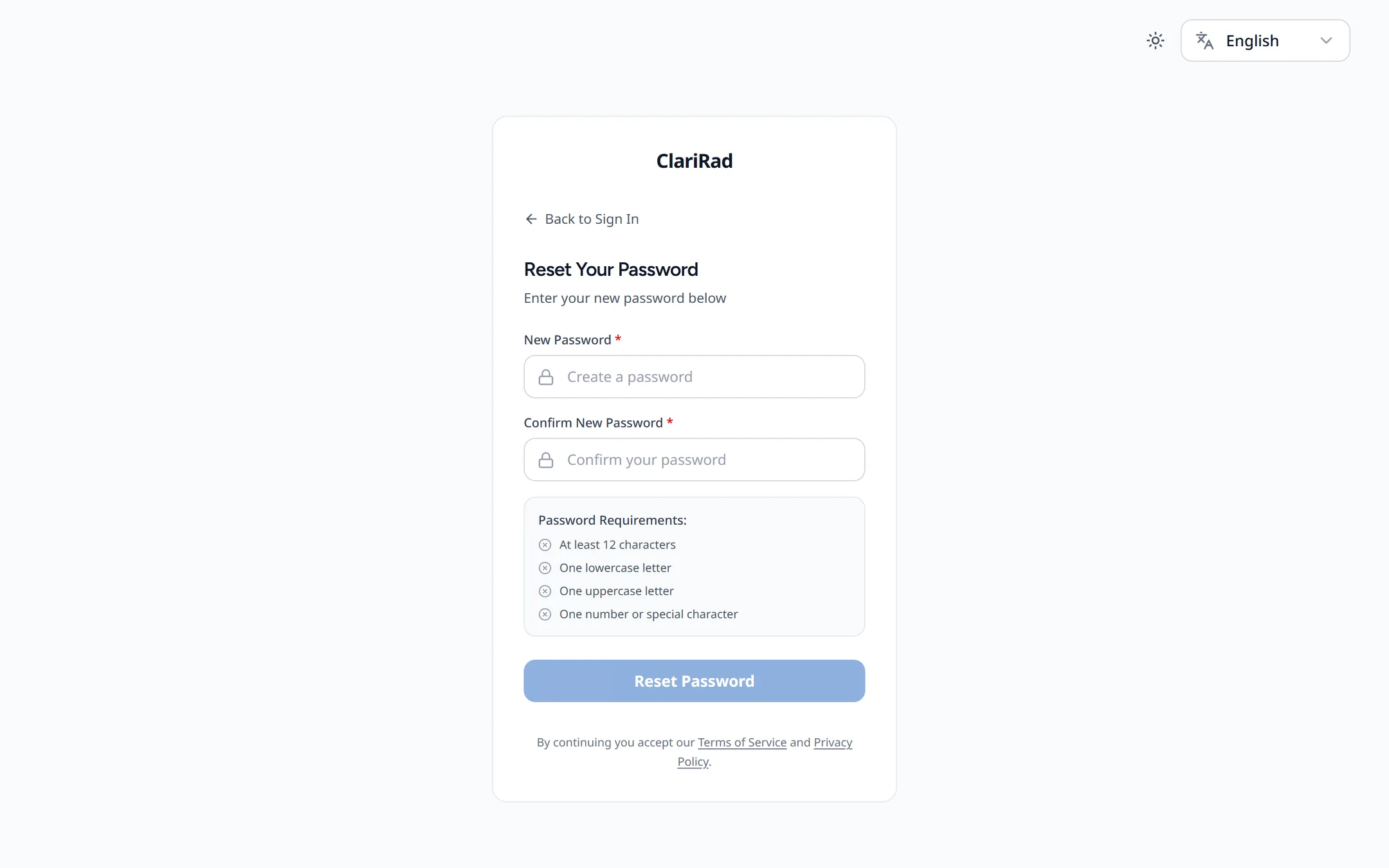
A new password needs at least 12 characters, with an uppercase letter, a lowercase letter, and a number or special character.
Staying signed in
If you leave Clarirad idle, a 'Session Expiring' warning counts down to automatic sign-out. Choose 'Stay Logged In', or move the mouse, to keep working. Sign out from your user menu (your name, top right) with 'Logout' when you leave a shared computer.
Common problems
- 'Invalid email or password' with a number of attempts remaining: check the address and try again. After too many attempts you must wait before trying again.
- 'Invalid verification code': check the time on your phone is set automatically, then use the newest code.
- New phone, or lost phone: your authenticator app cannot be moved by you. Ask your practice administrator to contact Clarirad support to reset two-factor authentication on your account.