Draft — being checked against the app
Booking an appointment
Book a patient into a room from the appointment book, holding the slot while you finish the request.
Bookings are made from the 'Reception' screen. A booking creates (or updates) the patient's request, with one appointment for each service on it.
Starting a booking
- Choose 'Reception' in the sidebar and stay on the 'Schedule' tab.
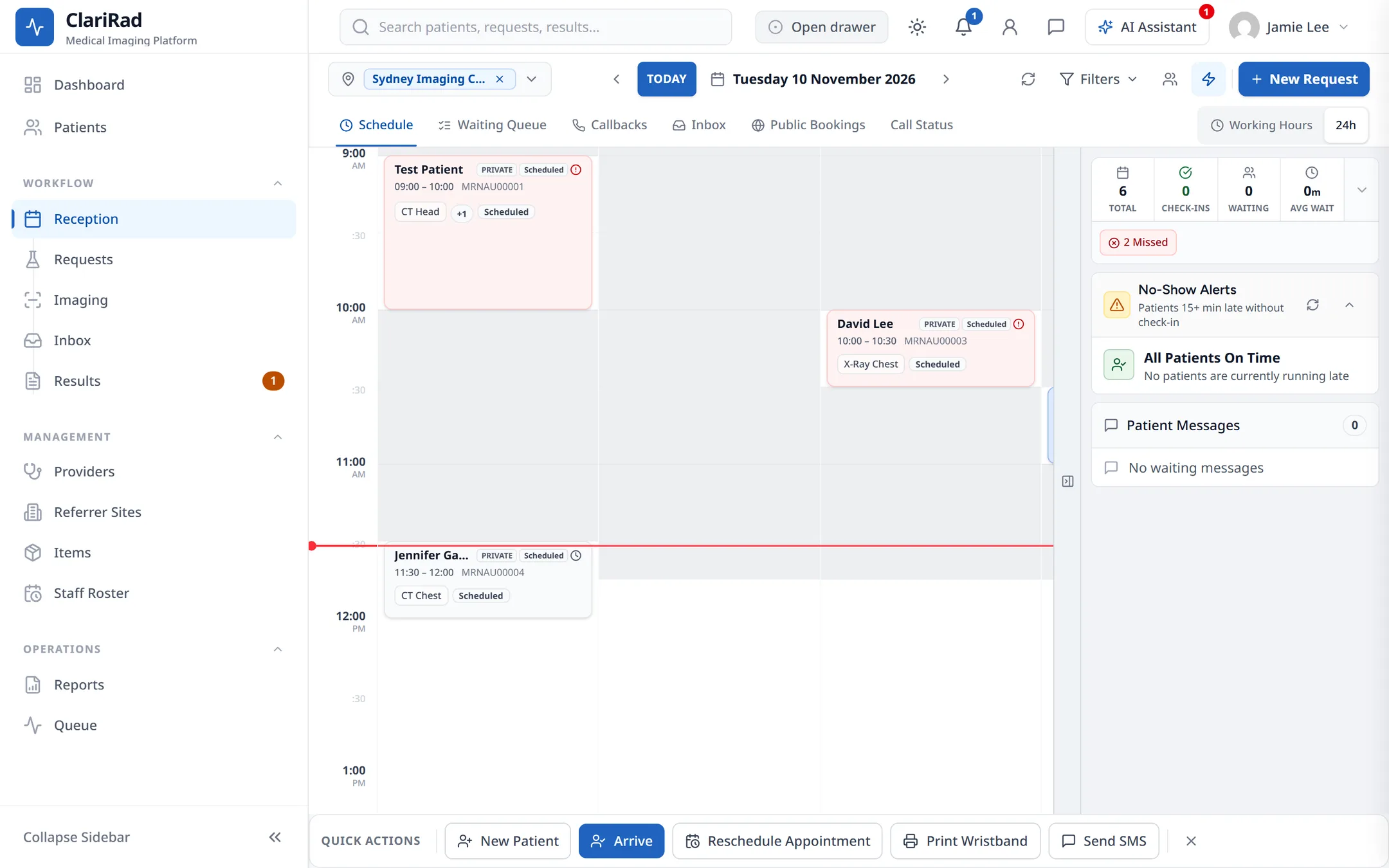
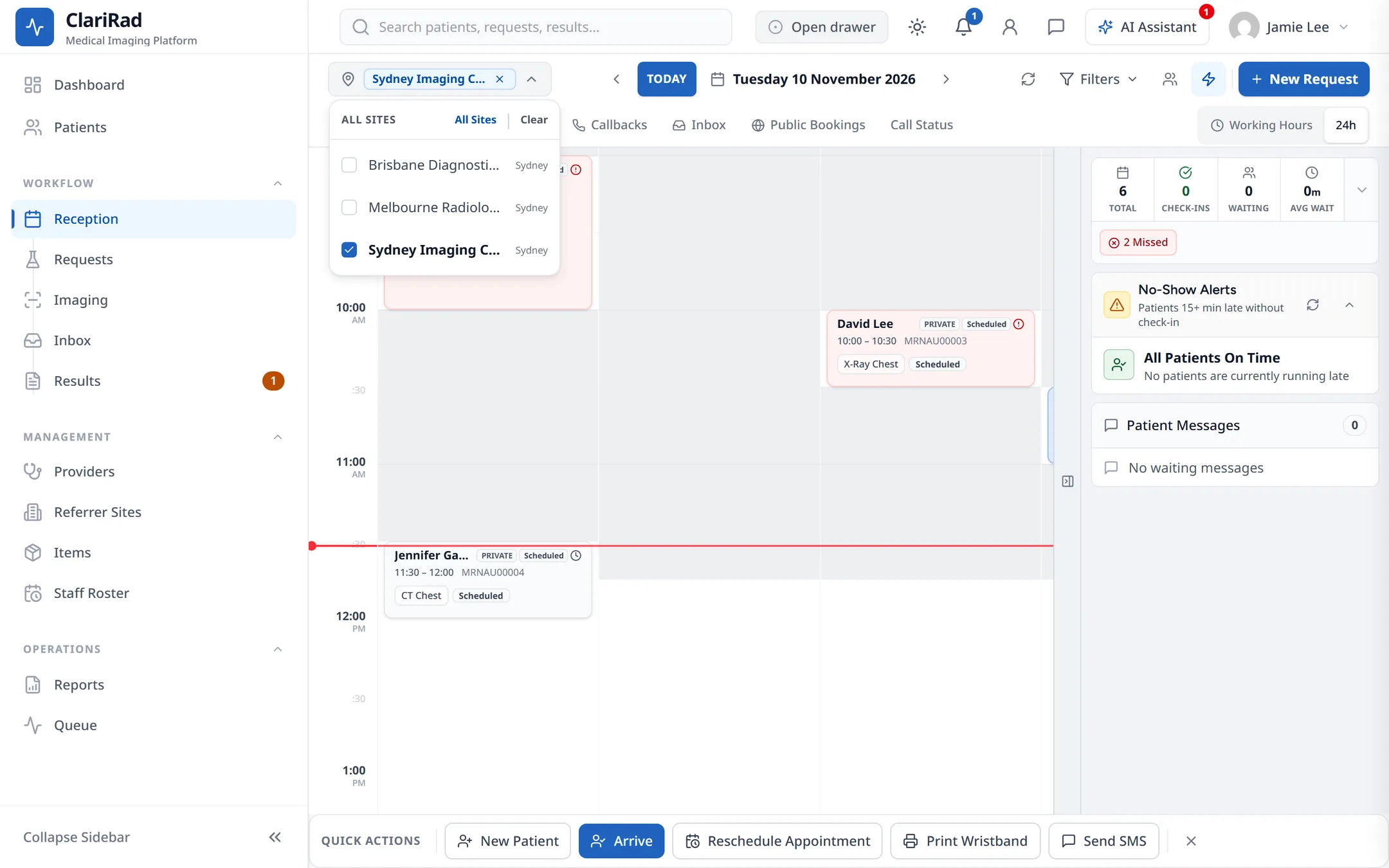
- Pick the site and the day at the top. Use 'Today', the date picker or the arrows to move between days.
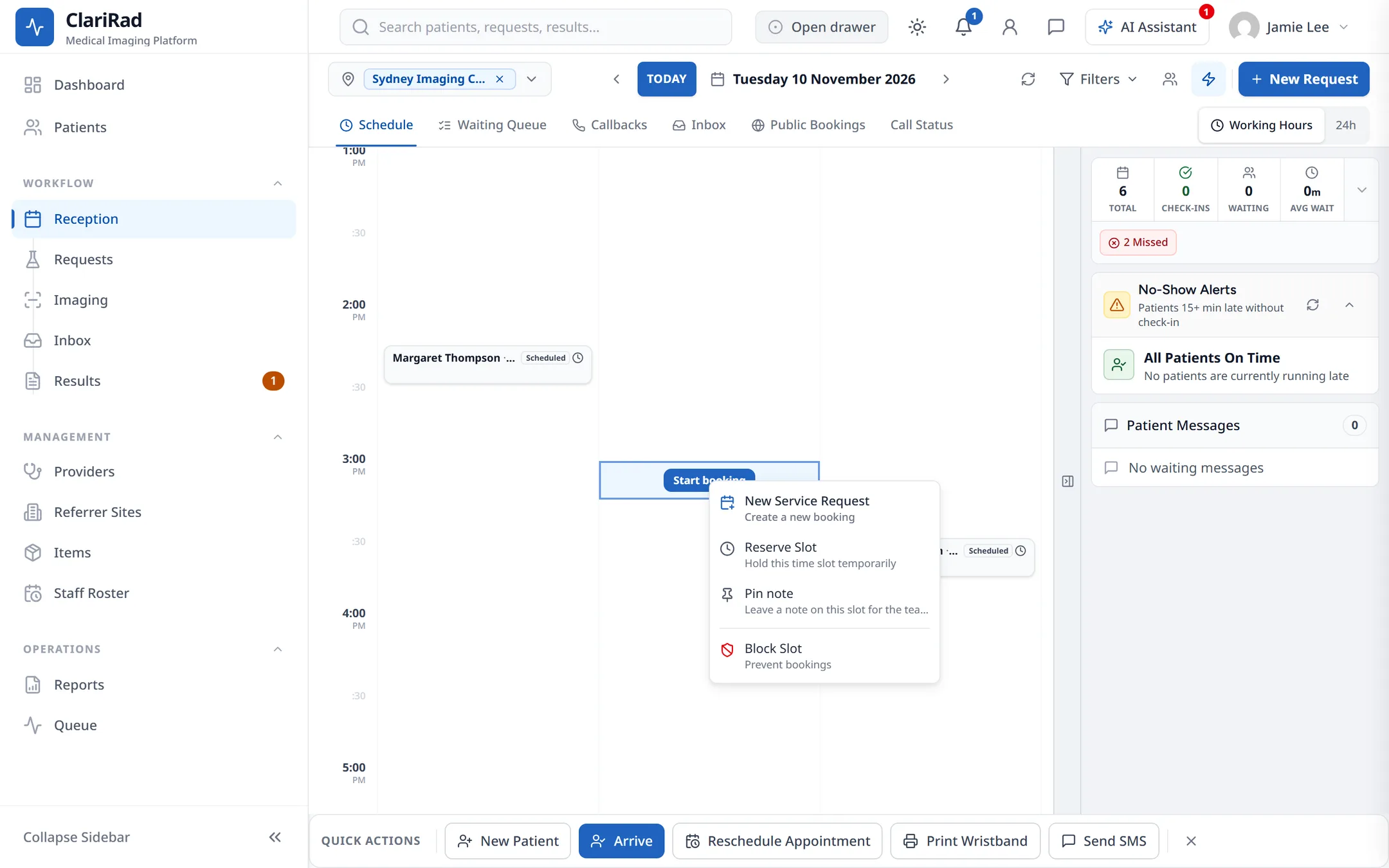
- Click an empty slot in the right room. 'Start booking' shows as you point at it, and clicking opens 'Create Request from Slot'. Or right-click the slot and choose 'New Service Request'. You can also start from 'New Request' at the top and pick a slot later.
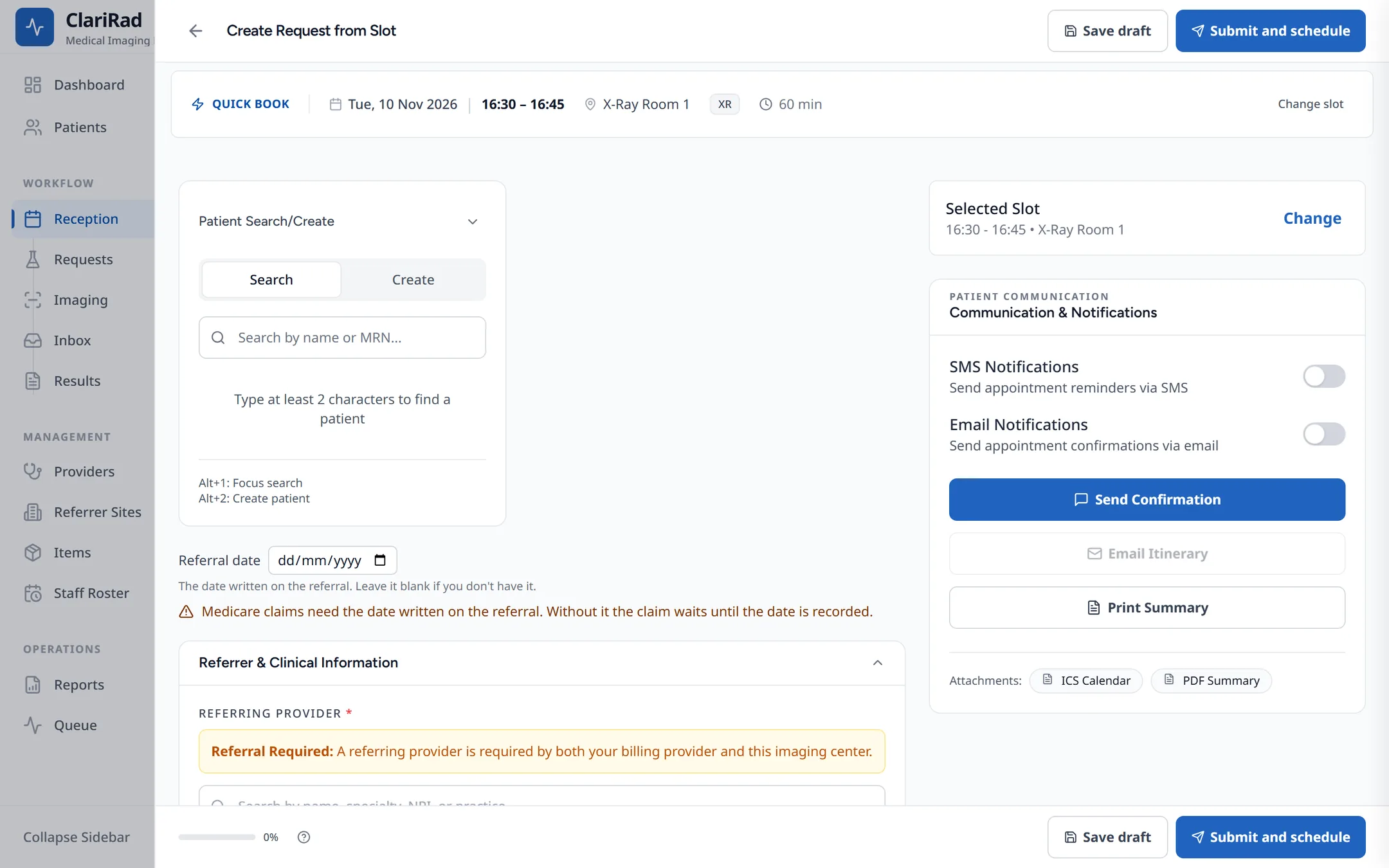
When you start from a slot, the request form opens with the date, time, room, modality and site filled in under 'Selected Slot'. Use 'Change slot' to pick another.
Completing the request
- Find or add the patient.
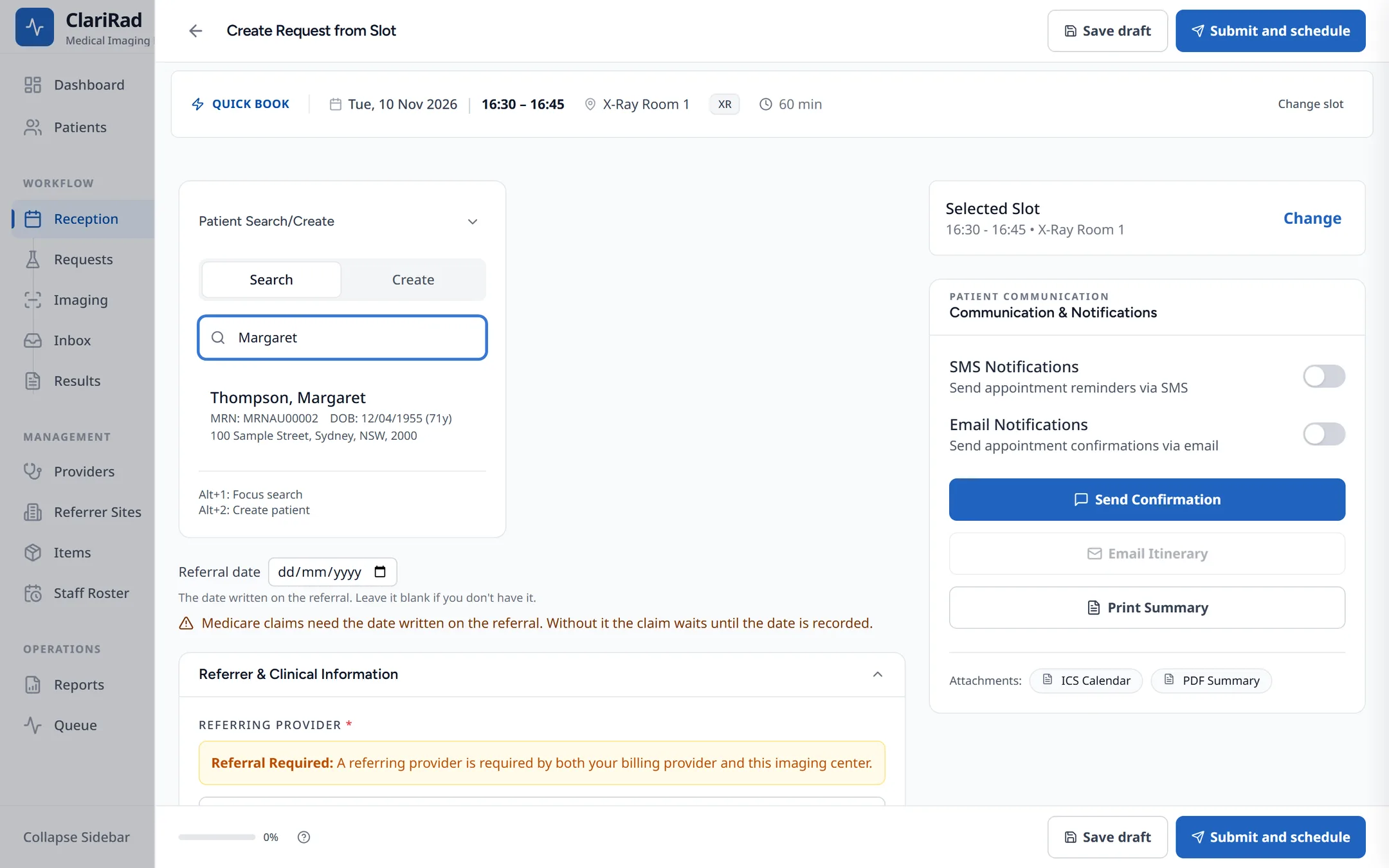
- Add the referral details and the services to be performed.
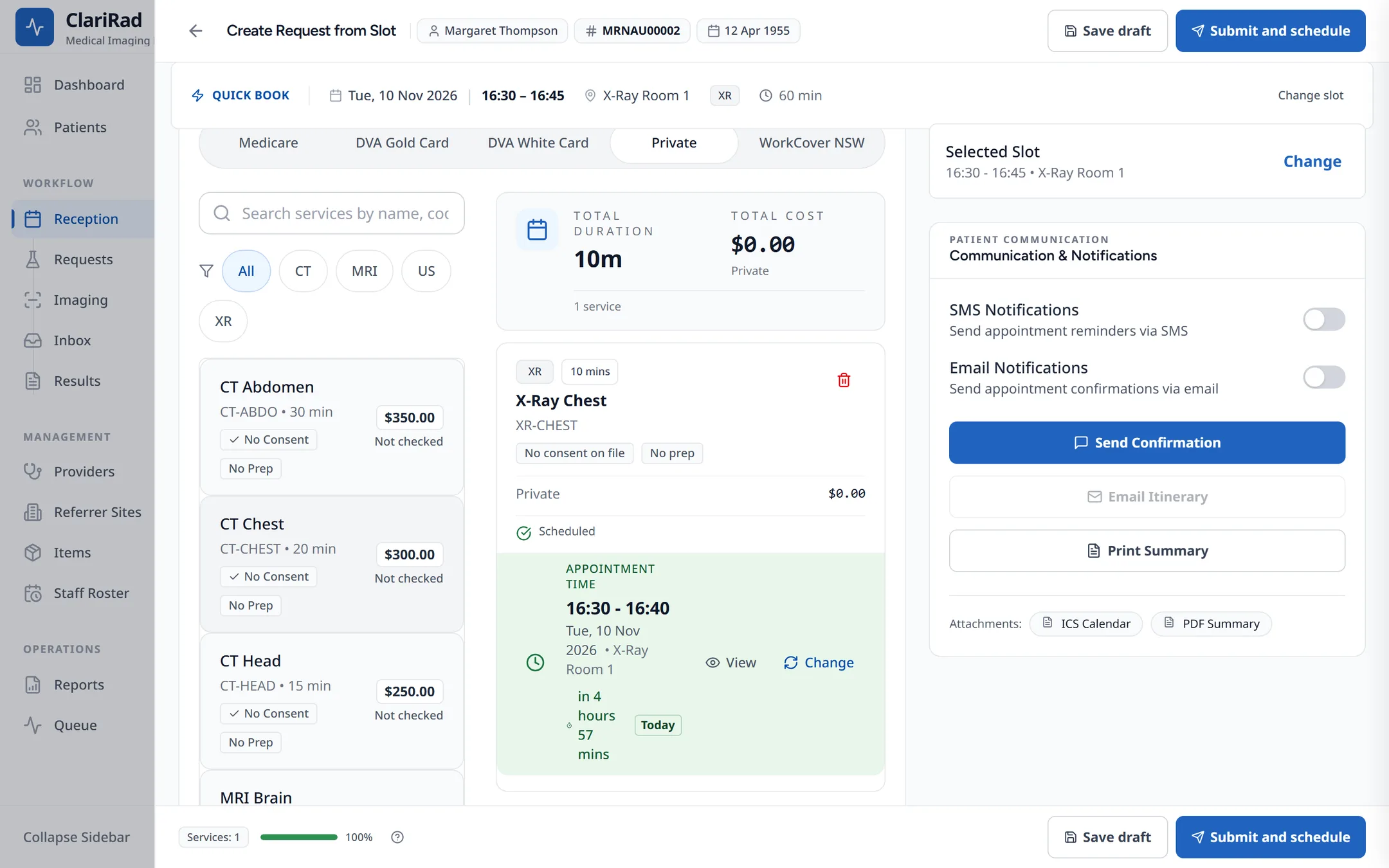
- For each service, choose a time in the 'Scheduler' panel. 'Auto-schedule' picks times for every service in order, and 'Scheduling progress' shows how many are booked.
- Choose 'Submit and schedule'. When asked 'Create request for this patient?', choose 'Confirm & create'.
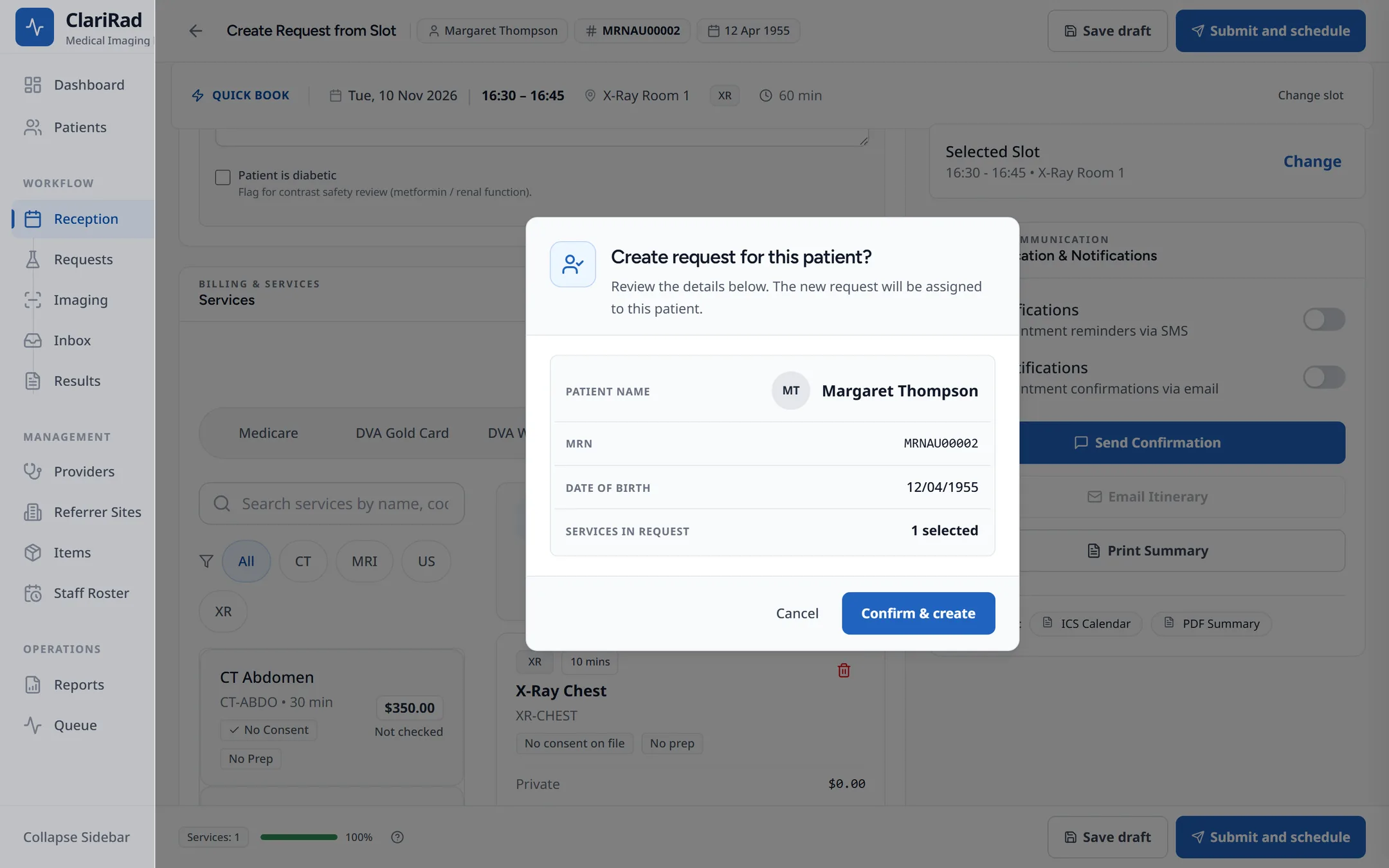
The request becomes scheduled and the appointments appear in the book. If you are not ready to choose a time, 'Save draft' keeps the request without appointments.
Holding a slot
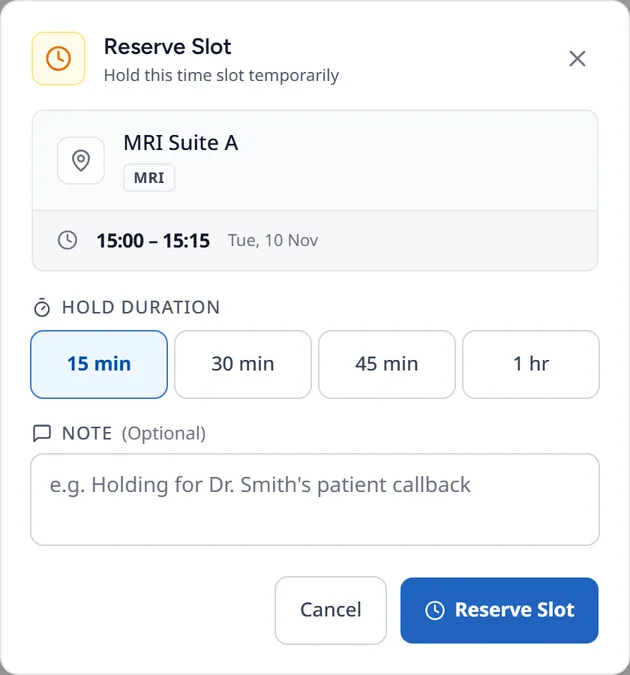
When you pick a slot, Clarirad holds it for you for 15 minutes so nobody else can book it while you finish. A warning appears shortly before the hold runs out. If it expires, choose the slot again.
If someone else is holding a time you want, you see 'That time is being held', with who is holding it (or that someone booking online is) and until when.
When a booking is refused
- 'That room is no longer free': someone booked it first. Pick another time.
- 'This booking breaks a scheduling rule': the message lists each rule, such as a notice period or the service not being done in that room.
- 'You cannot book without staff cover': nobody rostered can do the exam at that time.
- Outside trading hours: you are asked for a reason. See The appointment book and trading hours.
- 'No available slots in the next 30 days' or 'No trading hours are set for this site': check the site and service, or ask your practice manager to set the site's hours.
Booking into an occupied slot
If your role allows it, you can overbook a slot that already has a patient. The 'Overbook slot' window asks for a 'Reason for overbooking' before you continue. Both bookings then show side by side in the room.
Related pages
- The appointment book and trading hoursHow the day view shows rooms, holds and blocks, booking outside trading hours, and blocking time in a room.
- Rescheduling and cancelling appointmentsMove an appointment, cancel it with a reason and any cancellation fee, and record no-shows.
- Appointment reminders and earlier slotsAutomatic SMS and email reminders, and offering earlier appointments to patients who want them.