Draft — being checked against the app
The patient portal
What patients can do in the portal: see results, book and cancel appointments, pay invoices.
The patient portal lets your patients see their results, manage appointments and pay invoices online. This page describes what they see, so you can help them over the phone.
Signing in
Patients sign in with their email address and password. The sign-in page shows your practice's name and logo once they are set in Portal branding. Forgot Password? emails a reset link that works for one hour.
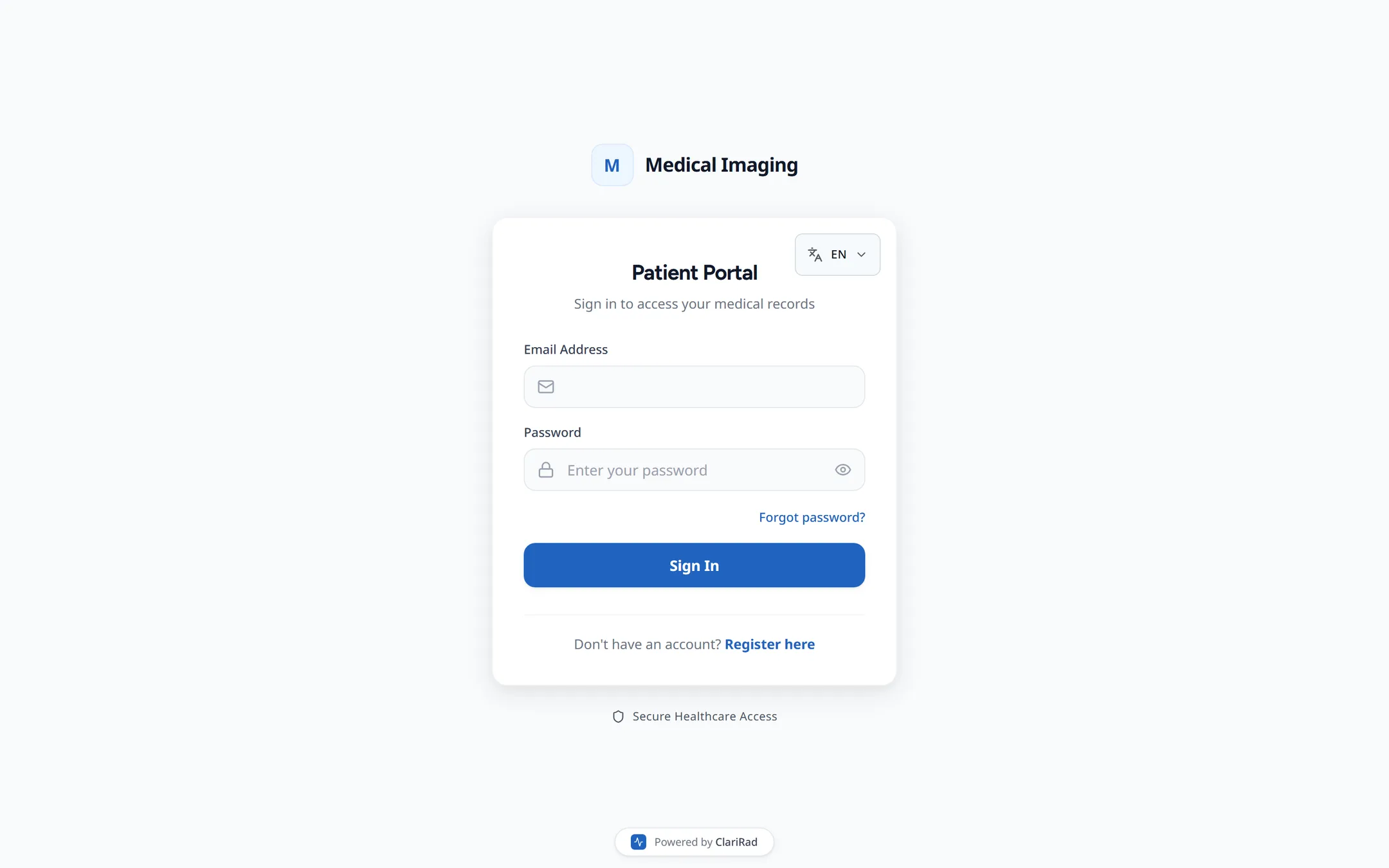
Patients can't register themselves. Their account starts with an invitation from your staff (see Inviting patients to the portal).
Passwords need at least 12 characters, with an uppercase letter, a lowercase letter, a number and a special character, and can't contain the patient's email name.
Two-factor authentication is optional for patients. They can turn it on under Profile, Security, Two-Factor Authentication, using an authenticator app.
The menu
The portal has Dashboard, Results, Appointments and Billing, plus the settings and sign-out icons at the top right.
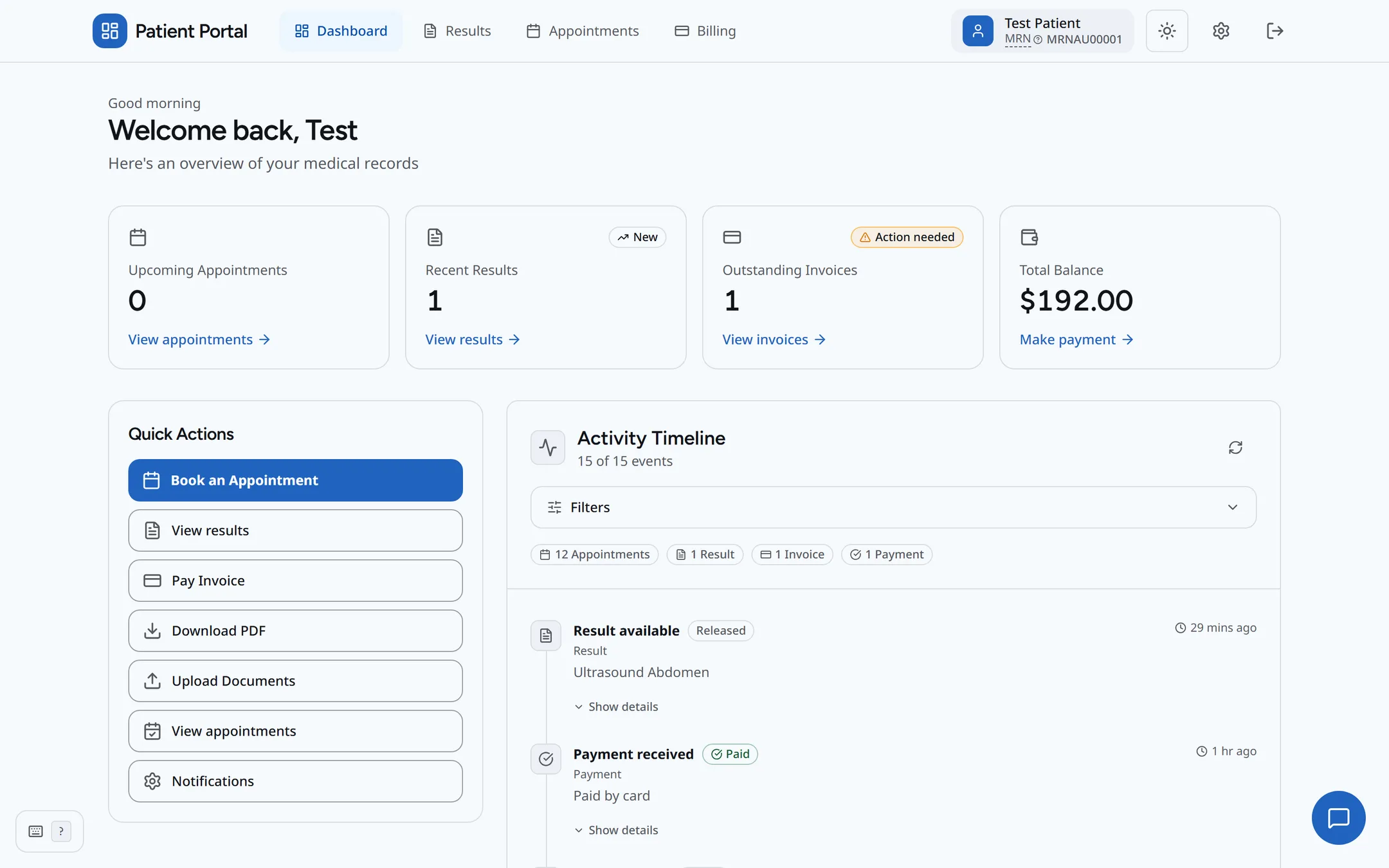
A parent or guardian with access to a child's records can switch between My Records and the child's name.
Results
My Results lists the patient's released reports, as a list, a timeline or a dashboard. A patient can open a report with View Report, and use Download PDF or Print Report.
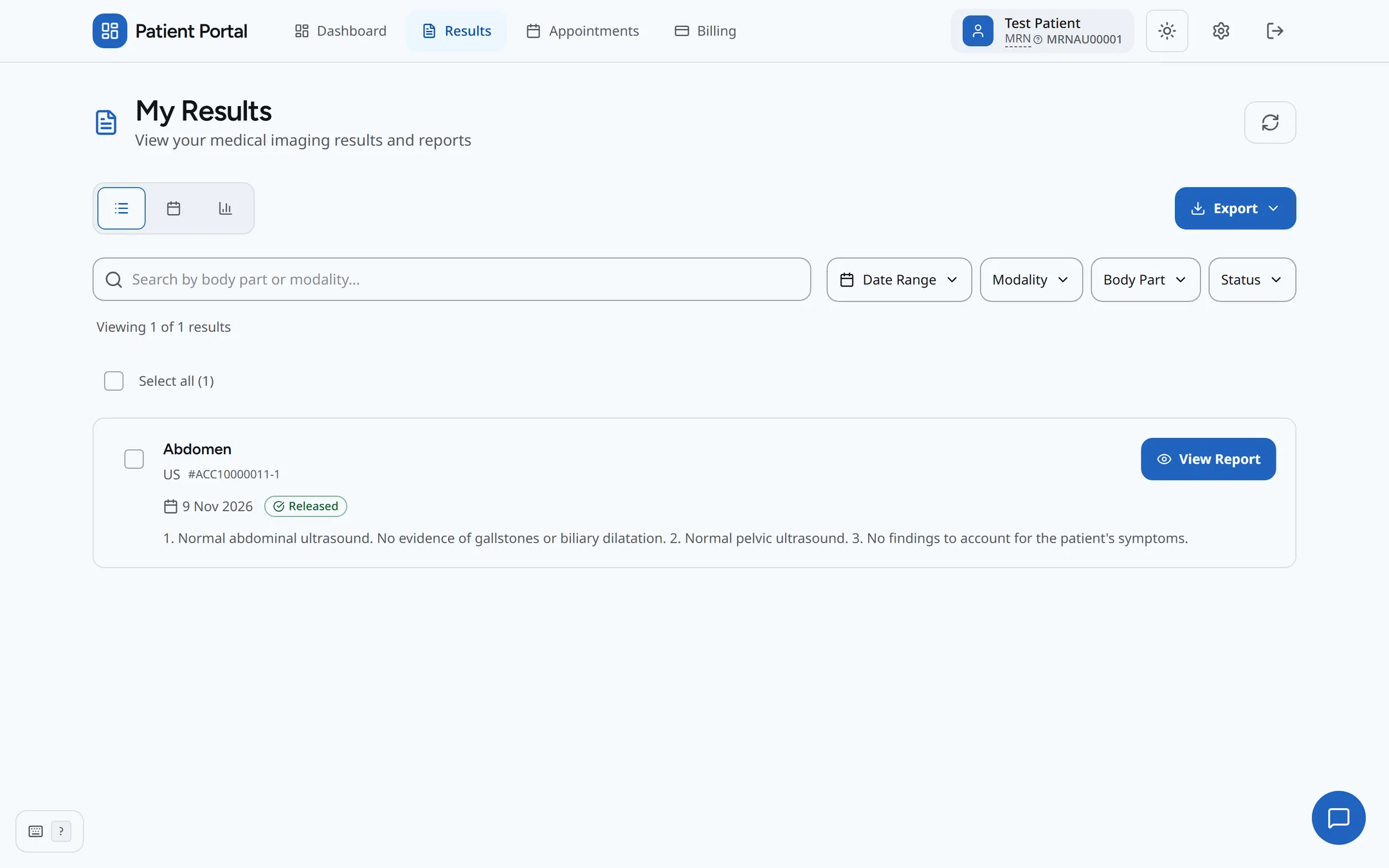
A report only appears once it has been released to the patient. A signed report that hasn't been released yet isn't shown at all (see Releasing results to patients).
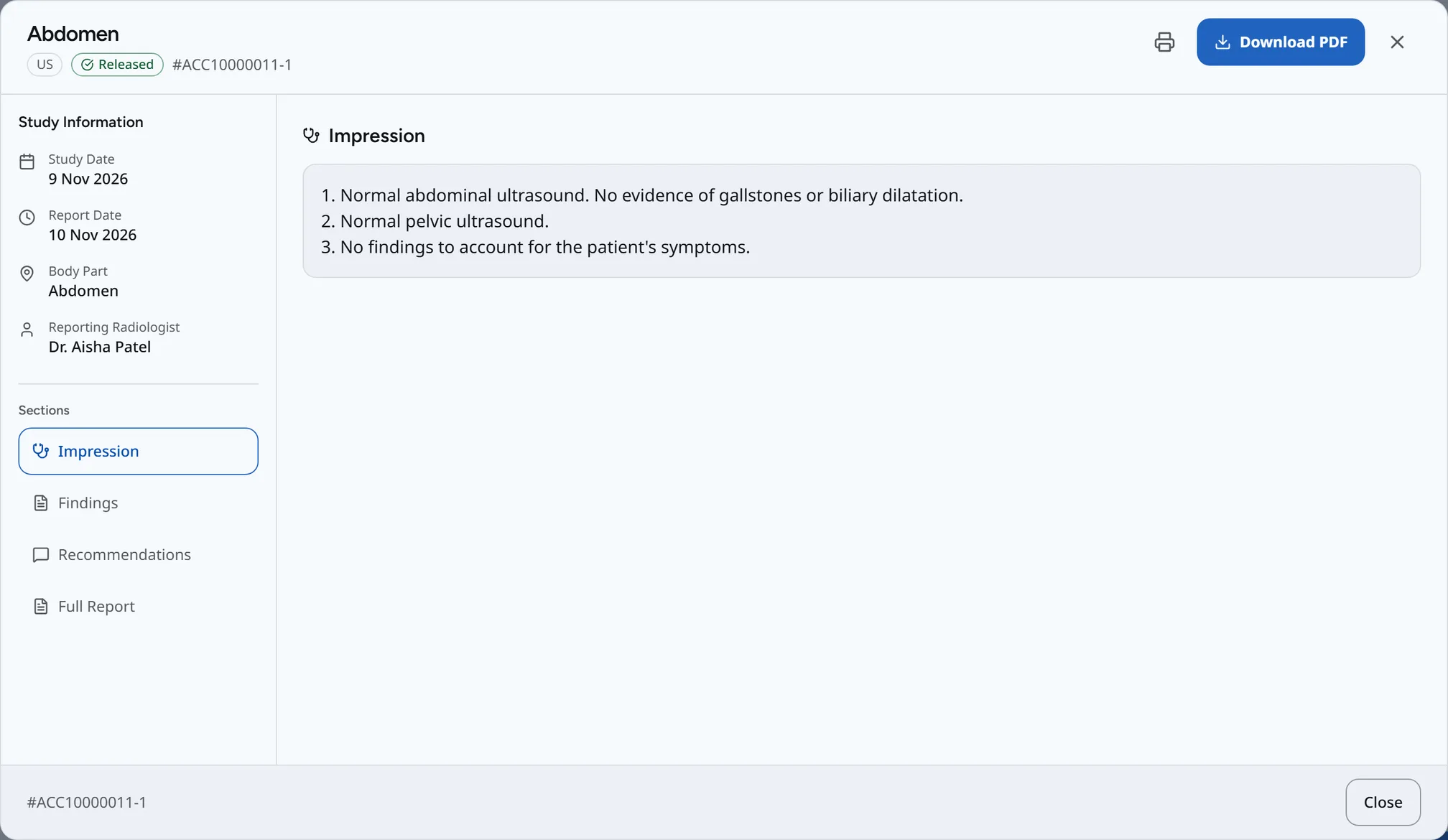
If your practice lets patients view their images, a View images button opens your practice's image viewer. Admins turn this on under Settings, PACS.
Appointments
My Appointments has Upcoming and Past tabs. Patients can download a confirmation as a PDF and cancel an upcoming appointment. If your cancellation fee applies, they are told the amount before they confirm.
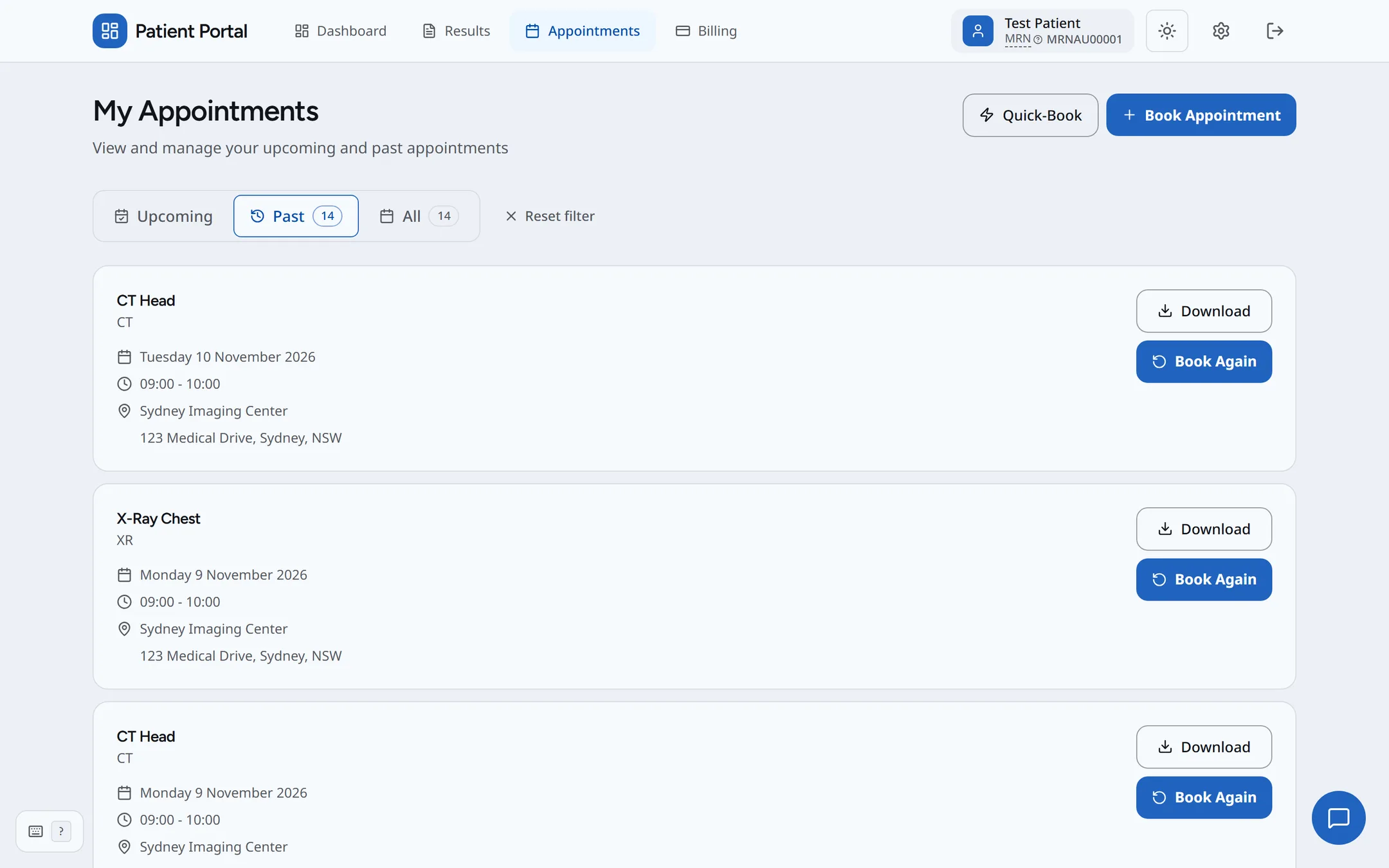
Booking online
- Press Book Appointment.
- Choose the exam type, then the clinic, then a date.
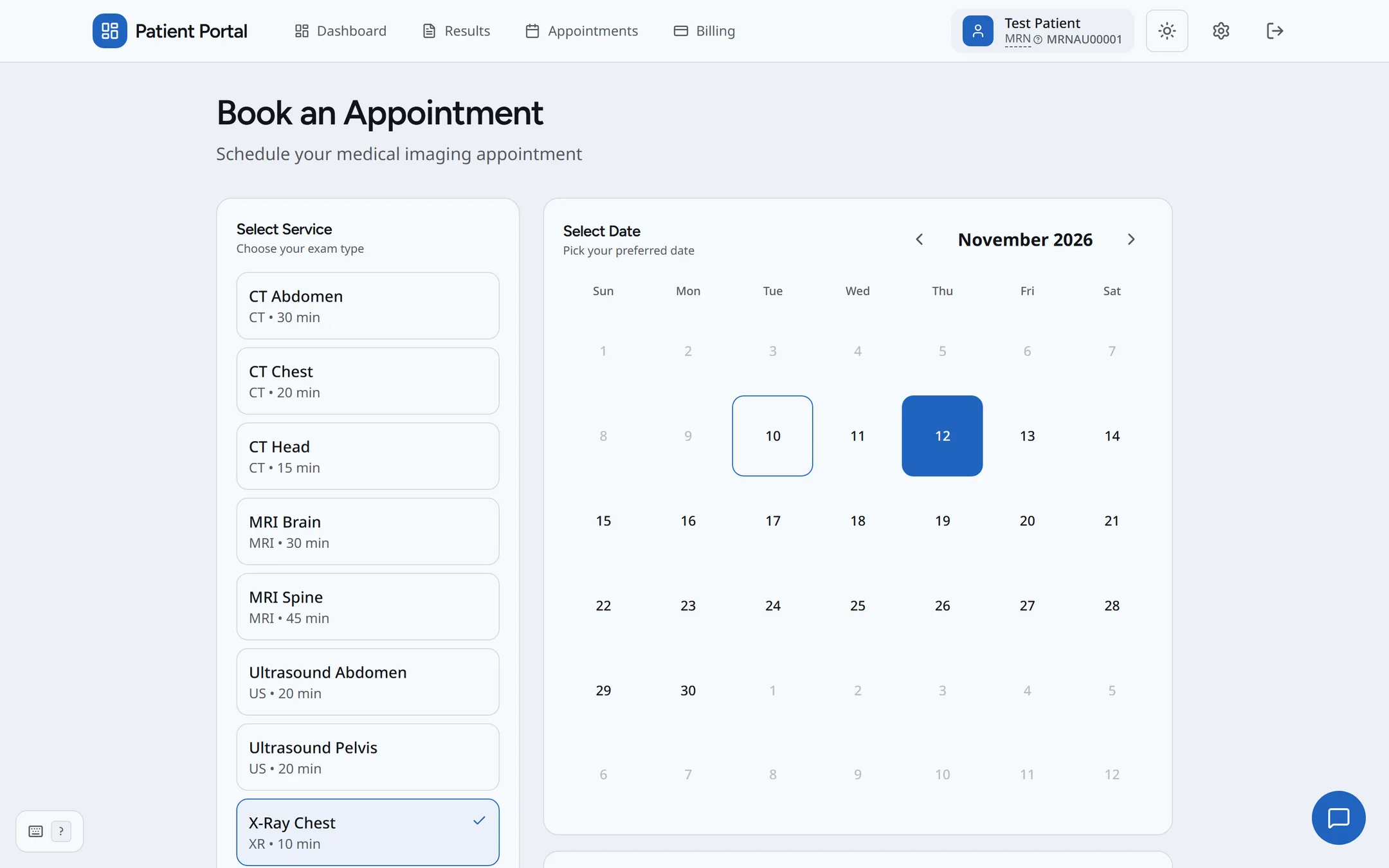
- Tap a time. The time is held for five minutes.
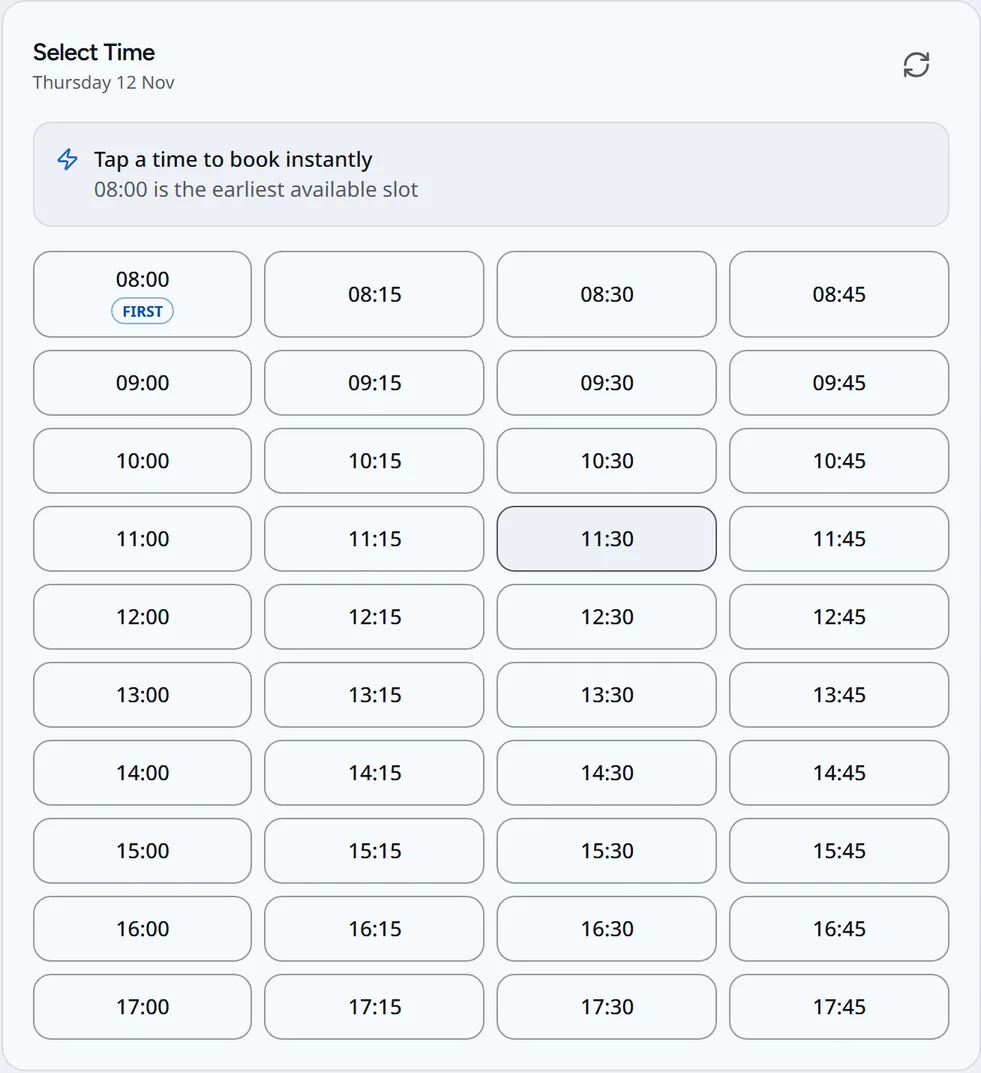
- Press Confirm Booking.
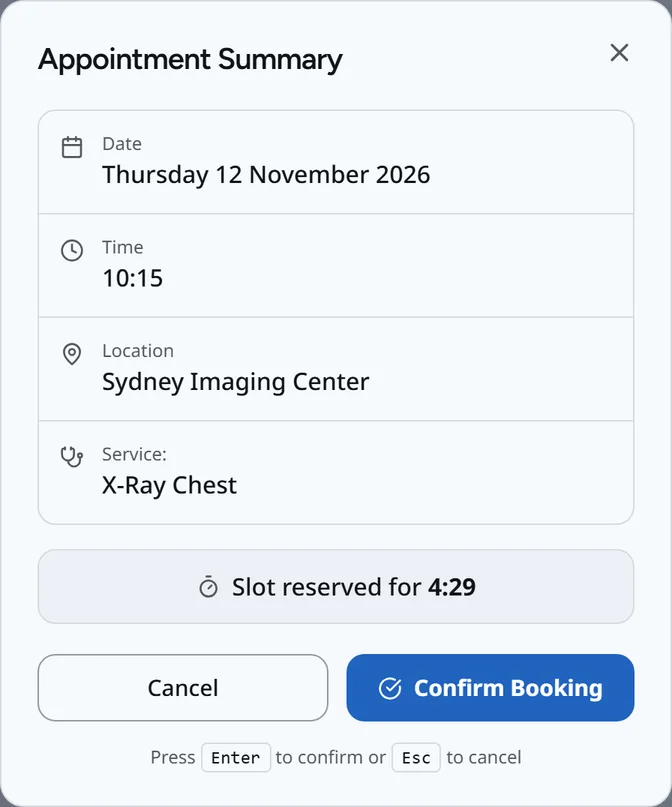
Only active sites and services marked for online booking are offered, and bookings need the notice your practice sets (24 hours unless changed). The booking reaches your practice as a request.
Billing
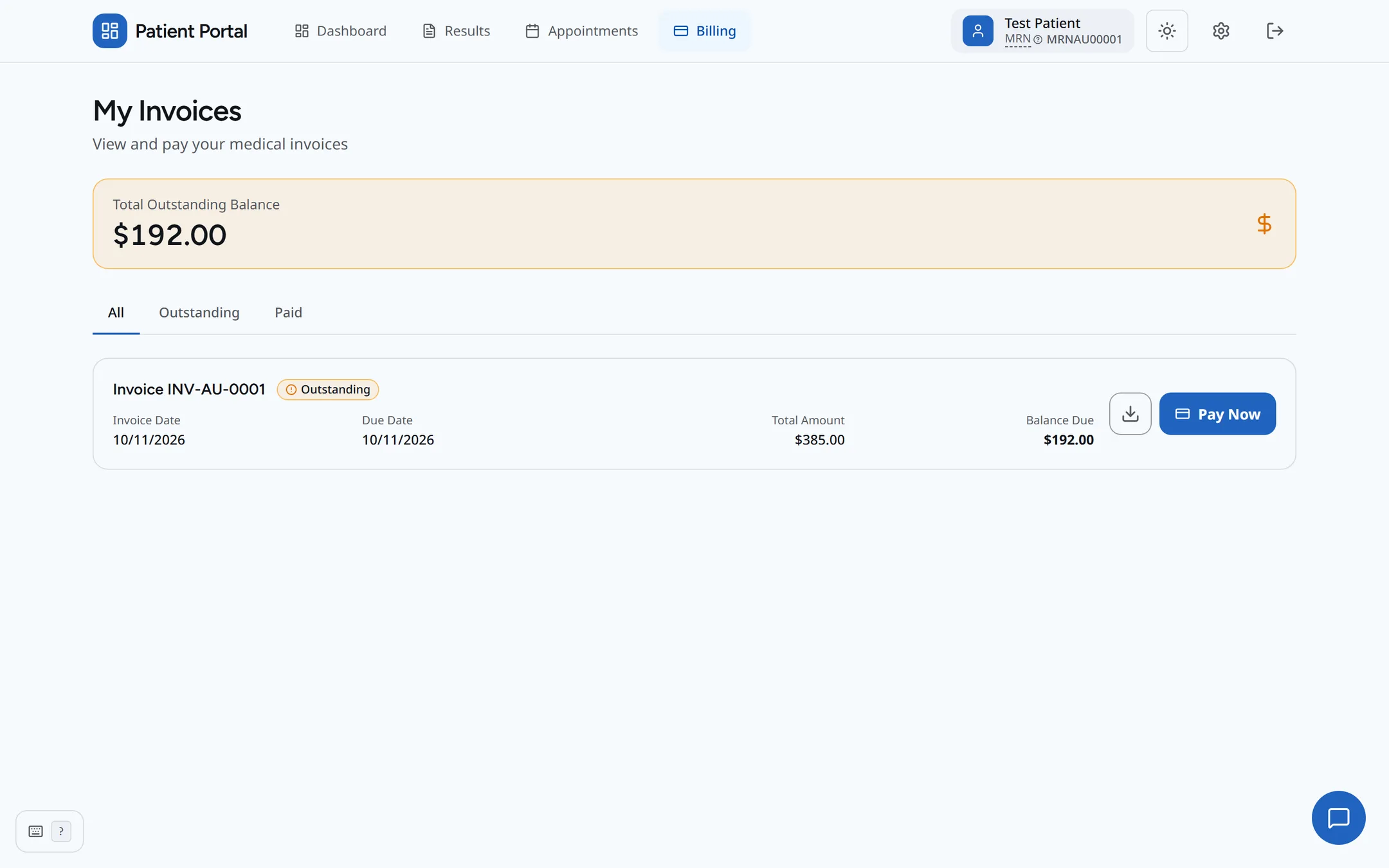
My Invoices shows the Total Outstanding Balance, with Outstanding and Paid tabs and a PDF of each invoice. Pay Now takes the patient to your practice's online payment page for the full balance. If online payments aren't set up, the patient is told online payment is not available.
Profile
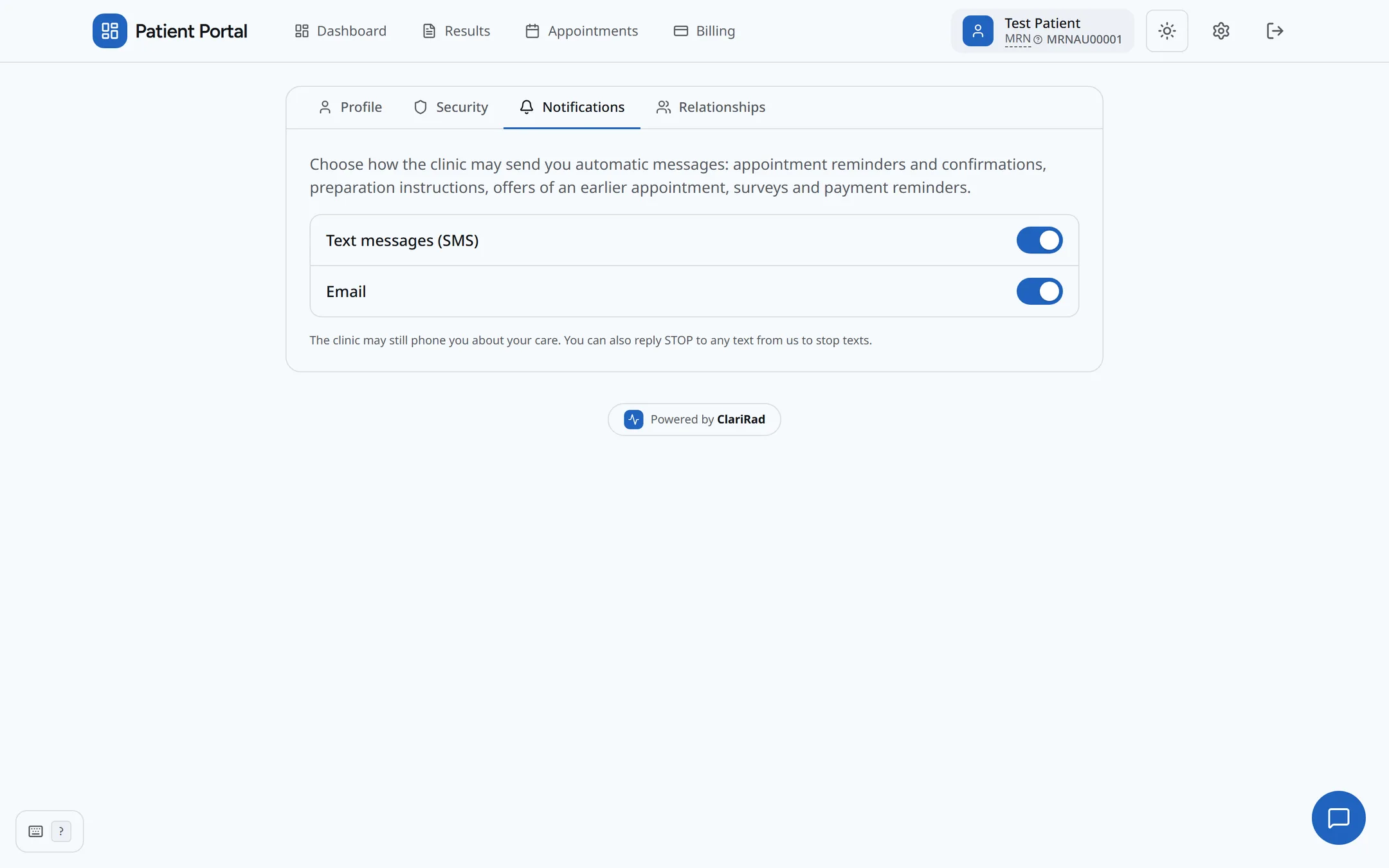
The Profile page has Profile, Security, Notifications and Relationships tabs. Patients can't change their name themselves: your staff update it. On the Notifications tab they choose whether to receive automatic emails and text messages.