Draft — being checked against the app
Appointment reminders and earlier slots
Automatic SMS and email reminders, and offering earlier appointments to patients who want them.
Automatic reminders
Clarirad can remind patients of their appointment by SMS, email or both. Reminders are sent automatically; there is no button to send one by hand. A practice manager or administrator turns them on.
- Open Settings and, under 'Patient Communications', choose 'Reminders & Surveys'.
- Turn on 'Enable Appointment Reminders'.
- Under 'Reminder Schedule', set 'First Reminder (hours before)' and 'Second Reminder (hours before)', and a 'Final Reminder (optional)'.
- Choose the 'Notification Channels', the 'Send Window' (the hours messages may go out) and whether to 'Exclude weekends'.
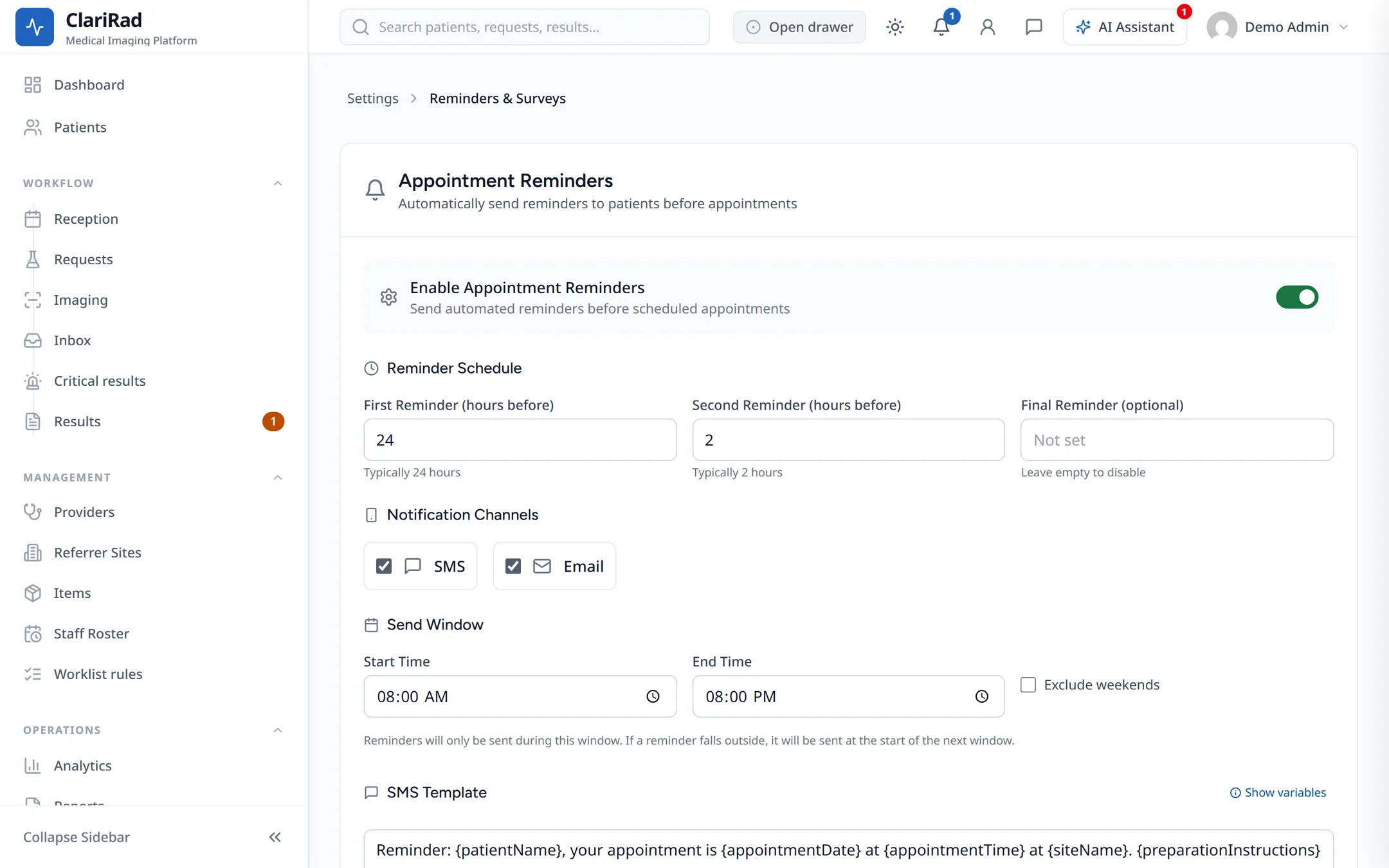
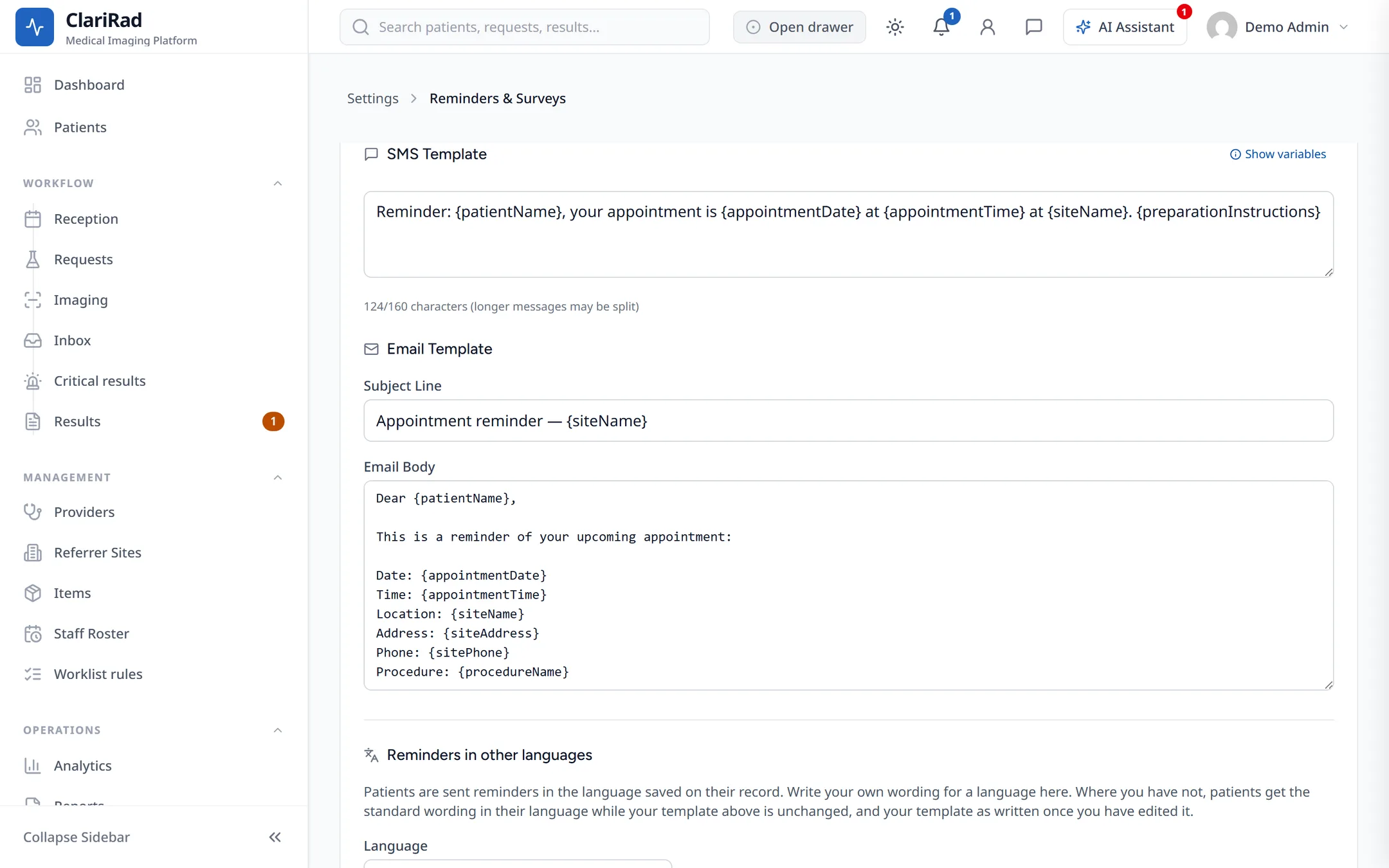
- Edit the 'SMS Template' and 'Email Template' if you want different wording, then choose 'Save Settings'.
SMS reminders need your practice's SMS service to be set up. A patient who has said they do not want a channel, such as SMS, is not sent reminders that way.
Reminders that did not arrive
On the 'Callbacks' tab of the 'Reception' screen, 'Reminders that did not reach the patient' lists messages that failed, for example because of a wrong mobile number. Call the patient and fix their details.
Patients who would come earlier
If a patient would take an earlier time if one came up, record it so Clarirad can offer them the next free slot.
- Right-click their appointment and choose 'Would come earlier'.
- Enter the 'Earliest day they can attend' and the 'Time of day' (any time, morning only or afternoon only), with any 'Notes'.
- Leave the message box ticked to let Clarirad text or email them when an earlier slot opens. It only does this if they agreed to be contacted.
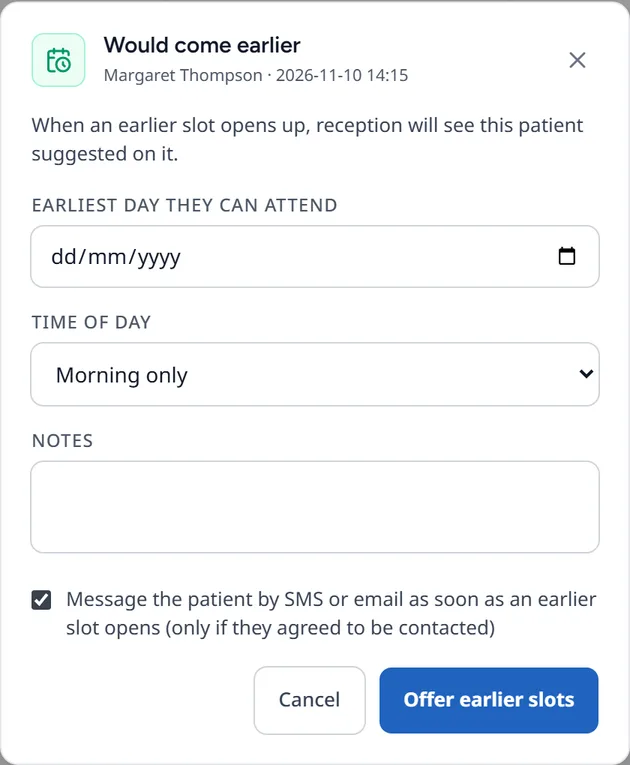
- Choose 'Offer earlier slots'.
When a slot opens, the empty time in the book shows 'Patients who would come earlier'. Choose 'Move here' to move a patient into it, or 'Remove' to take them off the list.
Callbacks and the waiting list
Patients who asked to be rung back to book are on the 'Callbacks' tab. If your practice's SMS service is set up, patients waiting for a callback can be texted when a cancelled or no-show slot opens. See Working callbacks.