Draft — being checked against the app
Rescheduling and cancelling appointments
Move an appointment, cancel it with a reason and any cancellation fee, and record no-shows.
Moving an appointment
- On the 'Schedule' tab of the 'Reception' screen, find the appointment.
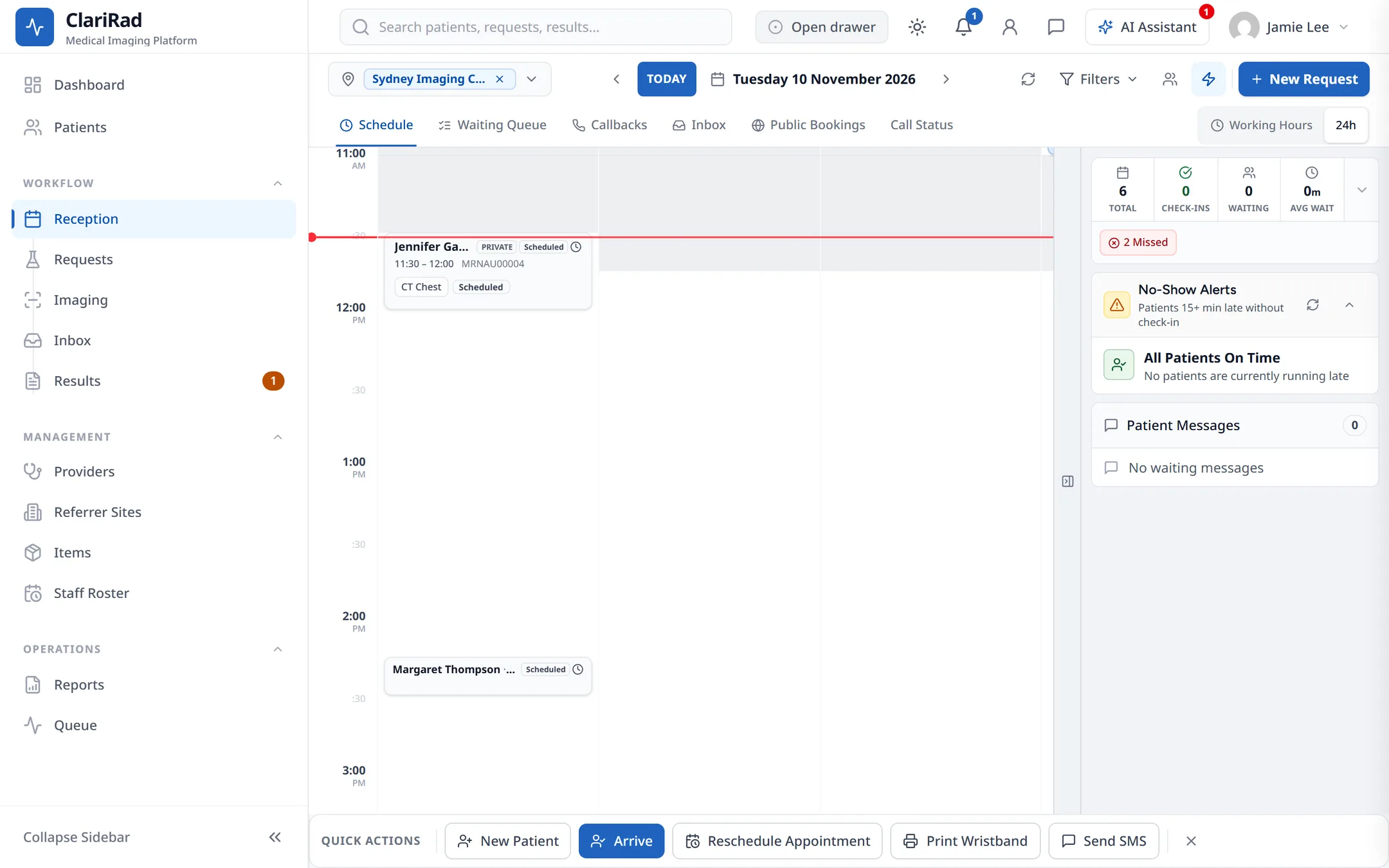
- Drag the card to the new time or room. You will see 'Appointment moved'.
Or click the card to open its request, choose 'Change' on the service and pick a new slot. Appointments cannot be dragged to another site; open the request and rebook there instead.
If the new time is outside the site's trading hours, or nobody rostered can do the exam then, you are asked for a reason before the move is saved.
Cancelling an appointment
- Right-click the appointment (or open its actions menu) and choose 'Cancel appointment'.
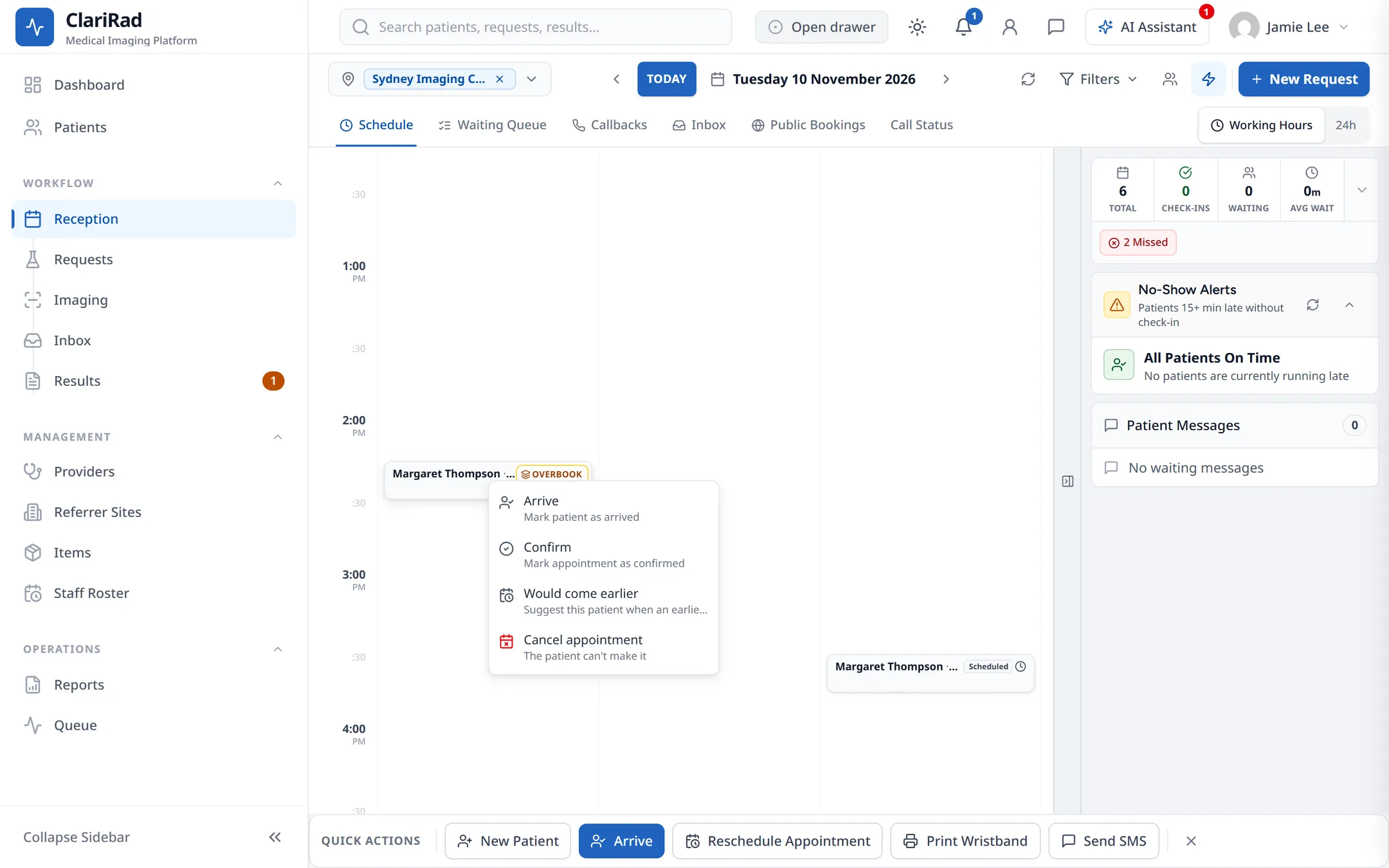
- Under 'Why is it being cancelled?', choose 'Patient request', 'Patient unwell', 'Clinic cancelled', 'Booked in error' or 'Other'. For 'Other', say why.
- If the request has other appointments, tick 'Also cancel the other appointments on this request' to cancel them too.
- Tick 'Patient will rebook' if they plan to book again.
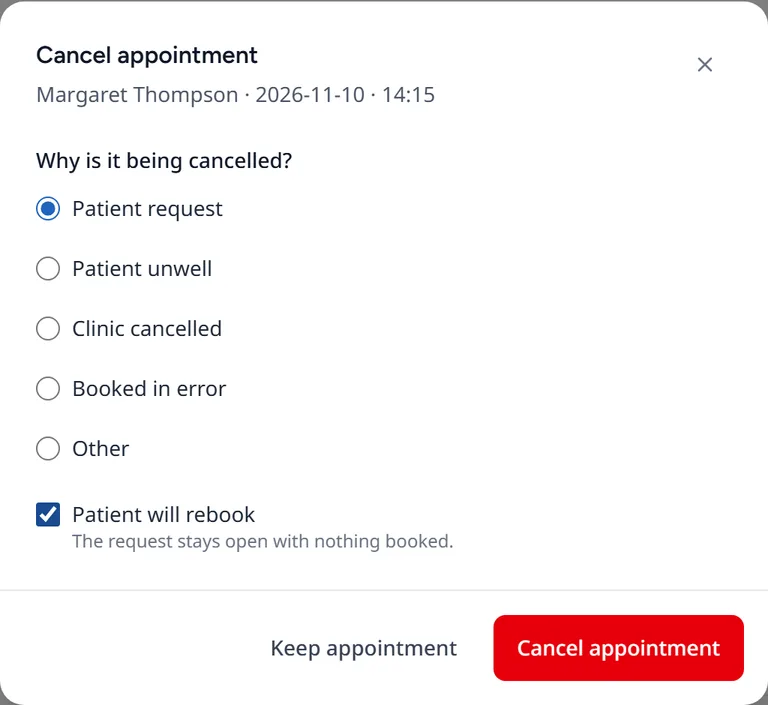
- If your practice charges a cancellation fee, check the fee line. Then choose 'Cancel appointment' (or 'Cancel and charge', with the amount). Choose 'Keep appointment' to back out.
Cancellation fees
If your practice charges a cancellation fee, the window says whether one applies. There is no fee when the clinic cancelled or the booking was made in error, when the cancellation is not on the day, or when the payer is exempt.
To waive a fee that does apply, tick 'Waive the fee' and give a reason (at least five characters). The reason is recorded.
No-shows and late patients
The 'No-Show Alerts' card on the Reception screen lists patients who are running late. For each one you can 'Call' them, mark them 'Arrived', or mark them 'No-Show'.
Clarirad can also mark no-shows for you: if a patient has not arrived a set time after their appointment (30 minutes unless your practice changed it), the appointment is marked 'No Show'.
Filling the gap
A freed slot can be offered to patients who said they would come earlier, or who are waiting for a callback. See Appointment reminders and earlier slots.
Related pages
- Booking an appointmentBook a patient into a room from the appointment book, holding the slot while you finish the request.
- Appointment reminders and earlier slotsAutomatic SMS and email reminders, and offering earlier appointments to patients who want them.
- The appointment book and trading hoursHow the day view shows rooms, holds and blocks, booking outside trading hours, and blocking time in a room.